GETTING STARTED
This getting started document guides you to setup your NCheck system and perform the initial configuration of the attendance control system. You can follow the steps below to set up and configure the system and start attendance recording.
Planning your attendance management system
NCheck can support employee time attendance of any organization from small offices to large multi-site organizations. It is scalable from a single standalone device to thousands of devices distributed in multiple locations. Therefore, it provides the following deployment options. Deployment option is differentiate based on the place attendance data storage.
Deployment Option |
Place of attendance data |
Remarks |
Cloud Subscription |
NCheck cloud |
IT Expertise are not needed |
On Premises |
NCheck on-premises server |
Additional overhead on system maintenance |
Standalone |
NCheck Admin Application |
Simple cost-effective solution for small office |
Start the attendance management system
Starting a NCheck biometric attendance management system prepares the attendance system database and the service to communicate with NCheck clients. NCheck database and the service can be set up
Cloud - In NCheck cloud service
On-premises – NCheck server installed in your place.
Start an attendance management system with Cloud
Go to NCheck web site
Select Sign up button
From the getting started page, select create new organization.
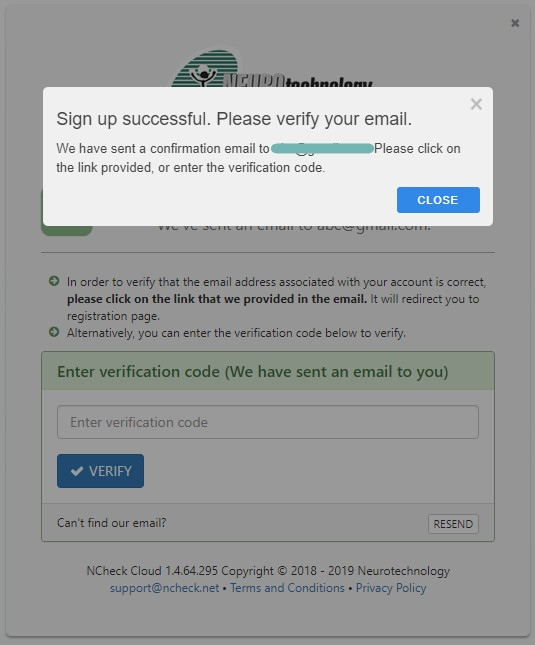
Figure 1 Getting started page of cloud signup
In the create account page, enter full name, email and password. Then check captcha to verify yourself and select the continue button.
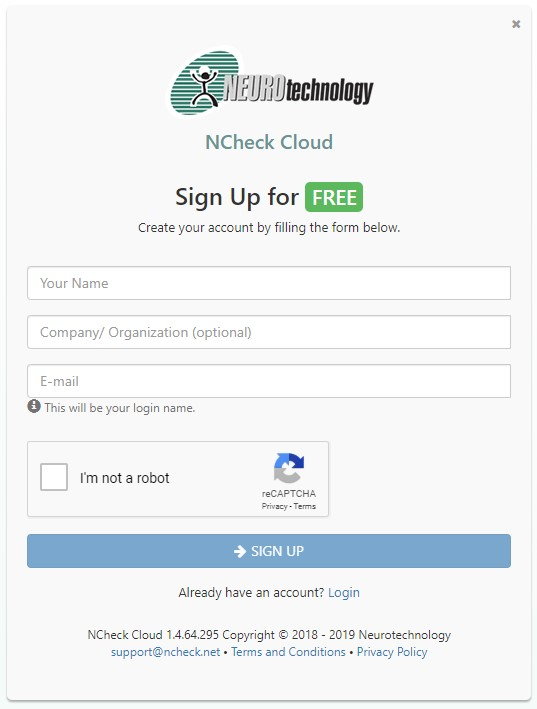
Figure 2 NCheck sign up view
In the next step complete your company details including company name, country. Phone number and organization size. Select continue button.
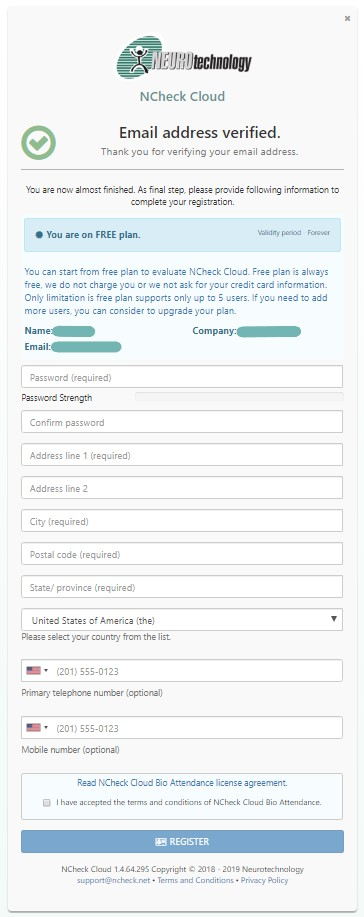
Figure 3 Company details page of the cloud signup
In the next step you will be asked where did hear about NCheck. Check the information source from available and select the continue button.
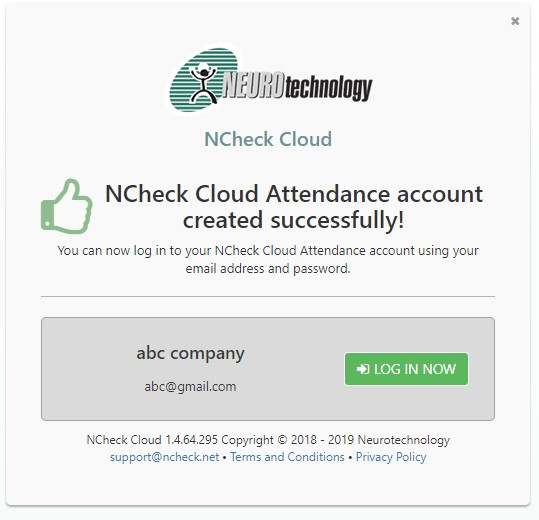
Figure 4 where did you hear about us page of cloud signup
After that you will see the signup completion page as below. It includes NCheck. Clients download links to download client. If you need demonstration about using NCheckcloud bio attendance and visitor management system, you can request from request demonstration button. Select Go to control panel option to login to the web control panel.
Note
Free plan will be assigned to your NCheck Cloud subscription. You can change the plan of your subscription from the administration control panel. Refer pricing for more details about available subscriptions.
Start an attendance and visitor management system with the server
NCheck can be set up in Windows and Linux platforms.
Setup NCheck server in Windows
System requirements
Microsoft Windows 8 or higher operating system
1GB of disk space
4GB of RAM
JAVA runtime environment 11
One biometric capture device such as a camera, fingerprint, or iris scanner. Android and iOS, inbuild camera, Windows integrated and USB web cams are used for face capture. For other supported IP cameras, fingerprint readers and iris scanners, visit support devices at our web site
Download and install
NCheck can be downloaded from product downloads section of the web site
Note
Important: Your windows user account should have administrative privileges to install NCheck server.
Note
Note: If the required Java runtime environment is not installed, Installer will ask to install Java runtime environment and stop NCheck installation.
Run the installer.
Activate NCheck license
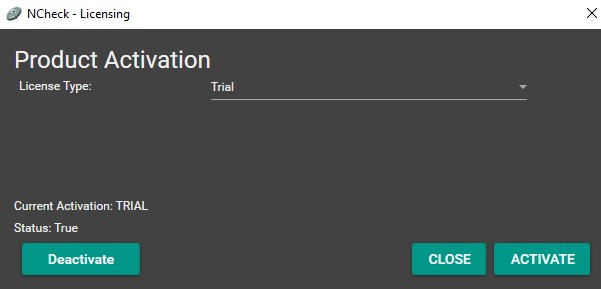
NCheck installer will show the license activation window After the successful installation of the server.
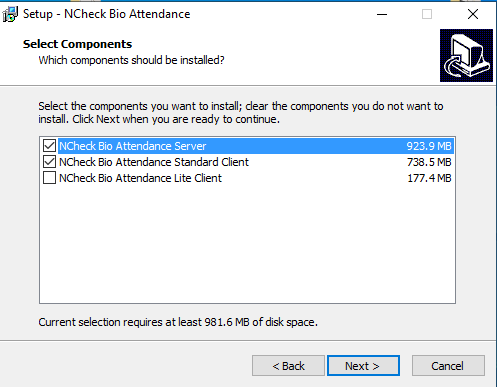
Figure 5 Licensing window for NCheck Admin client for Windows
Starting NCheck server
Finish installation
Optionally, you can choose to launch Server Configuration window, NCheck Admin client and User’s guide. Completion dialog also shows the NCheck server status and TCP port of the server.
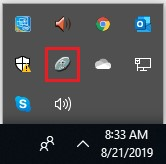
Figure 7 NCheck installation completion dialogue for Windows
Refer Install for windows section for more details about install NCheck server in Windows.
Note
You can activate the trial for evaluation purposes. Trial activation requires permanent internet connectivity. See license activation section for more details.
Setup NCheck server in Linux
Refer this link to setup Docker image for Linux. Refer Install On-premises server on Linux section for more details.
Set up attendance and visitor management system
Following basic configuration requires to set up the attendance and management system for attendance and visitor managements
Launch web control panel
NCheck administration and configuration application is NCheck control panel application. This is a web-based application that can be accessed using popular web browsers using following URL.
URL |
Remarks |
|
Cloud |
||
On Premises |
|
NCheck control panel launcher application with extended data capture capabilities is available with the NCheck Server and NCheck client installations. This application can be launched from
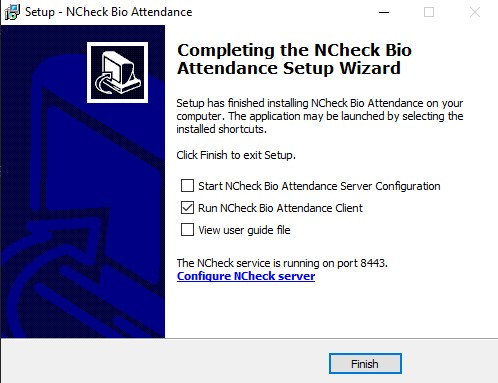
Figure 8 NCheck system tray menu view
Server |
Right click on the NCheck server tray application icon and select “Control panel” menu item as shown in Figure 8 . |
Windows client |
Open the application menu and select login to control panel. |
Android Client |
Note
NCheck server interface will work with recent versions of Mozilla Firefox, Google Chrome, Microsoft Edge, Opera and most common web browsers. It does not work with the Internet Explorer browser.
Sign in to web Control Panel
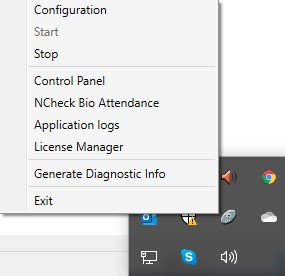
Figure 9 NCheck login page
If you used used gmail or intuit account to sign up with NCheck cloud, you can use Gmail/intuit credentials to login with NCheck Control panel. Otherwise, you can use username and password used to sign up with NCheck cloud. For on-premises server, the default username and password are “admin”.
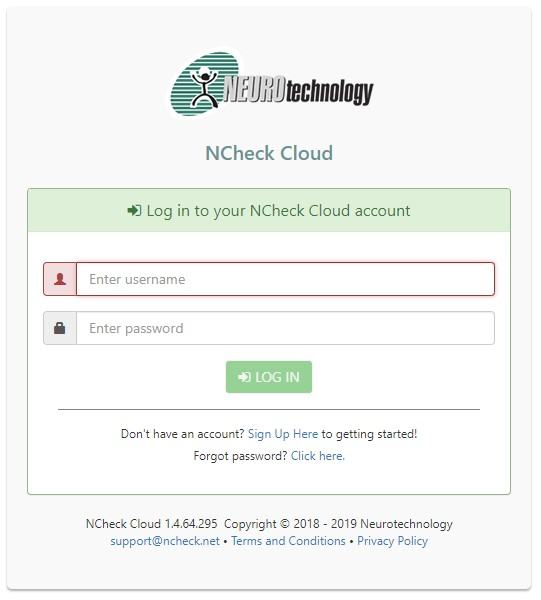
Figure 10 NCheck control panel initial dashboard view
After signing in, you will be landed in the NCheck Control Panel Dashboard as shown in Figure 10 Once you logged in first time, it will show the onboarding checklist to help you to configuring the stet Refer Sign in to web Control Panel section for more details about sign in NCheck control panel. When signing in second time onwards, you will be landed to the last time accessed page. If the initial required data is not set up, it will be notified to perform the initial setting up. First the users should be enrolled as mentioned in Add new user section.
Add a new user
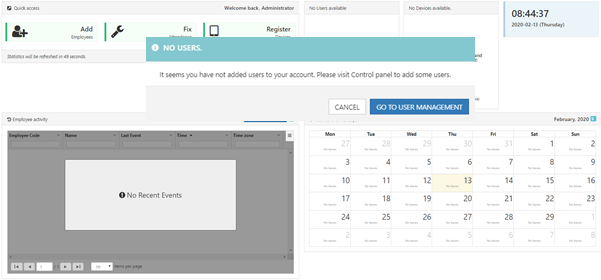
Figure 11 User management view of control panel
Select the Add button to create a new user.
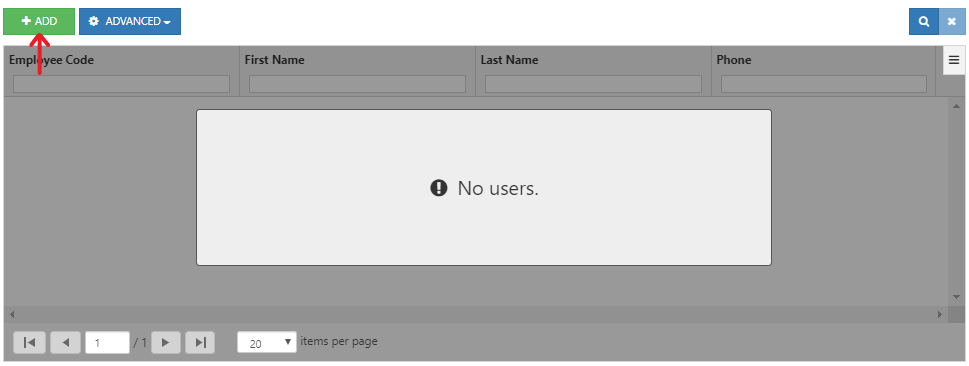
Figure 12 NCheckr add new employyr view
Refer Add employee/visitor section for more details about add users. After adding users, refer Enroll user biometrics section to enroll user biometrics.
Enroll user biometrics
User biometric is used to authenticate users in attendance recording.
Select User
Select “Update biometrics” button in the Employee view
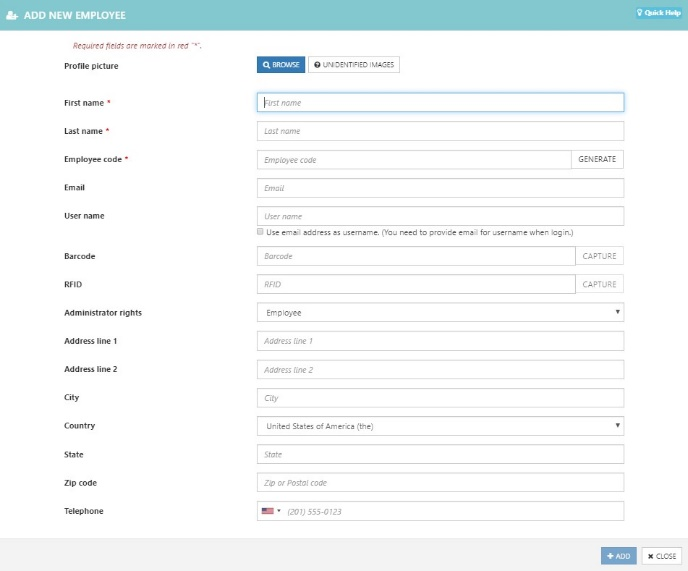
Figure 13 Launch enroll biometric for the selected user
User Biometric data dialogue can be used to manage user biometric. It allows adding biometrics
From event history
Capture from devices such as camera,
fingerprint and iris scanners using NCheck client applications.
From images in the local file system
Refer Update employee/visitor biometrics section for more details about enroll biometrics.
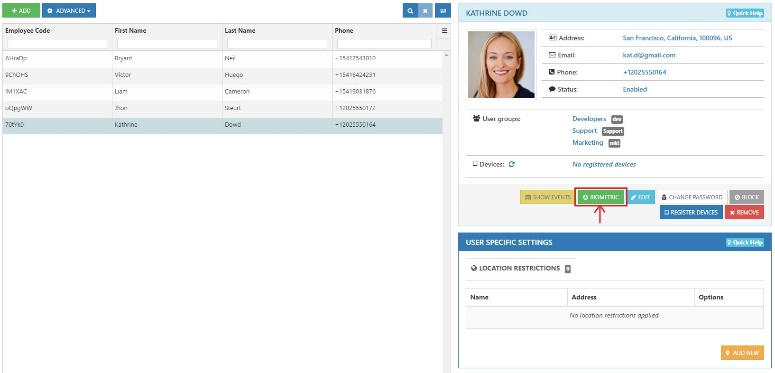
Figure 14 Biometric data dialogue
After enrolled user biometrics, you are allowed to Set up client or either Create user groups (Optional) shown in Figure 15 .
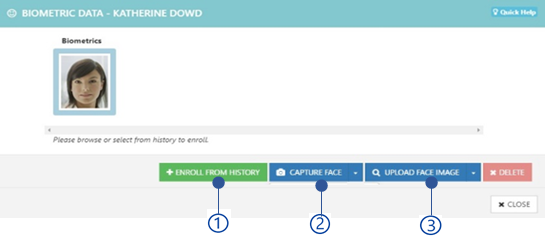
Figure 15 proceed to setup clients flow
Create user groups (Optional)
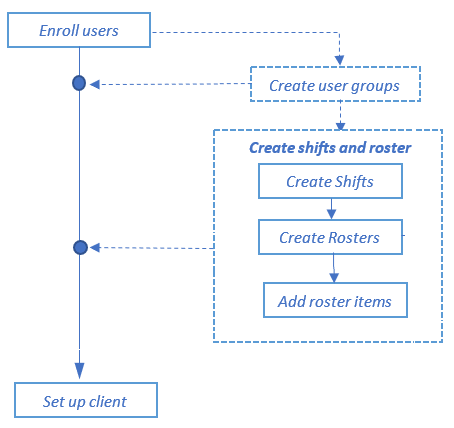
Figure 16 User group management view
User group represents multiple users, and all the settings applied to user group apply to each user representing the user group. To create the user group,
Select User group management in the control panel.
Select Add button
User group detail dialogue is shown in below
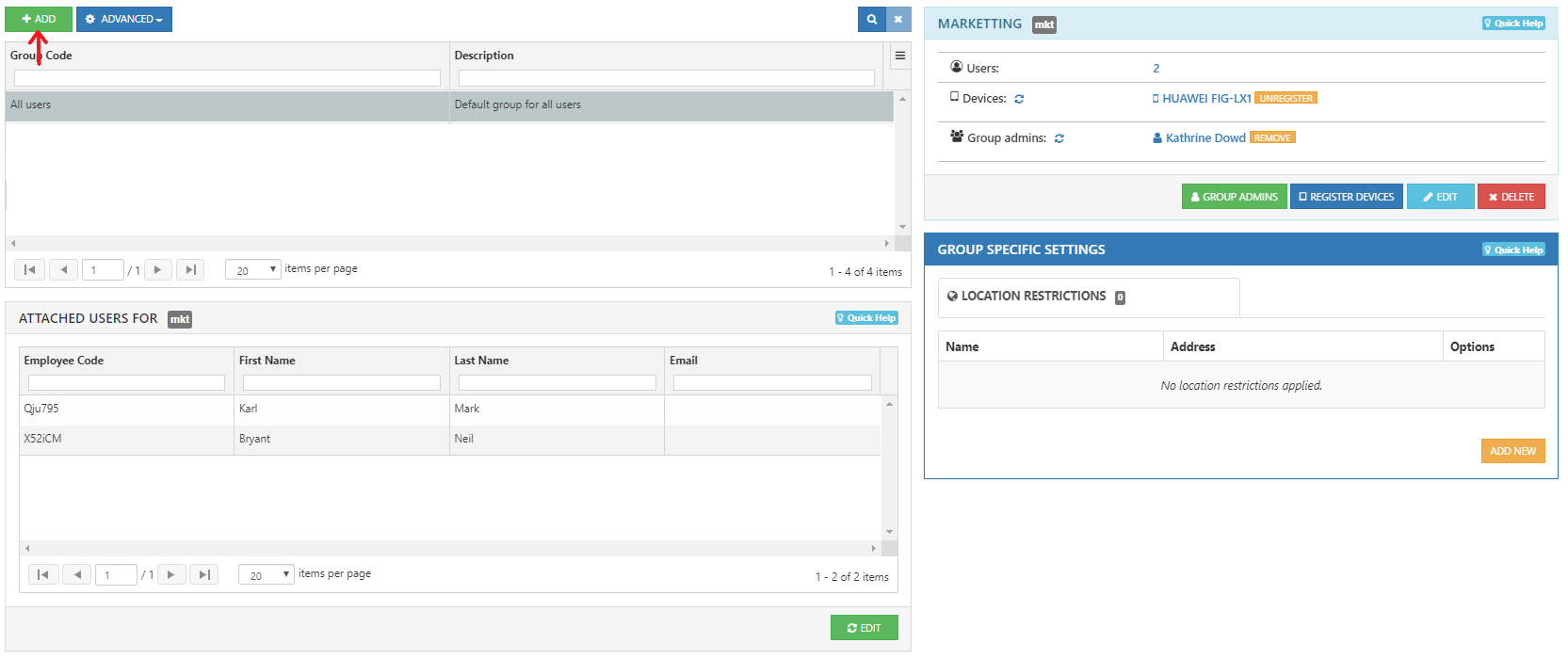
Figure 17 Group details of ass user group dialo
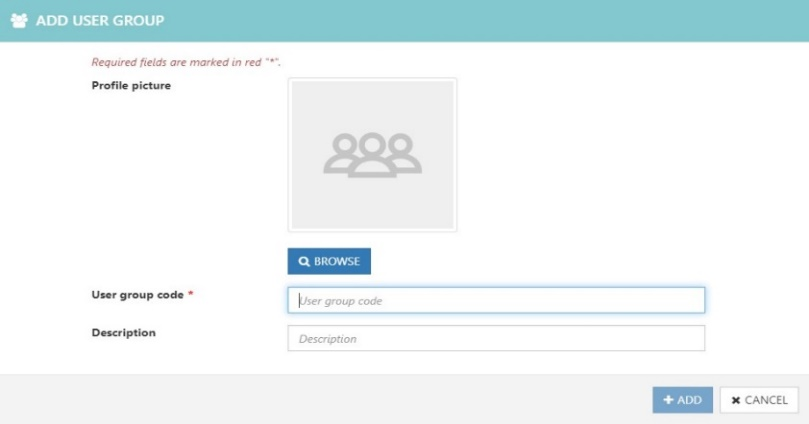
Figure 18 Add users of the Add user group dialog
Refer Manage user Groups section for more details about user group management.
Create visitor appointment (Optional)
To manage visitor attendance, first an appointment must be made for each employee for the selected date as below.
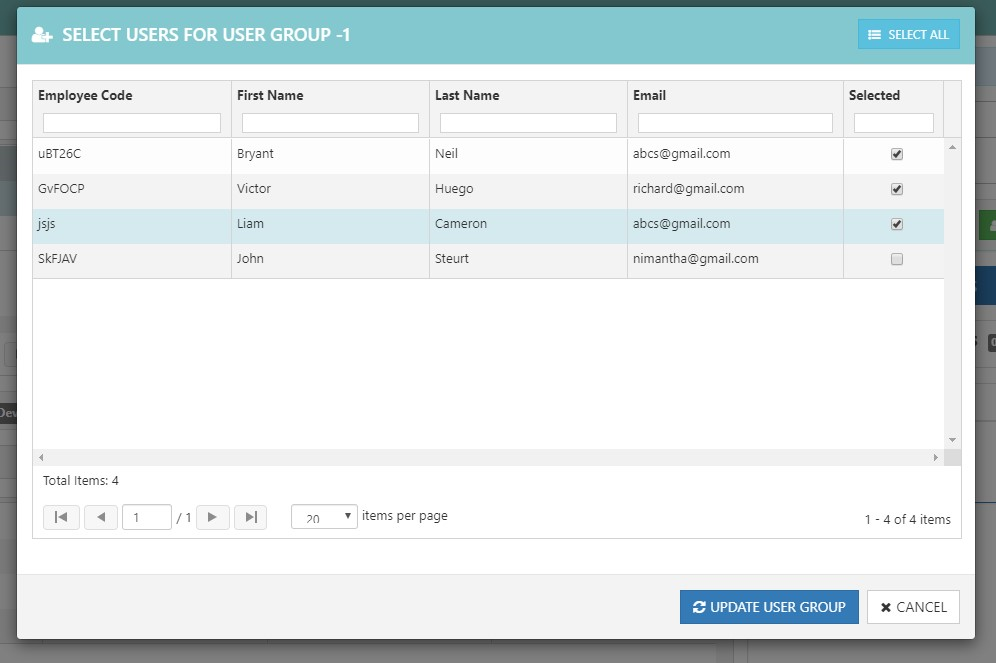
Figure 19 Appointment management view
Select new appointment button to create appointment for visitor schedule as below.
Figure 20 New appointment dialog
Select appointment start and end time and visitor details and select create button to create appointment Once appointment created, to enroll biometrics for visitor select “Biometrics” button from the visitor details section of the appointment view as below.
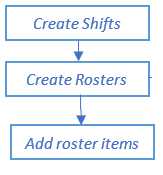
Figure 21 Visitor details of appointment view
Refer Visitor details section for more information about updating visitor biometrics.
Set up client devices
Install client application
The NCheck client applications are available for Windows, Android and IOS platforms.
Install NCheck clients in Windows
Refer Install for windows section for more details.
Install NCheck clients in Android
Refer Install client for Android section for more details.
Install NCheck Attend client in Android
Refer Install NCheck Attend client for iOS section for more details.
Register client application
The Client application is required to register with the server to perform attendance recording. To register a client application.

Figure 22 Register device button in the user group management view
Go to user group management in control panel
Select a user group
Select Register devices button
It will show the device registration dialogue shown in Figure 23 for the user group. To register the device,
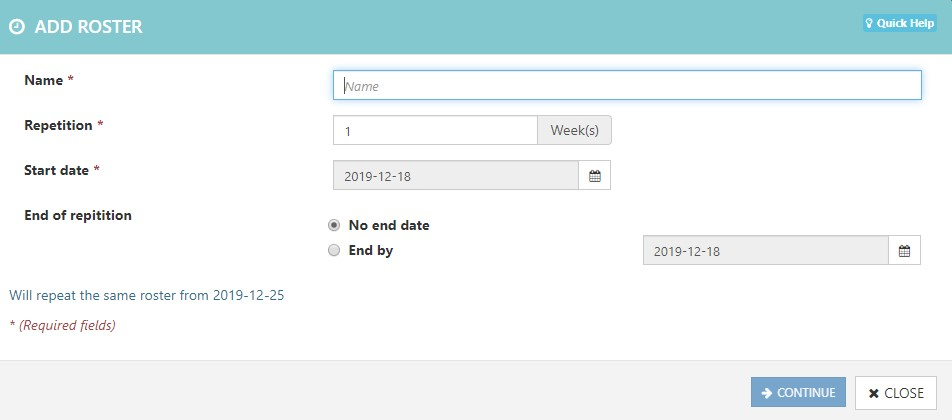
Figure 23 Device registration view
Launch NCheck Admin client
It should show the device registration window.
Select On-premises option
Enter registration token
Search or enter server user in <server:<port> format. When the server is running in the same computer, it can use localhost:<port>. Default port number is 8443.
Select the Connect button to register.
After Successful registration, the client application is ready for attendance recording
Refer Client registering view section for more details.
Record Attendances
NCheck Attend for Windows, Android and IOS
Attach a camera compatible with the NCheck as mentioned in the website, if it is not available.
Face to the camera directly and select the capture button when the preview is available with the device.
NCheck Admin for Windows and Android
Attach a compatible biometric device (face, fingerprint or iris) with the NCheck as mentioned in the website, if it is not available with the device.
View recorded attendances
Select Manage Event logs to view all recorded events.