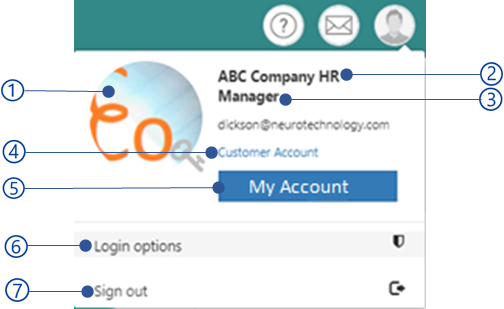
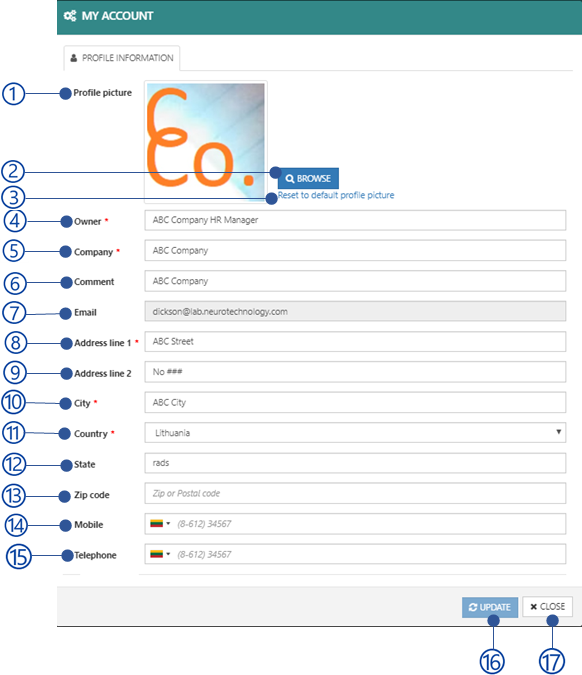
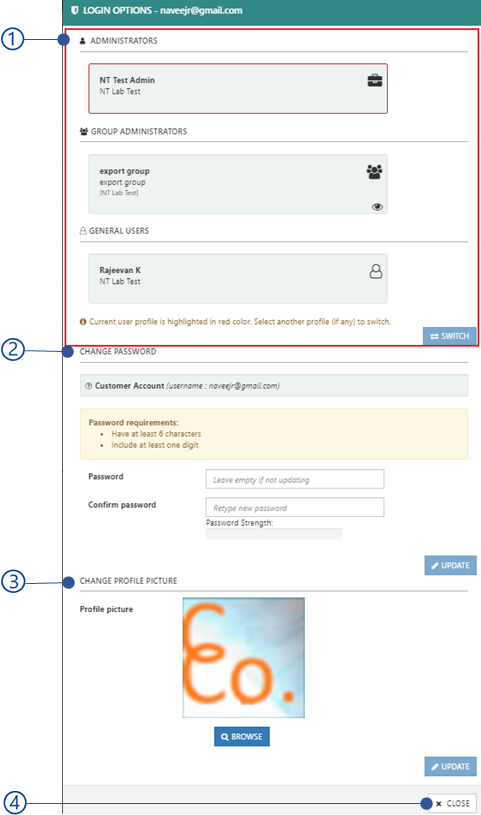
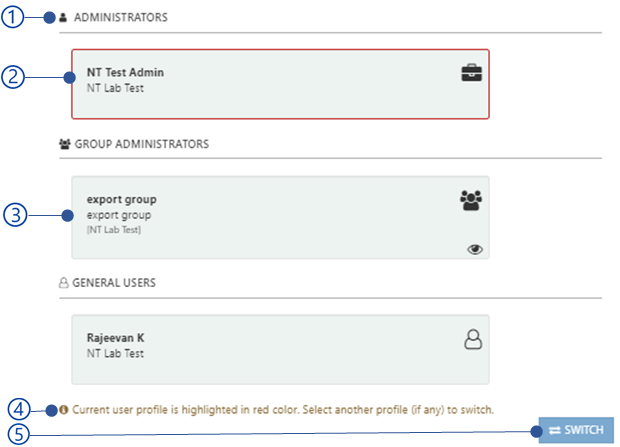
WEB CONTROL PANEL

NCheck administration and configuration application is a control panel application. This is a web-based application that can be accessed using popular web browsers using following URL.

Start web Control panel

Table 13 Launch NCheck control panel from Browser

URL

Remarks

Cloud

https://cloud.ncheck.net/login

On Premises

https://server:port/login

  1. Server – Sever name or IP address

  2. Port – Service port configured on the server. Default port is 8443.

NCheck control panel launcher application with extended data capture capabilities is available with the NCheck Server and NCheck Admin client installations. This application can be launched from

Table 14 Launch NCheck control panel from server and clients

Server

  1. Right click on the NCheck server tray application icon

  2. select Control panel menu item as Figure 42

Windows Admin client

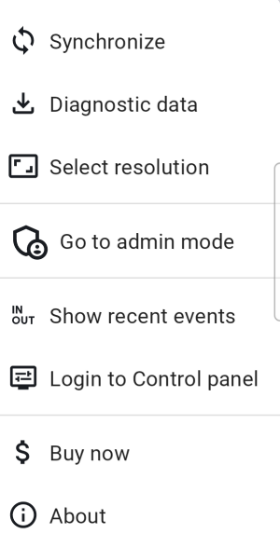
  1. Open the application menu

  2. select control panel as shown in Figure 54 .

Android Admin Client

  1. Open the side bar menu

  2. Select control panel as shown in Figure 55

_images/image114.PNG

Figure 54 NCheck Windows Admin client main menu

_images/image116.PNG

Figure 55 NCheck Android Admin client main menu

Note

NCheck server interface will work with recent versions of Mozilla Firefox, Google Chrome, Microsoft Edge, Opera and most common web browsers. It does not work with the Internet Explorer browser.

Sign in to web Control Panel

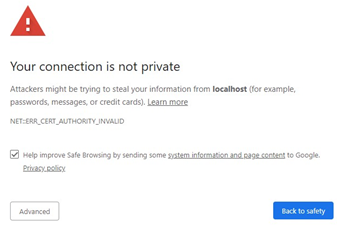
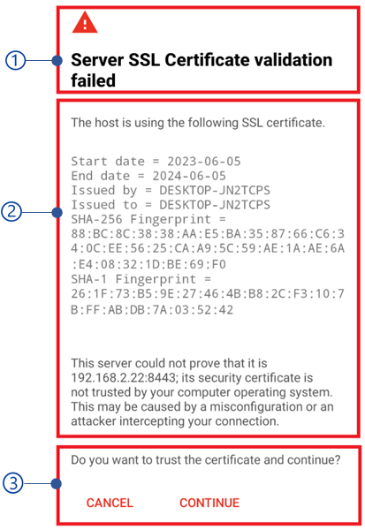
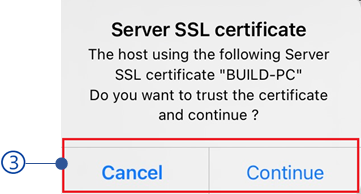
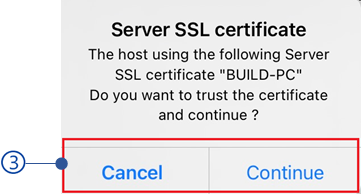
Once the NCheck control panel sign in is triggered in on-premises mode, you may see browser warning as shown in Figure 56 because it fails to validate the SSL certificate with trusted certificate authority. To prevent this warning

_images/image118.PNG

Figure 56 Browser warning without SSL certificate

  1. You may use the browser option to skip and proceed to the site.

  2. You may use valid SSL certificate as mentioned in the On-premises server configuration section.

  3. You may add your server to the trusted server list.

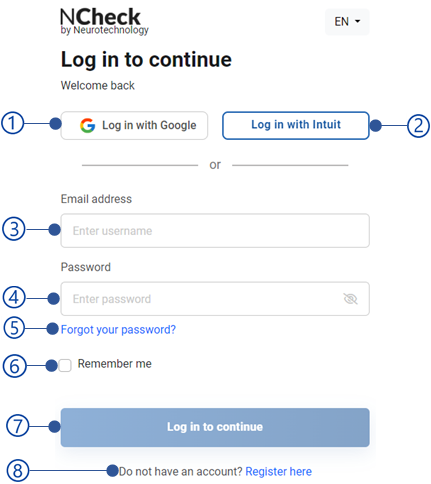
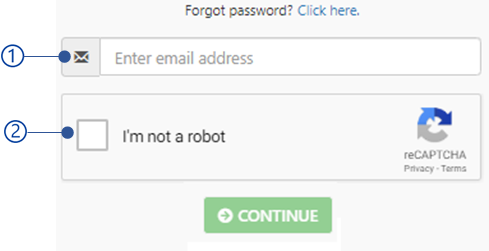
Once the warning has been resolved as mentioned above, user will be asked to login to NCheck control panel as shown in Figure 57 .

_images/image120.PNG

Figure 57 NCheck control panel sign in

  1. Google login button

    If you are using your Gmail email address to login to the NCheck control panel, you can use this option to login into control panel, signing with the Gmail account.

  2. Intuit login button

    If you have Quickbook account, you can login to the NCheck control panel if you are using same email address.

  3. Username

  4. Password.

  5. Forget password link

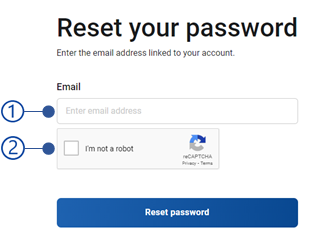
    The forgot password view appears as shown in Figure 58 .

    1. Email address

    2. Security check for human

    3. Reset password button

      Password reset email will be sent to the email address if that is specified to a user in NCheck. In on-premises mode Administrator allows to reset user password as mentioned in Change password section. The error message could appear as shown in Table 16

  6. Remember me

    Once you logged in to the NCheck control panel, the logged in session will expire after limited time and you will be asked to login again. To continue the logged in session without expiration, select this option.

  7. Login button

    After successful login in, you will be landed in the NCheck Control Panel Dashboard. The possible error messages after selecting login button are shown in Table 15

  8. Sign up link

    This is available only on NCheck Cloud. It loads the signup page for subscribing to NCheck Cloud.

Note

For NCheck on-premises server, the default admin username and password are “admin”.

Table 15 Error messages of web control panel sign-in

Error code

Error message

2018

Invalid username or password.

Table 16 Error messages when reset password

Error code

Error message

2019

Could not find the user associated with {email address} email address.

_images/image122.PNG

Figure 58 Request password reset

After signing in, those who have administrator privileges will be landed in the NCheck Control Panel Dashboard, it will show a tour to demonstrate how to setup NCheck for attendance recording.

_images/image124.PNG

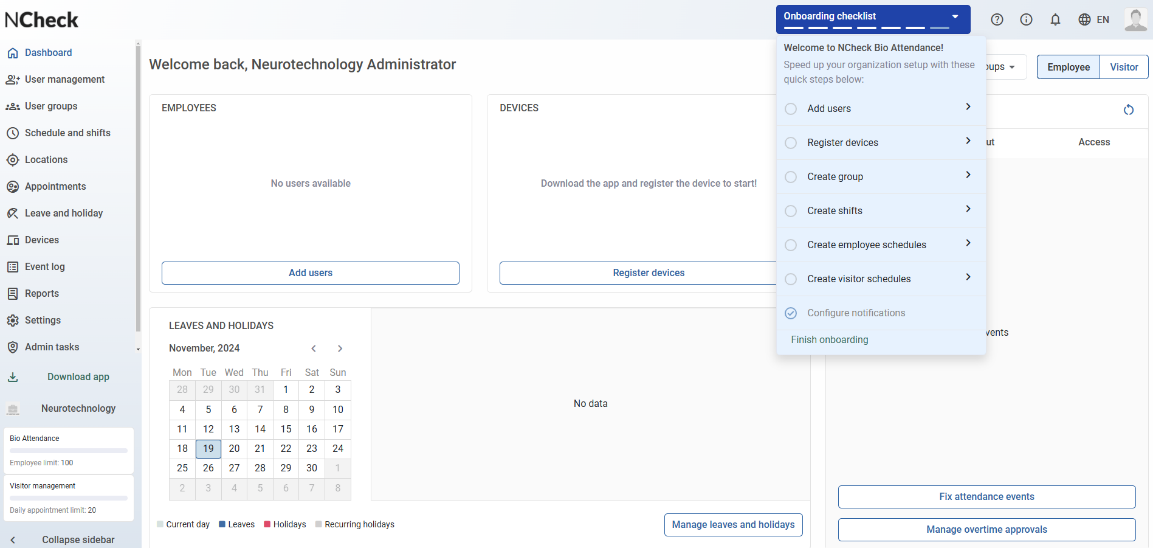
Once you login to the system, it will show onboarding checklist menu in the Navigation bar . This will guide you to set up the attendance and visitor management system for the first time use. The onboarding checklist is shown below.

_images/image125.PNG

Figure 59 Onboarding checklist menu

  1. Onboarding checklist progress

  2. Onboarding checklist

    1. Add users

      This will open Add employee dialog as mentioned in Add employee/visitor section.

    2. Register devices

      This will open Register device dialog as mentioned in Register device section to generate registration token to register NCheck client device with the system.

    3. Create group

      This will guide open Add employee group dialog to create new employee group as mentioned Create group in section.

    4. Create shifts

      This will open Add shift dialog to create new shift as mentioned in Add/edit shift section.

    5. Creates employee schedules

      This will open create schedule dialog to create employee schedule as mentioned in Add/edit bio attendance schedule section.

    6. Create visitor schedules.

      This will open create schedule dialog to create visitor schedule as mentioned in Add/edit visitor schedules section.

  3. Finish onboarding

    Once the onboarding checklist is done, select the finish onboarding section to close the menu.

Once the initial setting up has done, users will be able to access the NCheck control panel as assigned roles mentioned in Web Control Panel Roles section.

Web Control Panel Roles

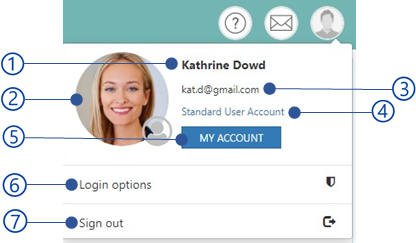
The current role of the control panel logged in user is shown in the login options. It can be

  1. Account administrator

    Account administrator is the owner of the account. He has full authority and can perform all administrative operations.

  2. Administrator

    System users can also be assigned administrative privileges. These administrators can do all the admin operations except subscription management and account detail editing.

  3. Admin Auditor

    Admin auditor can access all control panel data like administrator. But cannot change and save them.

  4. Visitor administrator

    Visitor administrator can manage all visitor data such as visitors, schedules, appointments, etc.

  5. Visitor admin auditor

    Visitor admin auditor can access all visitor data as visitor administrator. But it does not allow to change and save.

  6. Group Administrator

    Group administrator is an Administrator who can manage an assigned group of users.

  7. Group admin auditor

    Group admin is also can access all the data which can accessed by a group administrator. But cannot change and save

  8. Standard user

    NCheck Control Panel provides self service functions for standard users.

Web Control Panel View

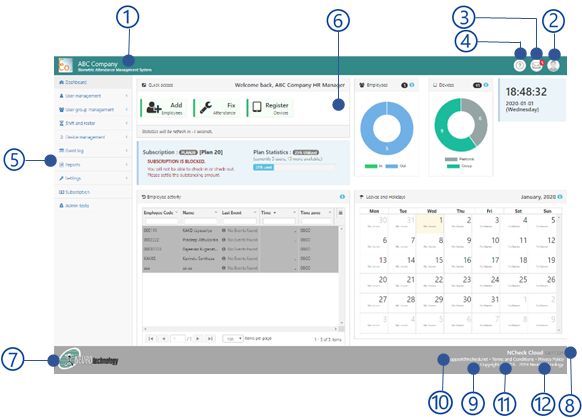
NCheck Control Panel has following components

_images/image127.PNG

Figure 60 NCheck control panel

  1. Navigation bar

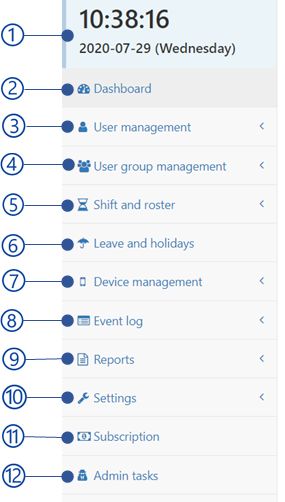
  2. Side bar

  3. Tab content view

Tab content view

Tab content view is where the content of the select menu from Side bar is showing. Menu content view is shown below.

_images/image143.PNG

Figure 68 user management tab content view

  1. Bio attendance and visitor management mode selection switch

    Switch between bio attendance and visitor management features for the selected tab.

  2. Content area

Bio attendance and visitor mode selection

NCheck allows to manage employee and visitor functions in the system. In the control panel, for menus such as Dashboard , User Management , Manage schedule and shifts , etc. are showing bio attendance and visitor mode selection view to show the specific view in the content area. Bio attendance and visitor mode selection controller can appear in following ways.

_images/image145.PNG

Figure 69 Bio attendance and visitor management switch view

_images/image147.PNG

Figure 70 Employee and visitor switch view

Dashboard

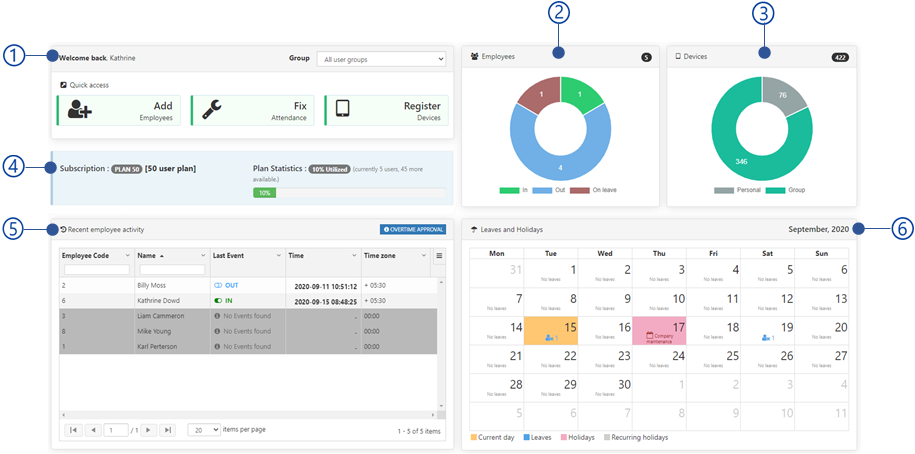
The dashboard provides a graphical summary of the employee and visitor activities of the NCheck customer account. Customer account administrator and users marked as administrators can access the Dashboard. Summary includes. Dashboard view is shown below.

_images/image149.PNG

Figure 71 Dashboard view

  1. Dashboard controls

  2. Dashboard data view

    Dashboard data view is showing Employee dashboard and Visitor dashboard .

Dashboard controls

_images/image151.PNG

Figure 72 Dashboard controls view

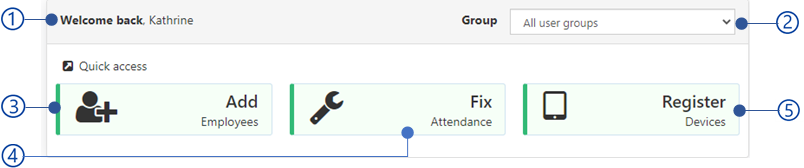
  1. Welcome note for logged in user

  2. User group selection

    Select a user group from the list to load the statistics in the Employee dashboard . This is unavailable for Visitor dashboard .

  3. Employee/visitor switch

Employee dashboard

Employee dashboard is shown below.

_images/image153.PNG

Figure 73 Employee dashboard view

  1. Employees Summary

  2. Employee device summery

  3. Recent Employee activity

  4. Leaves and holidays

Employees Summary

The employee summery graph shows an overview of the employee activities at the current date and time.

_images/image155.PNG

Figure 74 Employee summery view of the Dashboard

  1. Legend

  2. Percentage of checked-in users

  3. Percentage of checked-out users

  4. Percentage of users on leave

  5. Add user button

    Open add employee dialog to create new employee as mentioned in Add employee/visitor section.

The number of users of each activity is showing when hovering on the graph.

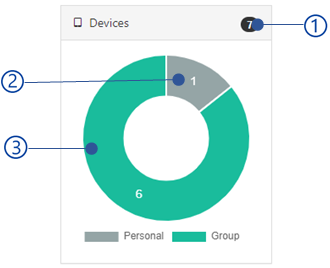
Employee device summery

The employee device summary is showing the NCheck Windows, Android and IOS admin and attend clients registered with the system.

_images/image157.PNG

Figure 75 Employee device summery view

  1. Legend

  2. Number of Windows, Android and IOS Attend clients registered for employees.

  3. Number of Windows And droid Admin clients registered with the selected group.

  4. Register devices button

    This will open register device dialog to generate registration token to register Admin and attend clients as mentioned in Register device section.

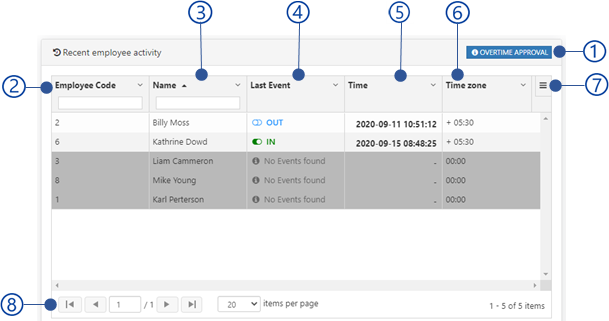
Recent Employee activity

The recent employee activity view shows the last event of all employees in the current day.

_images/image159.PNG

Figure 76 Employee activity view of the Dashboard

  1. Event type tabs

    Select event type from check-in, check-out and access, to filter out the last user events.

  2. Event list

    Event list is showing check-in, check-out and access events according to the selected event type from the event type tab. Refer Recent employee event view section for more details about event information.

  3. Fix attendance events button

    Add events for users. This opens the Events view for employee/visitor event logs in Manage Event logs .

  4. Manage overtime approvals button

    Manager overtime approvals. This opens the Overtime view for employee events logs in Manage Event logs section.

  5. Refresh button

Recent employee event view
_images/image161.PNG

Figure 77 Recent employee event view

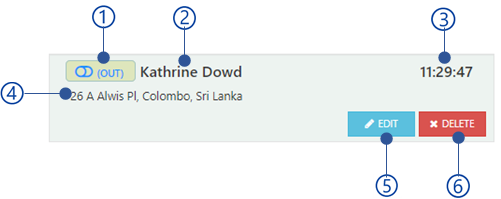
  1. Username and event date time

  2. Event type

    Event type as in(check-in), out(check-out) or access

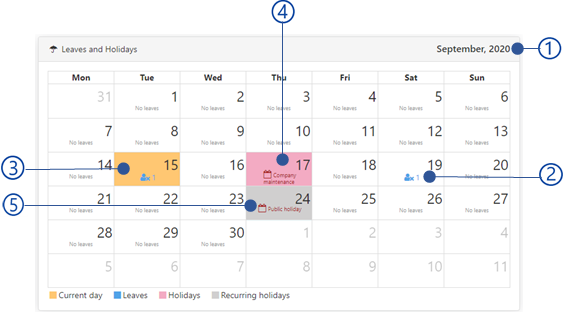
Leaves and holidays

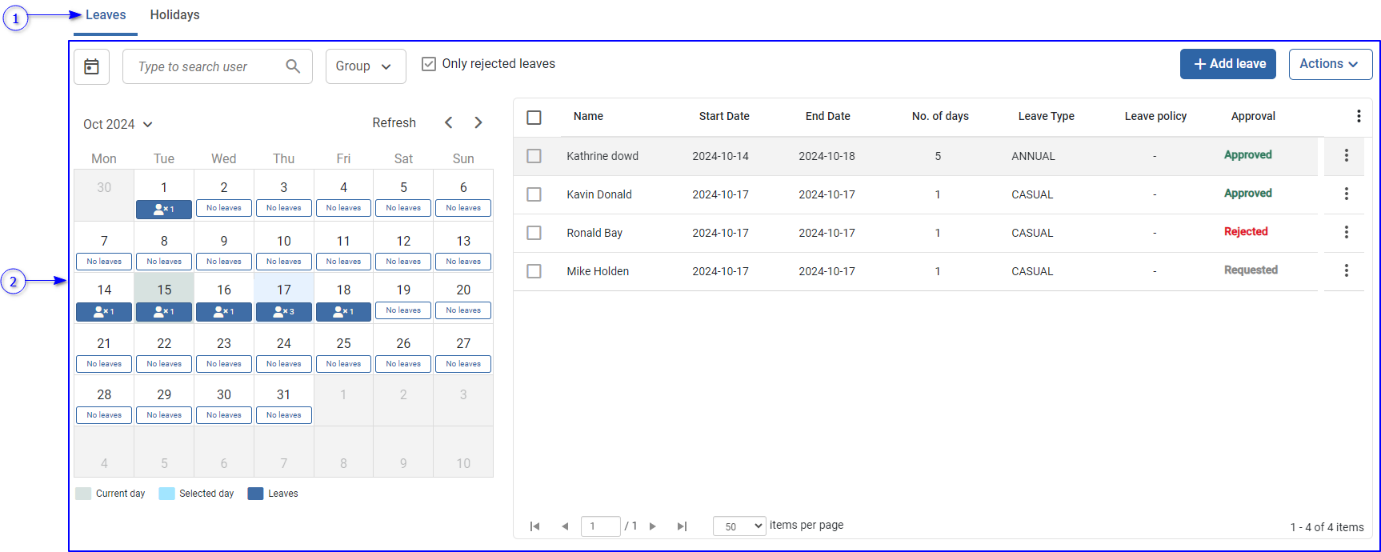
_images/image163.PNG

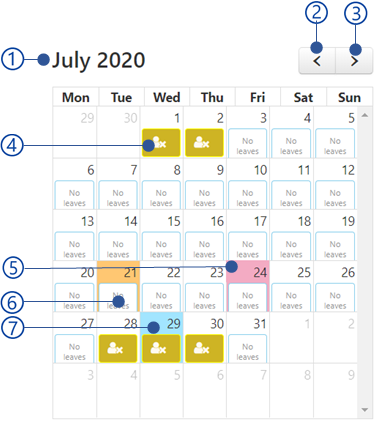
Figure 78 Leave and holiday view

  1. Legend

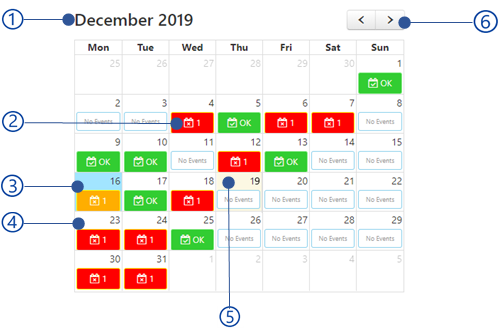
  2. The leaves and holidays calendar

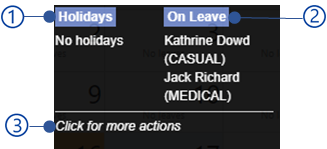
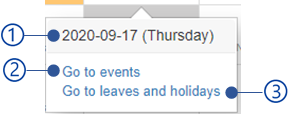
    Calendar is showing dates with available leaves and holidays. Leaves, holidays and recurring holidays are shown in separate color codes. For the selected date, all available leaves and holidays are shown in the leave and holidays list view. The leave tab shows a list of Leave view and holiday tab is showing list of Holiday view available for the selected date in the calendar.

  3. Leave and holidays list view

    This view is showing available leaves and holidays for the selected date from the calendar.

  4. Manage leaves button

    You will be redirect to the Leave and holiday section.

Leave view
_images/image165.PNG

Figure 79 Leave view

  1. Username and leave date

Holiday view
_images/image167.PNG

Figure 80 Holiday view

  1. Holiday name and date

Visitor dashboard

The visitor dashboard is shown below.

_images/image169.PNG

Figure 81 Visitor dashboard view

  1. Appointment summery

  2. Visitor device summery

  3. Recent visitor activity

  4. Recent visitor event view

Appointment summery

Appointment summery graph shows an overview of all appointments on the current date.

_images/image171.PNG

Figure 82 Appointment summery view

  1. Not attended

    The appointments are considered as not attended if the visitor has not been recorded for the appointment before finished

  2. Pending appointments

    The appointments that visitors have not been recorded

  3. In progress appointments

    The appointments that visitors have already been recorded as in progress appointments.

  4. Cancelled appointments

    The appointments set a cancelled

  5. Completed appointments

    The appointments set as completed appointments

  6. Add appointments

    This will redirect to the Appointments section to add new appointment.

Visitor device summery

The visitor devices summary is showing the NCheck Windows, Android and IOS admin and attend clients registered with the system.

_images/image157.PNG

Figure 83 Employee device summery view

  1. Legend

  2. Number of Windows, Android and IOS Attend clients registered for a location.

  3. Register devices button

    This will open register device dialog to generate registration token to register Admin and attend clients as mentioned in Register device section.

Recent visitor activity

The recent visitor activity view shows last event of the visitors in the current day.

_images/image173.PNG

Figure 84 Recent visitor activity view of the dashboard

  1. Event type tabs

    Select event type from check-in, check-out and access, to filter out the last visitor events

  2. Event list

    Event list is showing all recent events of visitors according to the selected event type from the event type tab. Refer Recent visitor event view section for more information about visitor events.

  3. Fix visitor event button

    Add events for visitors. This opens the Events view for employee/visitor event logs in Manage Event logs .

  4. Refresh button

Recent visitor event view
_images/image175.PNG

Figure 85 Recent visitor event view

  1. Username and event date time

  2. Event type

    Event type as in(check-in), out(check-out) or access

Schedules view

Schedule and appointment view is shown below.

_images/image177.PNG
  1. Scheule calendar

  2. List of schedules view

    The list of schedules and number of appointments for the selected date showing this view.

  3. Manage appointments button

    This opens Manage appointments view.

User Management

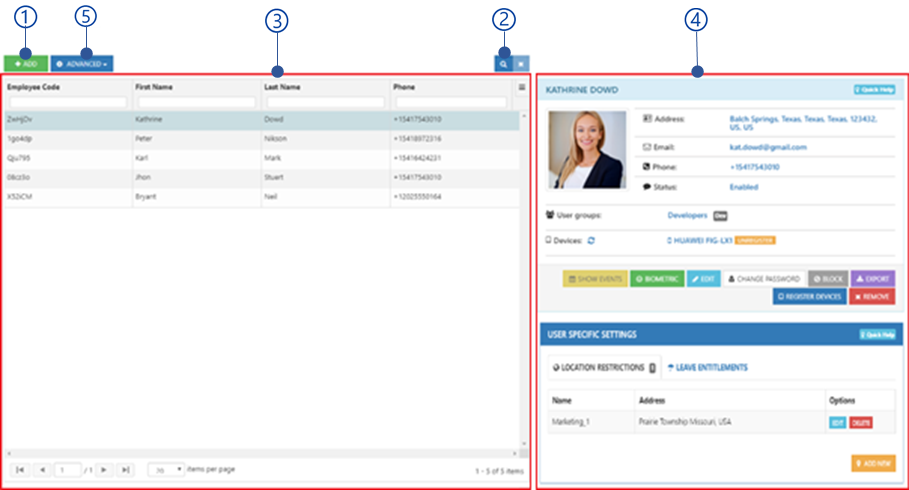
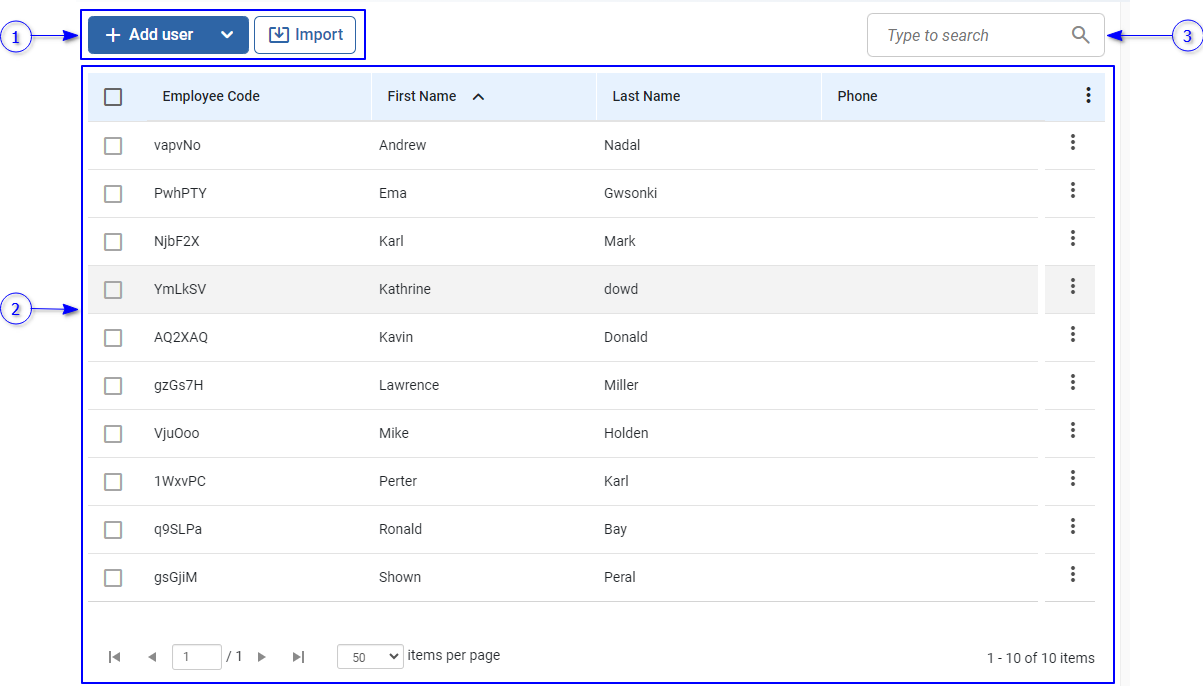
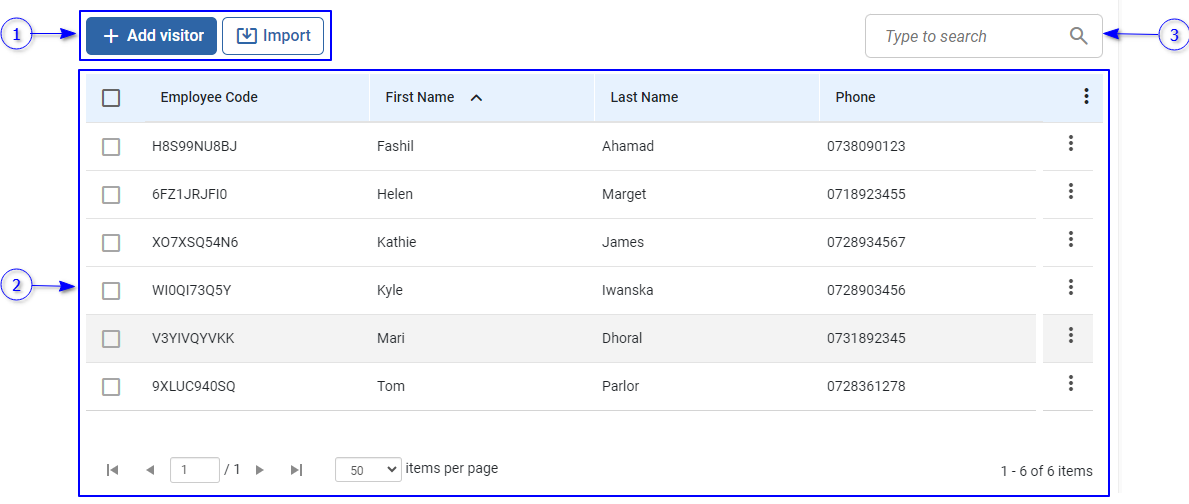
User management allows employees to manage and visitors’ data such as personal information’s, biometrics, appointments etc. The user management view can be switched to either employee or visitor as mentioned in Bio attendance and visitor mode selection section. The user management view is shown below.

_images/image178.PNG

Figure 86 Employee management view

_images/image180.PNG

Figure 87 Visitor management view

  1. Action view

    1. Add employees/visitor menu

      1. Add employee/visitor button

        Refer Add employee/visitor section for more details.

      2. Create employee from deleted employees (Employee only)

        Refer Create employee from deleted employees section for more details.

    2. Import button

      Refer Import employees/visitors section for more details.

  2. Employee/visitor list view

    A Data table represent list of employees/visitors. Selected employee/visitor information can be seen in Employee/visitor view . The employee/visitor Quick access menu is showing following options

    1. Edit

      Refer Edit profile section for more details.

    2. Delete

      Refer Remove section for more details.

    3. Biometrics

      Refer Update employee/visitor biometrics section for more details.

  3. Search employee/visitor

    Search employee/visitor from the list

Add employee/visitor

Add employee/visitor is a 3 steps flow including followings.

  1. Add employee/visitor information

    This step is mandatory. Employee/visitor name, employee/visitor code should be given.

  2. Biometric authentication

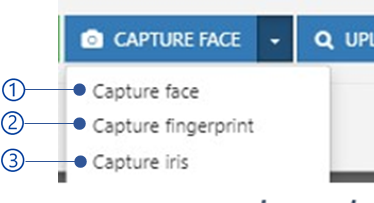
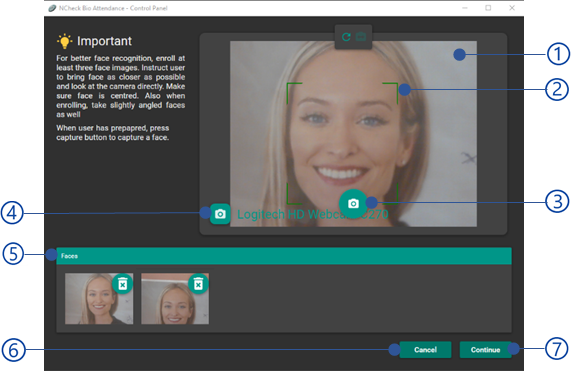
    Enroll biometrics such as face, finger and iris. This is not mandatory.

  3. Register client application (Employee only)

    Register NCheck client application for the employee for personal attendance recording. This step is not mandatory.

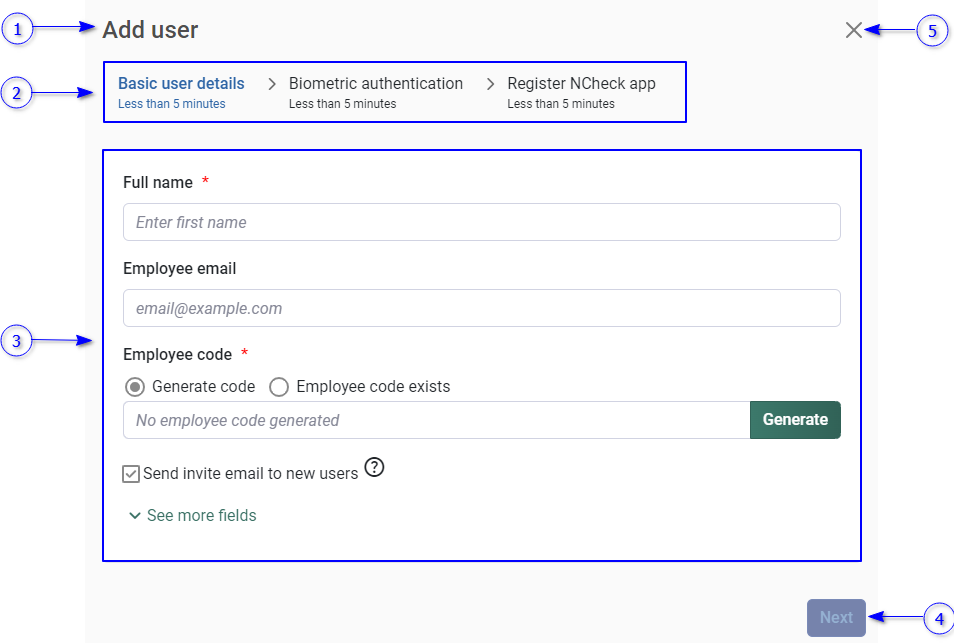
Add employee/visitor dialog is shown below.

_images/image182.PNG

Figure 88 Add employee/visitor dialog

  1. Title as adds employee or adds visitor

  2. Steps involve adding a new employee/visitor. The current step is highlighted in blue color.

  3. Content area to show the current step

    The current steps will be shown in this area. The available steps are

  4. Next button

    Proceed to the next step.

  5. Close button

Basic employee/visitor detail’s view

_images/image184.PNG

Figure 89 Basic employee/visitor details view

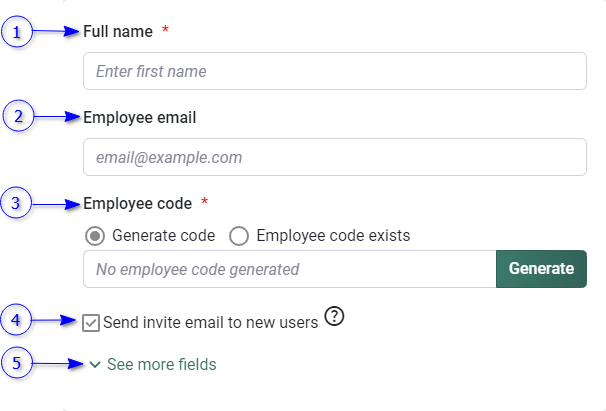
  1. Full name

    This is a mandatory field.

  2. Employee/visitor email

  3. Employee/visitor code

    This is a mandatory field. Refer Employee/visitor code for more details

  4. Send invite email to new employees (Employee only)

    The employee will receive an email containing a one-time registration token and links to download NCheck client application once employee created successfully. To send email notifications, Email notification settings should be configured first.

  5. See more fields

    Click this to expand additional fields for employee/visitor. Refer Additional employee/visitor fields section for more details.

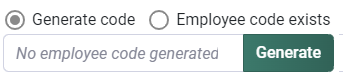
Employee/visitor code

The employee/visitor code is a unique identification for employee/visitor. Employee/visitor code can be given as following when adding employee/visitor

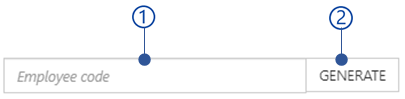
_images/image186.PNG

Figure 90 Employee/visitor code view

  1. Generate code

    Generate code by the system

  2. Use existing code

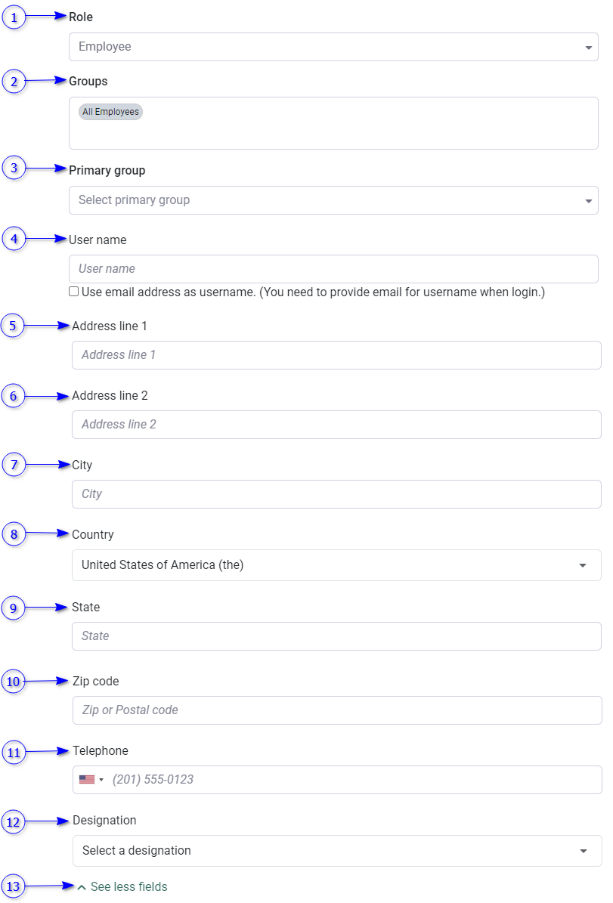
Additional employee/visitor fields

Additional information for employees/visitors which are not mandatory when adding.

_images/image188.PNG

Figure 91 Additional employee/visitor fields

  1. Role (Employee only)

    Assign employee role as employee, admin, or admin auditor. Refer Web Control Panel Roles section for more details.

  2. Groups (Employee only)

    Employee groups to assign employees. By default, employees are assigned to the all-user group. Refer Manage User Groups section for more details about employee groups.

  3. Primary group (Employee only)

  4. Username (Employee only)

    The username to allow to login users to the NCheck control panel. Select User email address as username option to use the email address as the username.

  5. Address line 1

  6. Address line 2

  7. City

  8. Country

  9. State

  10. Zip code

  11. Telephone

  12. Designation

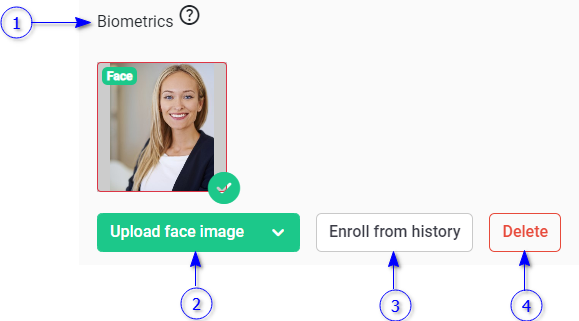
Biometric authentication view

Biometric authentication view is used to enroll biometrics for the employee and visitors.

_images/image190.PNG

Figure 92 Biometric authentication view

  1. Biometrics

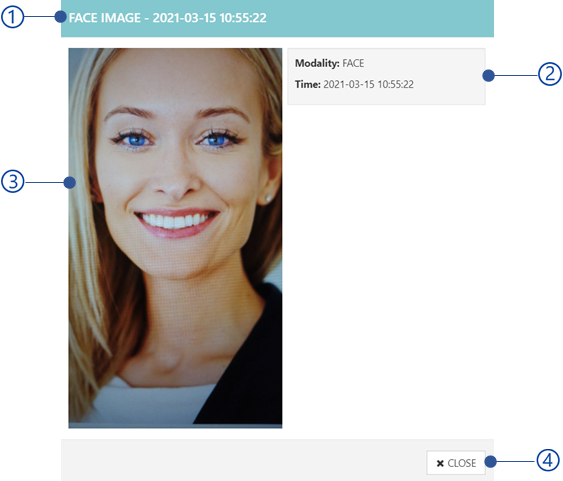
    List of enrolled biometrics for the employee/visitor are showing here. To see the biometric details, click on each biometric image.

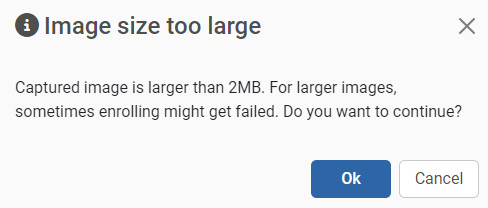
  2. Upload biometrics button

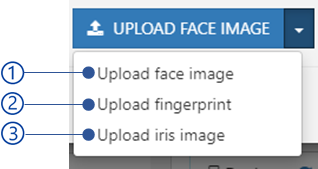
    Upload face, finger and iris images from the local file system. A warning message will appear if the selected image is larger than 2 MB as shown in Figure 93 .

  3. Enroll from history button

    Refer Enroll biometric from history section for more details.

  4. Delete button

    Delete selected biometrics.

    _images/image192.PNG

    Figure 93 Biometric image size warning

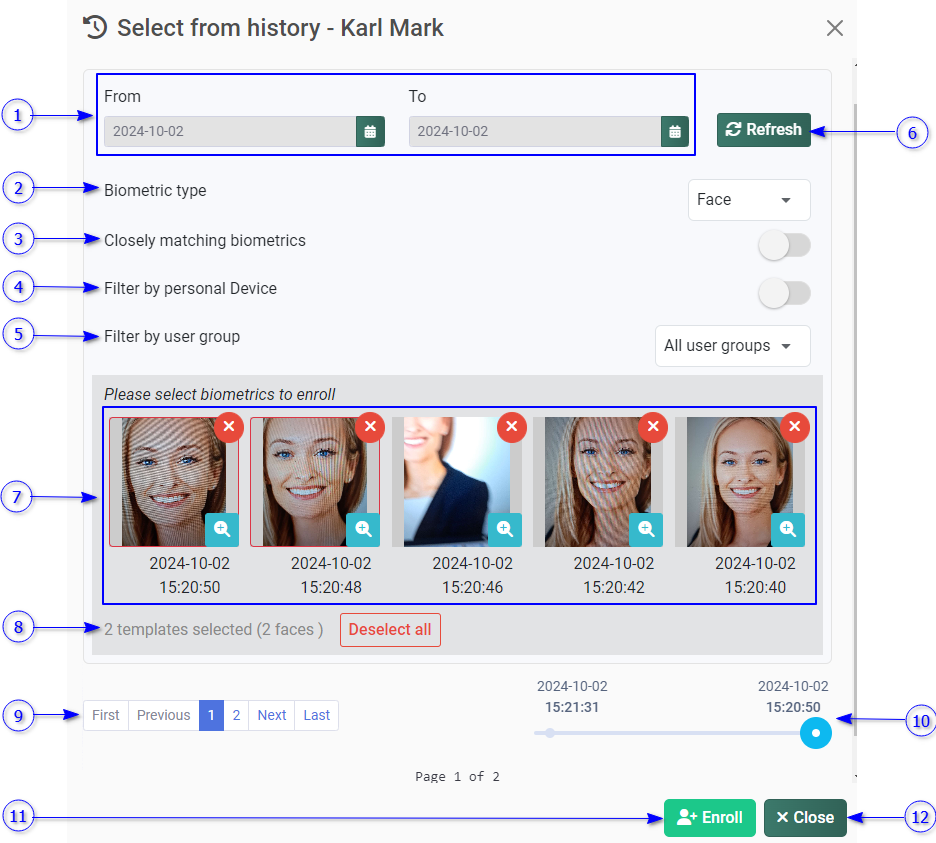
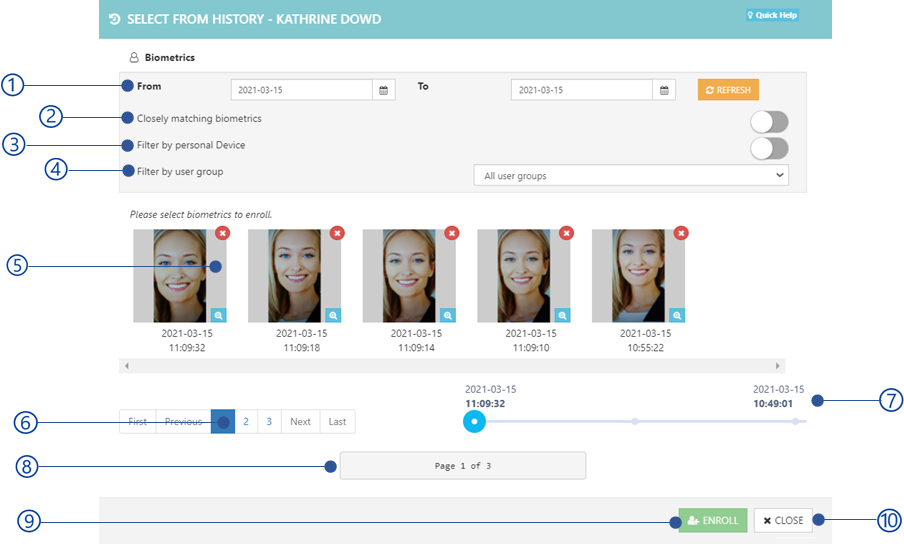
Enroll biometric from history

Enroll biometric from history option allows users to enroll biometric for unidentified event images.

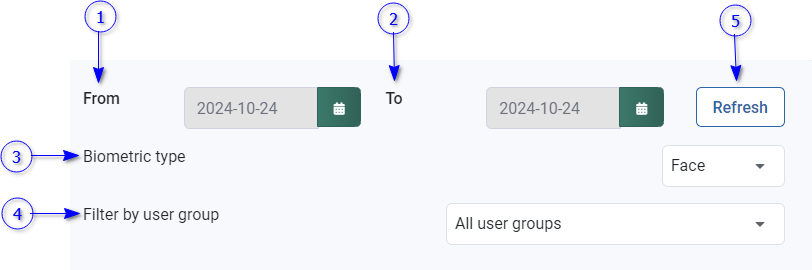
_images/image194.PNG

Figure 94 Enroll biometrics from history dialog

  1. Date selection controls

    Select the from and to date to retrieve unidentified images

  2. Biometric type

    Biometric type from Face, finger and iris

  3. Closely matching biometrics

  4. Filter by person device

  5. Filter by user group

    Filter unidentified event images according to the selected group which client devices are registered.

  6. Refresh button

    Refresh unidentified event images.

  7. Unidentified event images list

  8. Number of selected images to enroll.

    Select deselect button to deselect all.

  9. Paging for unidentified event image list

  10. Timeline of the event image list retrieved.

  11. Enroll button

    Enroll selected images

  12. Close button

Register NCheck app (Employee only)

Refer Client registering view section for more details.

Import employees/visitors

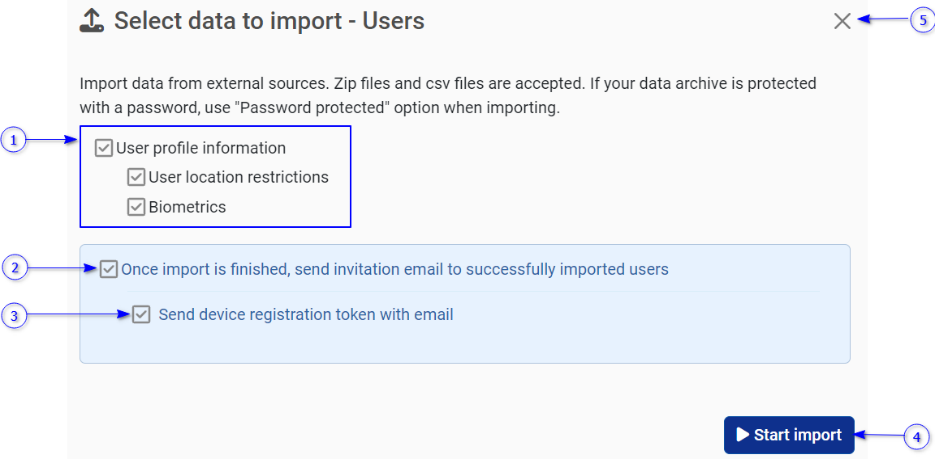
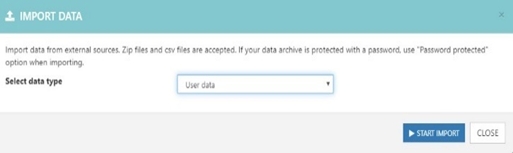
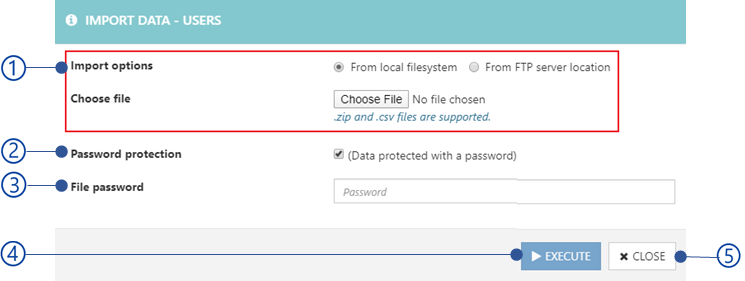
The import option is to add many employees/visitors to the system as a zip file. Refer Import and Export information section for more details for importing file structure. To import employees/visitors,

_images/image196.PNG

Figure 95 Import users data view

  1. The employee/visitor information to be imported

    Check information needs to be imported.

  2. User profile information

    Refer User profile information section for more details about user profile information.

    1. User location restrictions (Employees only)

      Refer User/user group location restrictions section for more details.

    2. Biometrics

      Refer User biometrics and template files section for more details about importing biometrics.

  3. Option to send invitation emails for successfully imported employees/visitors

  4. Option to send device registration token with invitation email (Employees only)

    Select this option to send registration token to register NCheck personal client for the user for attendance recording.

  5. Import button

    Select the Import button to select the import location. Refer Select import location section for more details about selecting import location.

  6. Close button

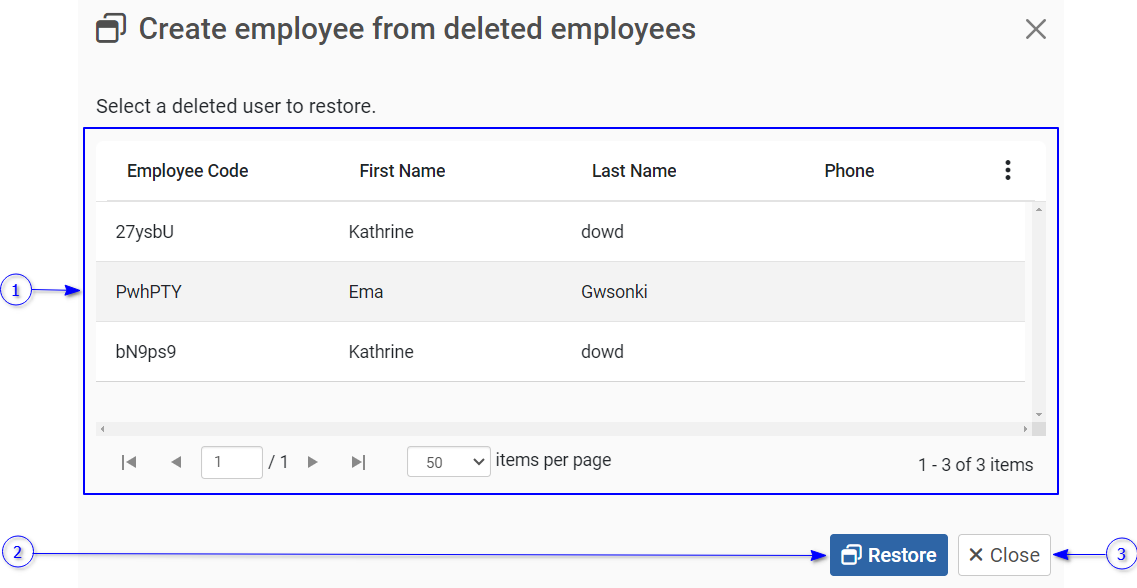
Create employee from deleted employees

Deleted employees can be restored from this option. This option will restore the employee details only. Previous biometric data, event logs and other data will not be restored. Create employee from deleted employees’ dialog is shown below.

_images/image198.PNG

Figure 96 ..Create employee from deleted employees dialog

  1. Deleted employees

    A Data table represent a list of deleted employee list. Select employees from the list to be restored.

  2. Restore button

    Restore selected employees.

  3. Close button

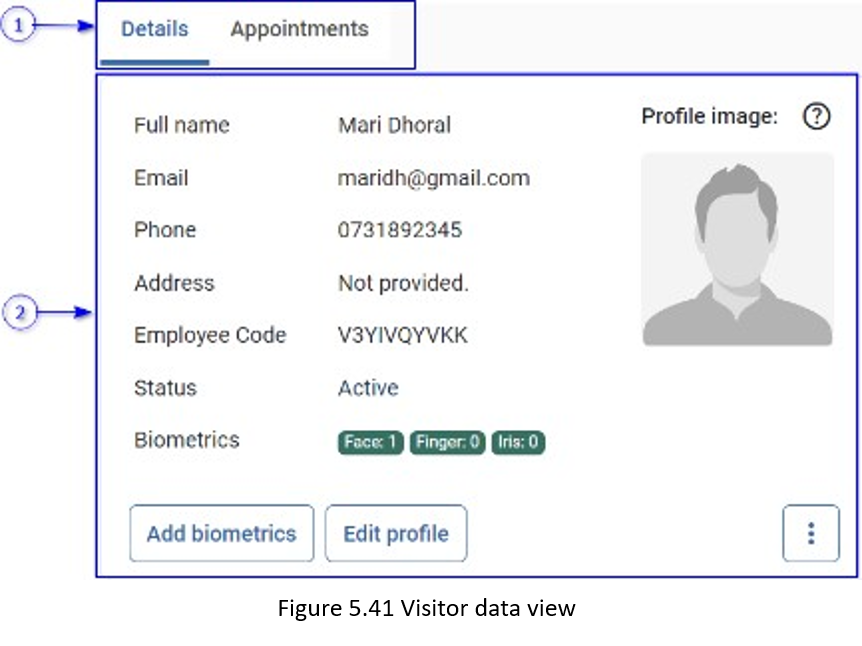
Employee/visitor view

Employee/visitor view allows employees/visitor data to manage as below.

_images/image200.PNG

Figure 97 Employee data view

  1. Employee/visitor data type tab view

    A list of data types available for employees/visitor

    1. Details

      Refer Employee/visitor details section for more information.

    2. Appointments (Visitor only)

      Refer Appointments section for more information.

    3. Devices (Employee only)

      Refer Devices section for more information.

    4. Groups (Employees only)

      Refer Groups section for more details.

    5. Locations (Employees only)

      Refer Locations section for more details.

    6. Leaves (Employees only)

      Refer Leaves section for more details.

  2. Employee/visitor content view

    The content related to the selected employee/visitor data type is shown here.

Employee/visitor details

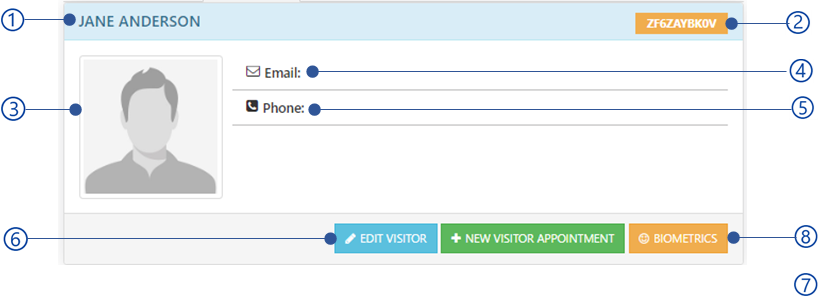
_images/image203.PNG

Figure 98 Employee/visitor detail view

  1. Profile image

    Hover the profile image to update profile image as mentioned in Manage profile image section.

  2. Full name

  3. Email

  4. Phone

  5. Address

  6. Employee code

  7. Status

    The status either activate, block or terminate.

  8. Biometrics

    Number of enrolled face, finger and iris biometrics are showing here.

  9. Employee/visitor options

    1. Add biometrics button

      Refer Update employee/visitor biometrics section for more details

    2. Register devices button (Employee only)

      Refer Client registering view section for more details.

    3. Edit profile

  10. Employee/visitor additional options

    1. Passes

      Refer Passes section for more details.

    2. Show events

      Show all events for the employee/visitor. You will be navigated to the event logs section. Refer Manage Event logs section for more information.

    3. Change password

    4. Block

    5. Terminate

    6. Activate

    7. Export

    8. Remove

Manage profile image

Profile image of employee/visitor can be updated as below. This view is showing when hovering the mouse icon over profile image.,

_images/image205.PNG

Figure 99 Manage profile image view

  1. Upload photo button

    Select profile image from the local file system

  2. History button

    Select profile image from unidentified event images. Refer Choose from unidentified images section for more details.

Choose from unidentified images

Once employee/visitor event record events which are not matched with any employee/visitor in the system, which are known as unidentified events. Unidentified event images can be selected as employee/visitor profile images as follows.

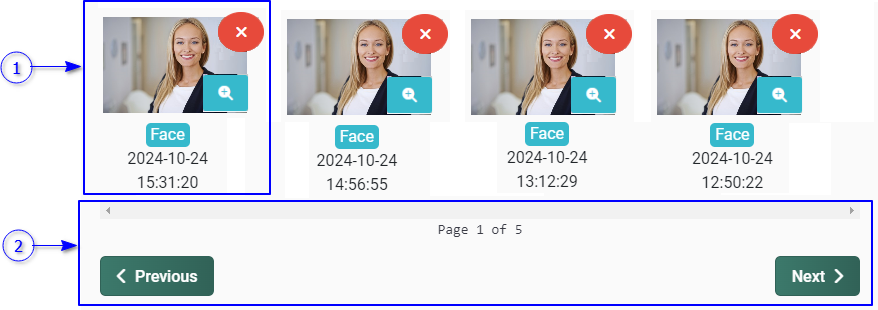
_images/image207.PNG

Figure 100 Choose from unidentified images dialog

  1. Unidentified events dates filters

    Select from and to date to retrieve all unidentified images in between.

  2. Refresh button

    Refresh unidentified event images.

  3. Unidentified event images list

  4. Previous button

    Browse previous page of unidentified event images

  5. Next button

    Browse previous page of unidentified event images.

  6. Select button

  7. Close button

Update employee/visitor biometrics

Update biometrics dialog is shown below.

_images/image209.PNG

Figure 101 Update biometrics dialog

  1. Biometric authentication view

    Refer Biometric authentication view section for more information.

  2. Save button

  3. Close button

Note

Biometric enrollment will fail if the image already enrolled for another employee/visitor.

Register devices

Register NCheck personal client for employee

_images/image211.PNG
  1. Registration information view

    Refer Register NCheck app (Employee only) section for more details.

  2. Save button

  3. Close button

Edit profile

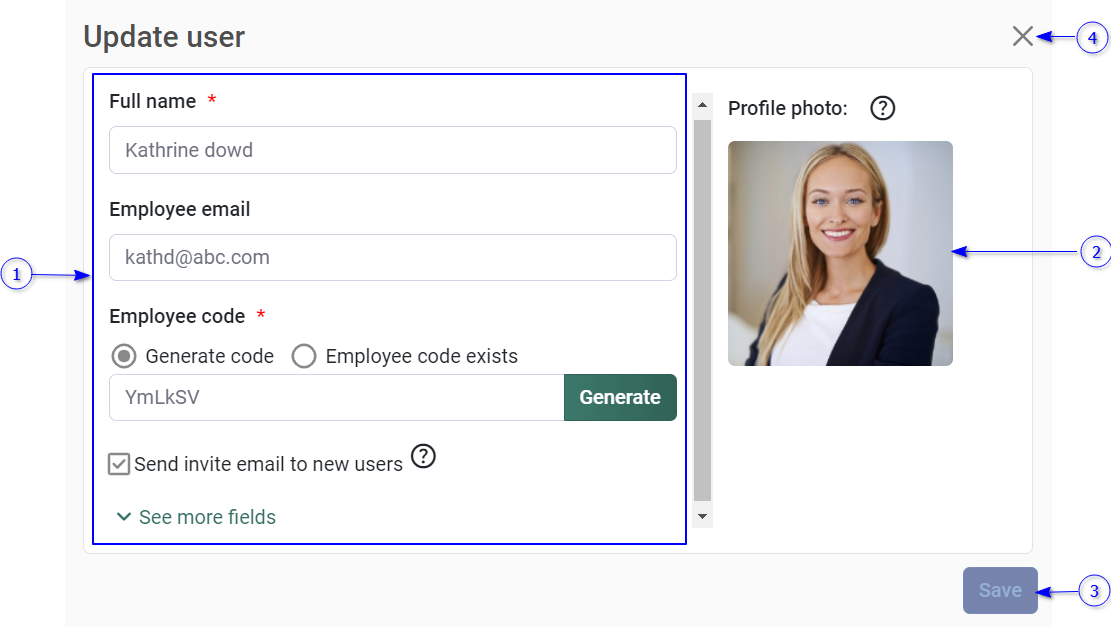
Edit employee/visitor profile details. The edit profile dialog is shown below.

_images/image212.PNG

Figure 102 Edit profile dialog view

  1. Employee/visitor detail view

    Refer Basic employee/visitor details view section for more details.

  2. Profile image

    Hover on the profile image to update profile image as mentioned in Manage profile image section.

  3. Save button

  4. Close button

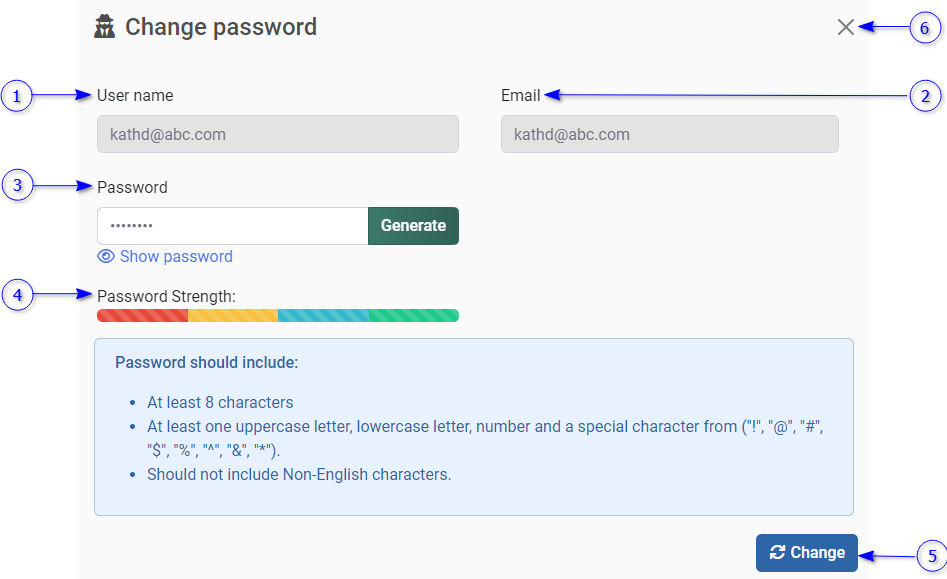
Change password

After assigning a username as mentioned in Add employee/visitor section, the password can be changed. Password must consist of one digit and 6 characters.

_images/image214.PNG

Figure 103 Change user password view

  1. User name

  2. Email

  3. Password

    Password must have atleast 6 characters and one digit. To gegerate strong password, click generate button instead.

  4. Graphical representatio for enetered password strength

  5. Change button

    Change button will be disabled if the Validation errors exits. Table 19 is showing the error messages could appear.

  6. Close button

Table 19 Error messages of change password

Error code

Description

3003

Password does not match.

3004

Password must contain at least 6 characters with one number.

Block/unblock

Block/unblock employee/visitor from the system. Blocked employees/visitors are not allowed to record attendances.

Terminate

Once employees/visitors terminate, they will not identify with the system.

Activate

Activate blocked/terminated employee/visitors.

Export

Refer Export data section for more information.

Remove

Delete employee/visitor from the system.

Devices

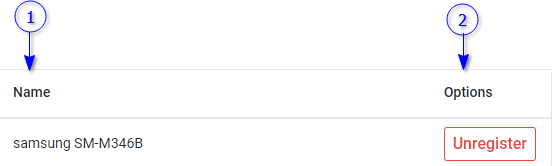
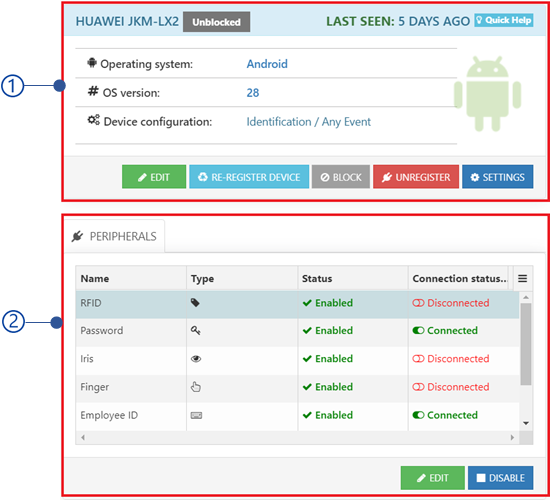
The device view is showing all NCheck client applications registered with the selected employee as follows.

_images/image216.PNG

Figure 104 Employee devices view

  1. Name of the registered device

  2. Unregister button

    Unregister client application registered to the employee. Once unregistered, the client cannot be used to record employee attendance until it registered again.

Groups

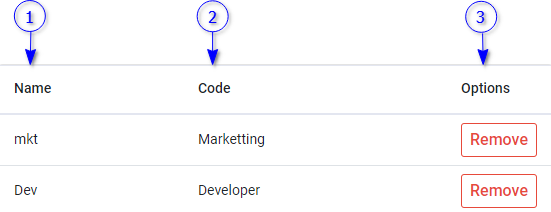
All employee groups that the employee has been added are shown under groups as follows.

_images/image218.PNG

Figure 105 Employee groups view

  1. Name

    Unique identification for employee group

  2. Code

    Unique code for employee group

  3. Remove button

    To remove employee from the employee group.

Locations

This option allows employees to restrict their specific locations. Refer Location restrictions section for more information about location.

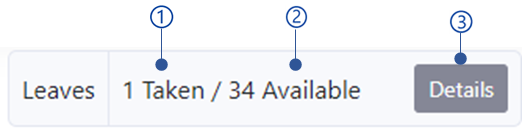
Leaves

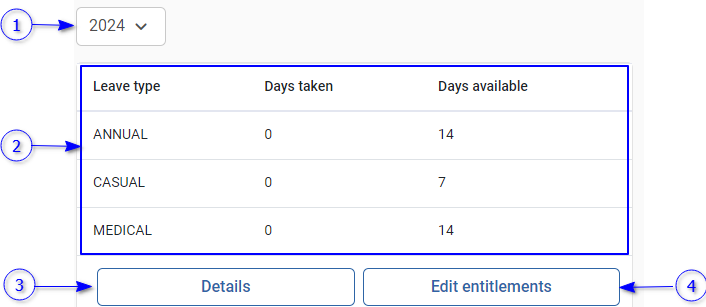
The leave view is showing employee leave statistics as follows.

_images/image220.PNG

Figure 106 Employee leaves view

  1. Leave year

  2. Leave table

  3. Details button

    Refer Leave details section for more details.

  4. Edit entitlement button

    Refer Edit leave entitlement section for more details.

Leave table

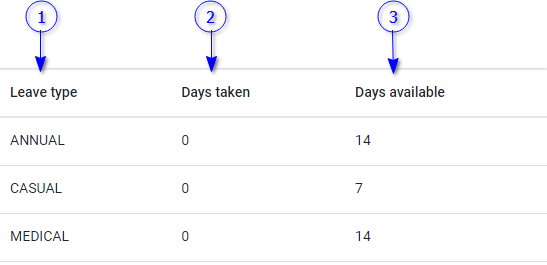
The leave table shows leave usage of the employee. The left table is shown below.

_images/image222.PNG

Figure 107 Employee leave table

  1. Leave type

    Refer Configure leave type section for more details about leave type.

  2. Days taken

  3. Days available

    Number of total leaves for each leave type.

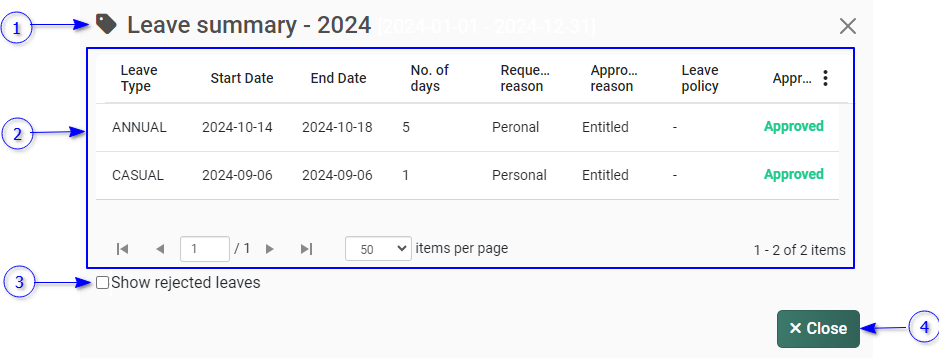
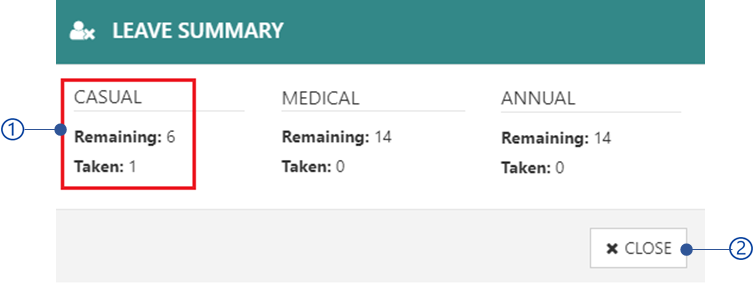
Leave details
_images/image224.PNG

Figure 108 Employee leave summery dialog

  1. Leave summer for the selected year

  2. Leaves table

    A Data table represent list of employee leaves requested. Table contains the following data.

    1. Leave type

      Configured leave type. Refer Configure leave type section for more information about configuring leave types.

    2. Start date

      Start date of the applied leave(s).

    3. End date

      End date of the applied leave(s).

    4. No of days

    5. Reasons request

    6. Approval reason

    7. Leave policy

    8. Approval state

      Approval state as pending, rejected or approved.

  3. Show rejected leave option

    Show rejected leaves in the leaves table

  4. Close button

Edit leave entitlement

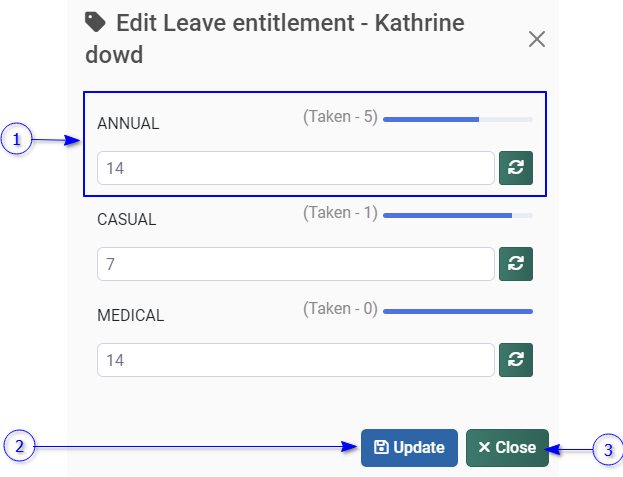
Edit existing leave entitlement for employees. Edit leave entitlement dialog is shown below.

_images/image226.PNG

Figure 109 Edit employee leave e.ntitlment dialog

  1. Leave entitlement for leave type

  2. Update button

  3. Close button

Leave entitlement for leave type
_images/image228.PNG

Figure 110 …..Leave entitlement for leave type view

  1. Leave type

  2. Number of taken leave from total number of leaves

  3. Number of leave entitlement

  4. Reset button

    Reset the default number of leave entitlement as mentioned in Configure leave type section.

Appointments

Appointments for the visitors can be seen in this view as shown below.

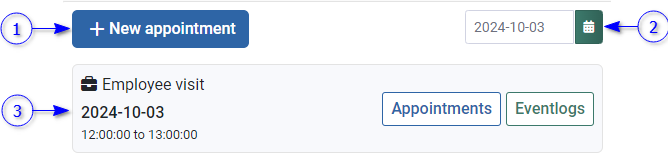
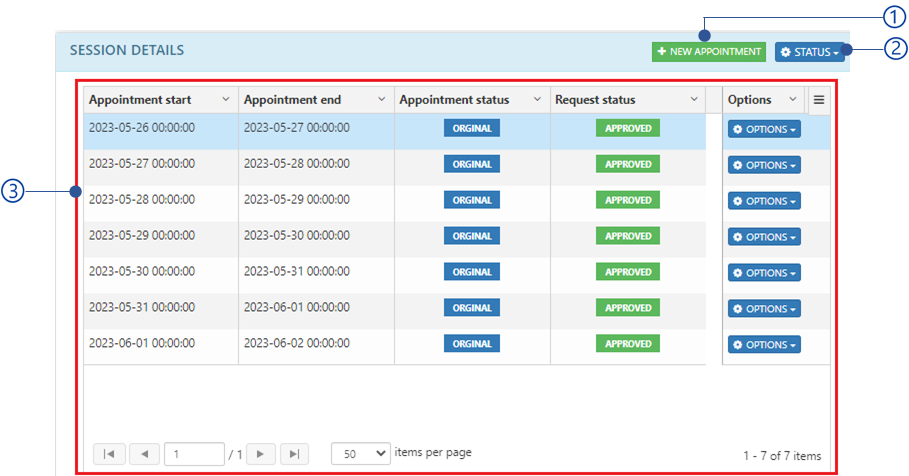
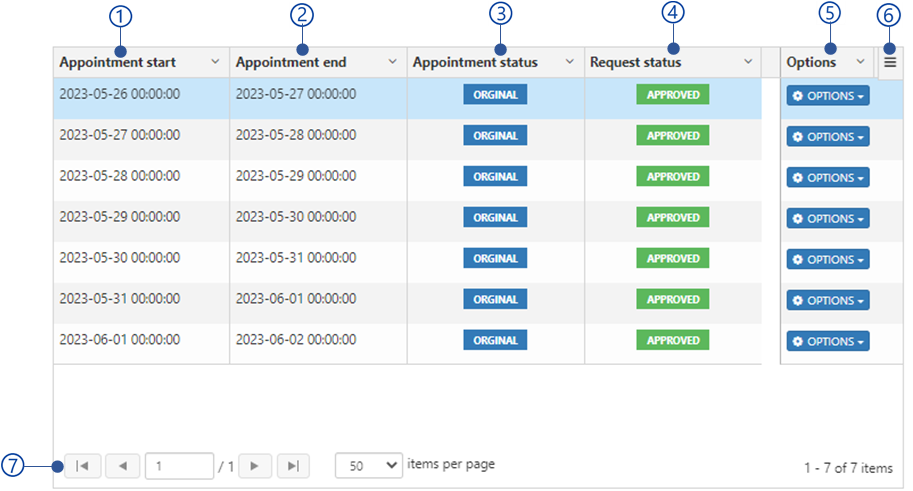
_images/image230.PNG

Figure 111 Visitor appointment view

  1. New appointment button

    Create new appointment for the visitor. This will navigate to the appointments section to create a new appointment as mentioned in section.

  2. Appointment date

  3. Visitor appointment view

Visitor appointment view

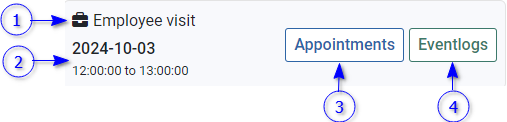
The visitor appointment view is shown below.

_images/image232.PNG

Figure 112 visitor appointment view

  1. Appointment schedule

  2. Appointment date and time

  3. Appointments button

    This will navigate to the appointment section to see the appointment information as mentioned in section.

  4. Event logs button

    This will navigate to the visitor event log section to show the visitor events recorded to this appointment.

Manage Employee Groups

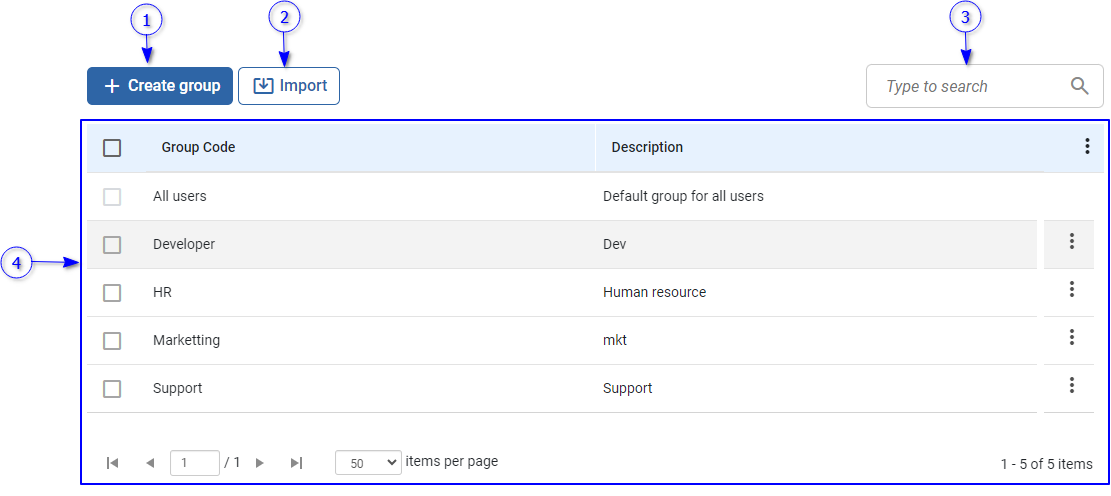
Administrator and employee group administrators allow managing users as user groups. All user groups are the default employee group including all employees and it is accessible for administrator only. The employee group management view is shown below.

_images/image234.PNG

Figure 113 Employe group management view

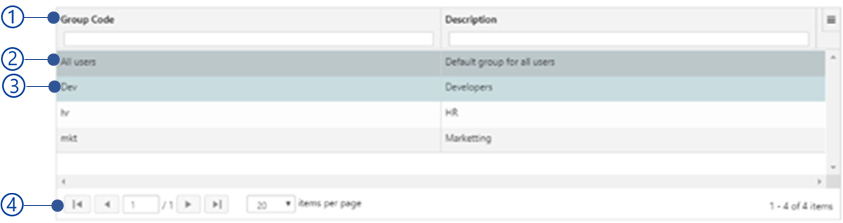
  1. Create group button

  2. Import button

  3. Search field

    Search group

  4. Employee group list view

    A Data table represent list of employee groups. Selected employee group information can be seen in employee group view. The employee group Quick access menu is showing following options.

    1. Edit

    2. Delete

    3. Update employees

Create group

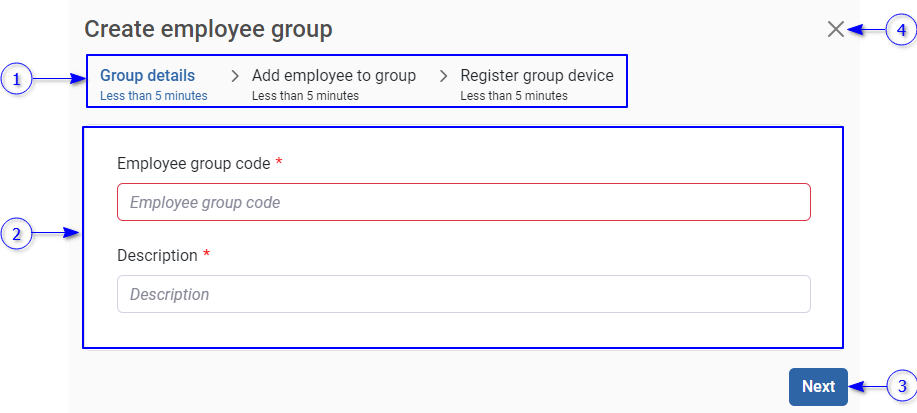
Creating an employee group is 3 steps flow as follows.

  1. Enter group details

    This is required step. This requires unique code for employee group and description

  2. Add employees to the group

    Add employees to the group

  3. Register group device

    Register NCheck client application for the group to record attendance of employees within the group.

Create group dialog is shown below.

_images/image236.PNG
  1. Steps involve adding a employee group. The current step is highlighted in blue color.

  2. Content area to show the current step

    The current steps will be shown in this area. The available steps are

    1. Group details

      Refer Employee group detail view section for more information.

    2. Add employees to group

      Refer Add employees to the group view section for more details.

    3. Register group device

      Refer Register group device view section for more information.

  3. Next button

    Proceed to the next step.

  4. Close button

Employee group detail view

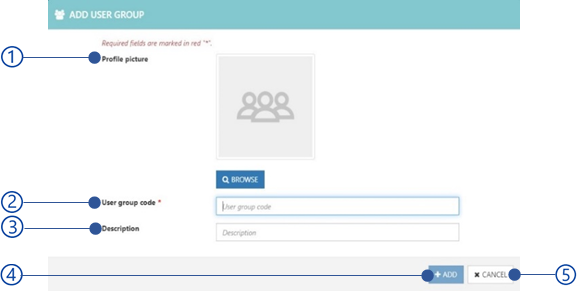
The information to create a new employee group is taken from this view.

_images/image237.PNG

Figure 114 Add employee group view

  1. Employee group code

    A unique identification for the employee group.

  2. Description

    A description that explains use of the employee group.

Add employees to the group view

Select employees to add to the employee group from available employee list as follows.

_images/image239.PNG
  1. Search field

    Search employee by employee name or employee code

  2. Employee list

    A Data table show list of employees. Select employees to add to the employee group.

Register group device view

Refer Client registering view section for more details.

Import employee groups.

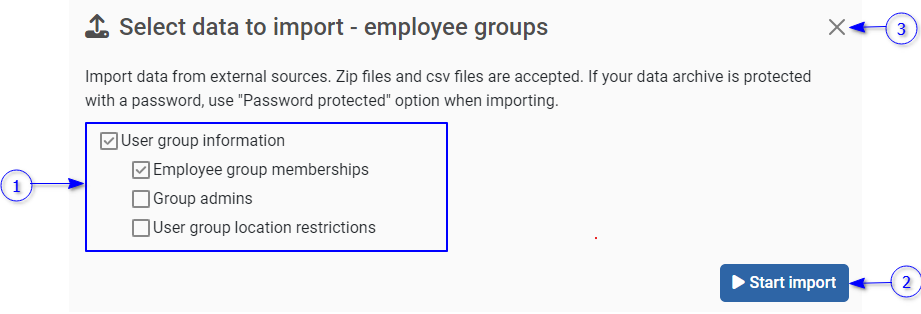
The import option can be used to add a number of employee groups or restore previously exported employee groups. The data imported as zip file. Refer Import and Export information section for more details for importing file structure. To import employee group,

_images/image240.PNG

Figure 115 Import employee groups

  1. The employee group information to be imported

    Check information needs to be imported.

    1. User group information

      Refer User profile information section for more details about user profile information.

      1. Employee group memberships

        Refer User group memberships information section for more details.

      2. Group admins

      3. Employee group location restrictions.

        Refer User/user group location restrictions information section for more details.

  2. Import button

    Select the Import button to select the import location. Refer Select import location section for more details about selecting import location.

  3. Close button

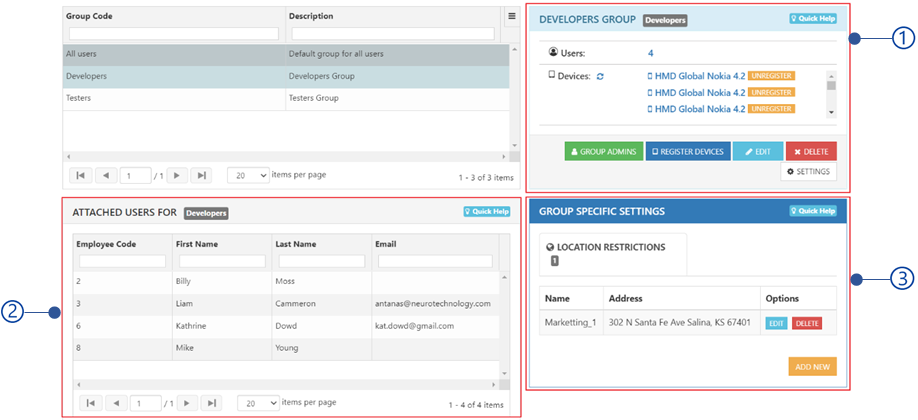
Employee group view

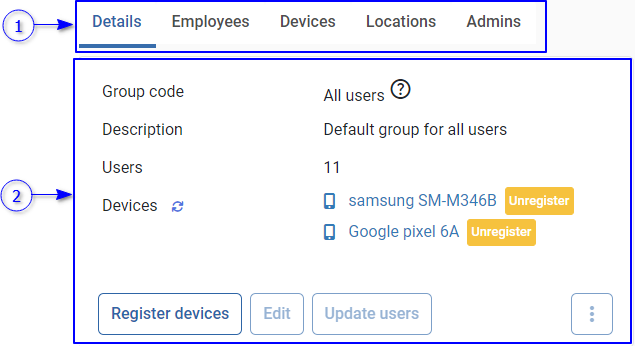
The selected employee group information can be seen in Employee group view. The employee group view is shown below.

_images/image242.PNG

Figure 116 Employee group view

  1. Employee group data type tab view

    Following data types are showing here.

    1. Details

      Refer Employee group details for more details

    2. Employees

    3. Devices

    4. Locations

    5. Admins

  2. Employee group type content view

    The content related to the selected employee group data type is shown here

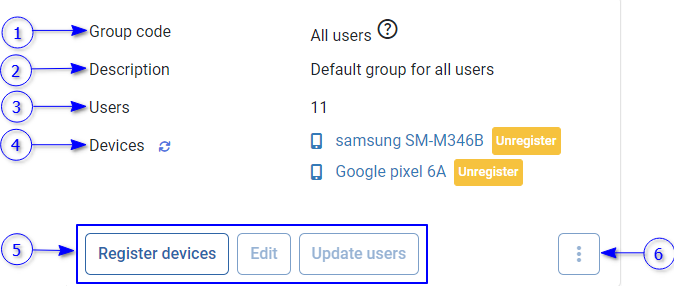
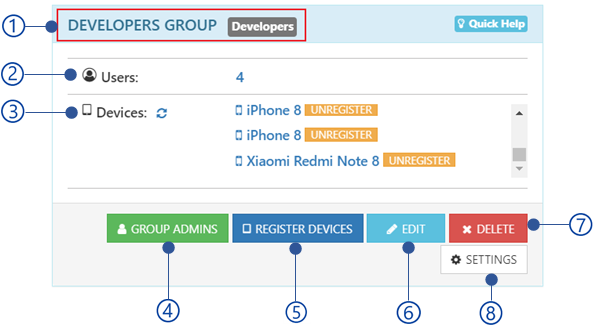
Employee group details

_images/image244.PNG
  1. Employee group code

  2. Employee group description

  3. Employees

    Number of employees added to the group

  4. Devices

    The devices registered with the employee group.

  5. Employee group options

    1. Register devices button

      Refer Register devices section for more details.

    2. Edit button

      Refer Edit employee group section for more details.

    3. Update users button

      Refer Update group employes section for more details.

  6. Employee group additional options

    1. Import

      Refer Import group employees section for more information.

    2. Export

      Refer Export group employees section for more information.

    3. Delete all users

      Refer Delete all group employees section for more information.

    4. Restore deleted users

      Refer Restore deleted group employees section for more information.

    5. Group admins

    6. Settings

      Refer User group specific settings section for more information.

    7. Delete

      Refer Delete employee group section for more information.

Registered devices
_images/image245.PNG

Figure 117 Registered devices list

  1. Refresh button

    Refresh devices list

  2. Registered devices list

    All registered devices for the employee group are showing here. Each device is shown with device name and unregister button next to it. The device will be unregistered if click on this button and the device cannot be used with the server.

Register devices

Generate registration token to register NCheck client device. Register devices dialog is shown below.

_images/image247.PNG

Figure 118 Register device dialog

  1. Registration detail view.

    This view contains all information to register device. Refer Client registering view section for more details.

  2. Save button

  3. Close button

Edit employee group

This option allows employees to edit group. Update employee group dialog is shown below.

_images/image249.PNG

Figure 119 Edit employee group dialog

  1. Employee group profile image

    Upload profile image for the employee group from local file system. Hovering on the thumbnail image will be shown upload button and remove button to update profile image.

  2. Employee group code

    Unique identification for employee group.

  3. Description

    A description mentioning the usage.

  4. Save button

  5. Close button

Note

All user group is not allowed to edit

Table 20 Error messages of add/edit user group

Error code

Description

2020

Selected file is not a valid image file.

2027

User group code already exists.

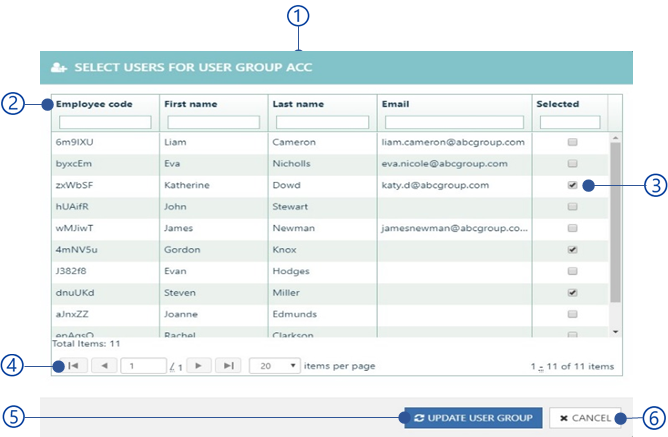
Update group employes

This option allows to add/remove employees in the group. Update group employees dialog is shown below.

_images/image251.PNG

Figure 120 Update group employees dialog

  1. Add employees to group view

    This allows to add/remove employees to the group. Refer Add employees to the group view section for more details.

  2. Save button

  3. Close button

Import group employees

The import group employees option is using to add many employees to the employee group as a zip file. Refer Import and Export information section for more details for importing file structure. To import employees/visitors,

_images/image196.PNG

Figure 121 Import users data view

  1. The group employees information to be imported

    Check information needs to be imported.

  2. User profile information

    Refer User profile information section for more details about user profile information.

    1. User location restrictions

      Refer User/user group location restrictions section for more details.

    2. Biometrics

      Refer User biometrics and template files section for more details about importing biometrics.

  3. Option to send invitation emails for successfully imported employees/visitors

  4. Option to send device registration token with invitation email (Employees only)

    Select this option to send registration token to register NCheck personal client for the user for attendance recording.

  5. Import button

    Select the Import button to select the import location. Refer Select import location section for more details about selecting import location.

  6. Close button

Note

To send email notification, Email notification settings should be configured.

Export group employees

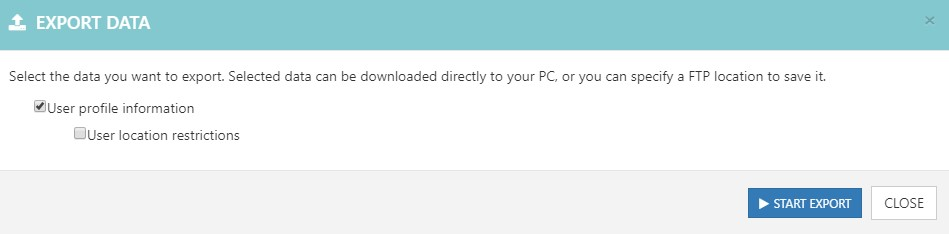
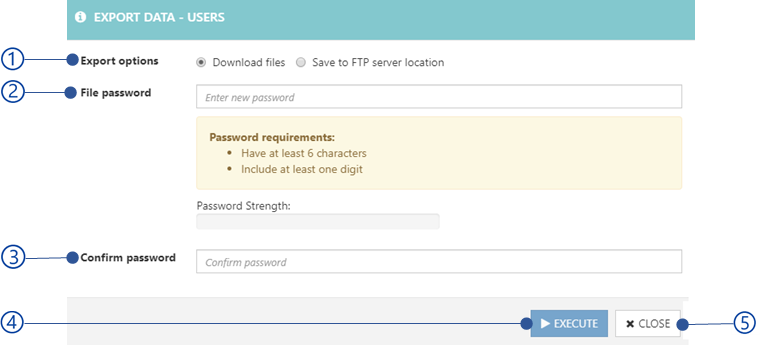
Export group employees information as a zip file. Refer Import and Export information section for more details for importing file structure. Export group employees dialog is shown below.

_images/image253.PNG

Figure 122 Export group employees dialog.

  1. Group employees information to be exported

    1. Employee profile information

      Refer User profile information section for more details about user profile information.

    2. Employee location restrictions.

      Refer User/user group location restrictions section for more details

  2. Start export button

    Refer Select export location for more details.

  3. Close button

Delete all group employees

Delete all group employees from the employee group as well as the system.

Restore deleted group employees

This option allows to restore deleted employees to the group. Restore deleted employee dialog is shown below.

_images/image255.PNG

Figure 123 Restore deleted employees dialog

  1. Restoring options

    1. Recover all employees

      Restore all previously deleted employees.

    2. Deleted after

      Restore deleted employees after specified date.

  2. Recover button

    Start restoring employees to the group.

  3. Cancel button

Note

Please note that once restored users, user details will be available. Past employee details such as event logs, enrolled biometrics, etc. will not be restored.

Group admins

Group admins have permission to manage the employee group. There are two types of group admins.

  1. Group admin

    Group admin has full permission to do changes to the group such as add/remove employees, import /export data etc.

  2. Group admin auditor

    Group admin allows to review the employee group such as export data, generate registration token etc. Group admin is not allowed to make any changes to the group.

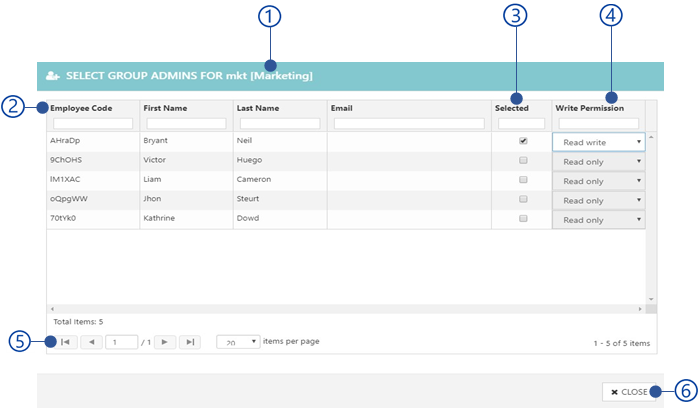
Group admin may have group manger permission. Group admins who have group manager permission can approve restricted leaves of the employees in the group (Refer section for more information). There can be only one group manager for the employee group. Selecting a different manager will be caused to remove previously selected group manager. Select group admin dialog is shown below.

Note

Group admins are not available for the All users group

_images/image257.PNG

Figure 124 Select group admin dialog

  1. Search field

    Search employee by name or employee code

  2. Employee list

    A Data table represent the list of employees in the groups. Select checkbox before the employee code to select employees to be group admins. A selected group admin can assign group manager by select manager checkbox. The permission can be assigned as follows.

    1. Read write

      Assign full permission to group admins to manager employee group.

    2. Read only

      Assign read only permission for group admin auditors.

  3. Save button

  4. Close button

User group specific settings
_images/image259.PNG

Figure 125 Group specific settings view

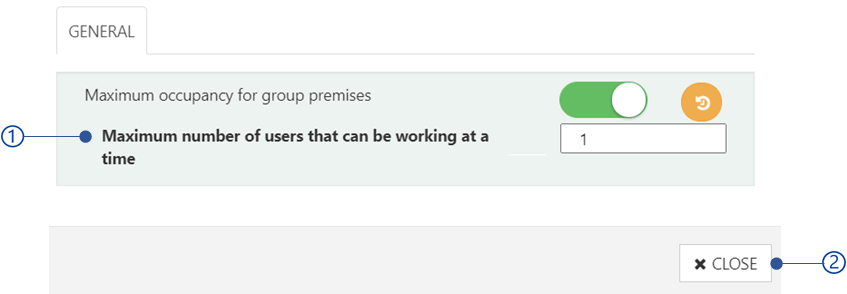
  1. Maximum occupancy for group premises

Maximum occupancy for group premises

Administrator/user group administrator allows the limit the number of employees/users of the user group on the premises. To limit users, enable this setting and add the number of allowed users. The users who are entitled to the user group as the primary user group will be counted when check-in to the premises. If the check-in count is greater than the maximum occupancy for group premises, the check-ins will be restricted.

Delete employee group

Delete employee group from the system. This deletes employee groups and employees will remain in the system.

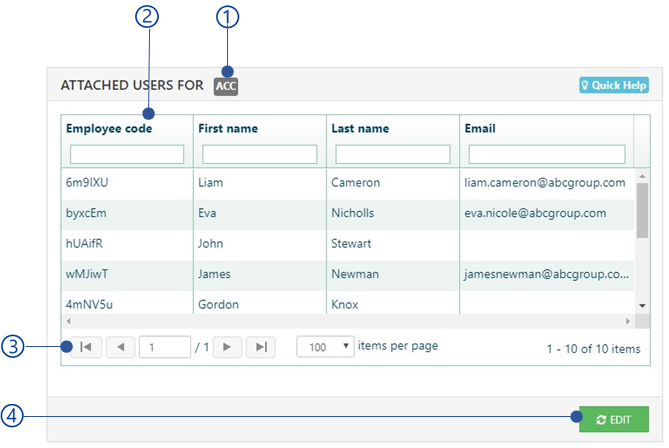
Employees

All employees added to the employee group can be seen in this view. All employees are showing in a Data table as below.

_images/image261.PNG

Figure 126 Employees of employee group view

Devices

The devices view is showing all NCheck client applications registered with the employee group as follows.

_images/image216.PNG

Figure 127 Employee devices view

  1. Name of the registered device

  2. Unregister button

    Unregister client application registered to the employee. Once unregistered, the client cannot be used to record employee attendance until it is registered again.

Locations

This option allows to restrict group employees to specific locations. Refer Location restrictions section for more information about adding location restriction for the selected employe group.

Admins

Employee group admins are shown here.

_images/image263.PNG

Figure 128 Group admins view

  1. Name

    Group admin name

  2. Options

    Remove button to remove group admins from the employee group.

Manage schedule and shifts

Schedule and shift can be used to manage attendance and visitor activities in the organization. When it comes to attendance operations, schedule and shifts can be used to manage employee work hours during the working period. By default, NCheck has 24 hours shift and 7 days schedule. In visitor management, schedules can be used to manage visitor attendance based on the use cases. The schedule and shift view can be switched as either bio attendance or visitor management as mentioned in Bio attendance and visitor mode selection section Schedule and shift for bio attendance view is shown below.

_images/image265.PNG

Figure 129 Schedule and shift view for bio attendance

  1. Schedule and shift tabs

    Switch between following views

    1. Shift management view

      Refer Shift management section for more details.

    2. Schedule management view

      Refer Schedule management section for more details.

  2. Selected tab content

Shift

Shift is used to define the following

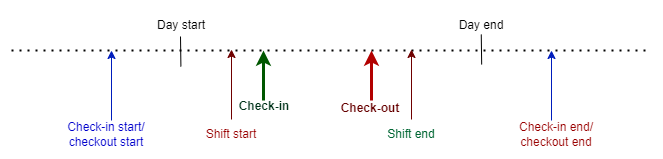
  1. Shift start and end

  2. Check in start and end

  3. Check out start and check out end

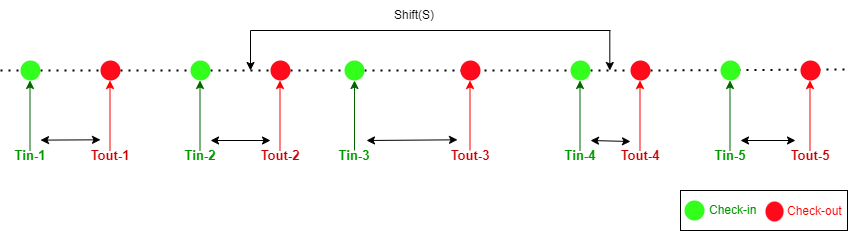
Shift defines the work time and by means of the start of the shift and end of the shift. Users can check in after the start of the shift and check out at the end of the shift. Allowed time for check in and check out can be also configured. Allowed check in time can be configured by means of check in start and check in end. Similarly Allowed check out time also can be configured by means of check out start and check out end.
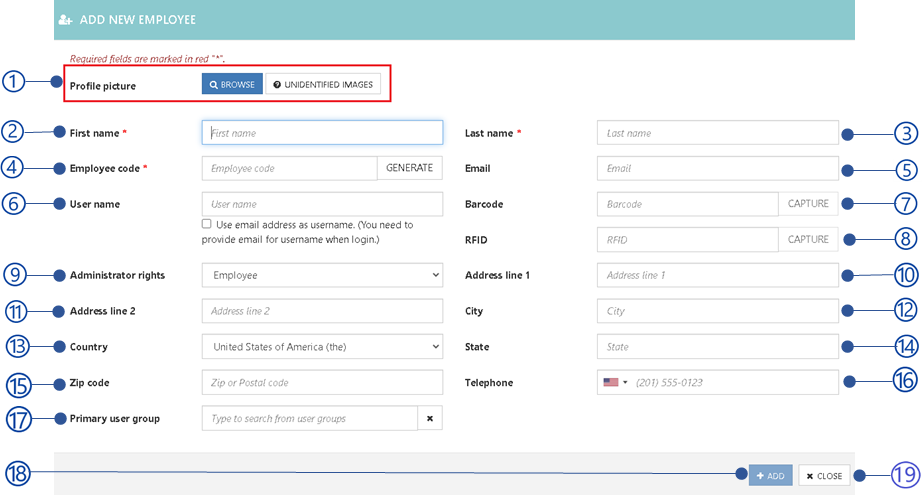
_images/image267.PNG

Figure 130 Check-in and check-out events recording in the shift

Default shift is a system defined shift which will be used for attendance tracking if there is no scheduled shift. Refer Shift management section for more details about shift management.

Shift management

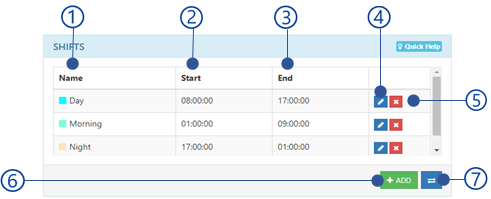
The shift management view is shown below.

_images/image269.PNG

Figure 131 Shift management view

  1. Create shift button

  2. Import button

    Import shift as mentioned in Import shifts section.

  3. A Data table shows all available shifts. Each shift Quick access menu is showing following options.

    1. Edit

      Edit selected shift as mentioned in section.

  4. Actions menu

    Action menu appears with following options for selected shifts from the Data table .

    1. Export shift data

      Refer Export shifts section for more details.

    2. Delete shifts

      Delete all selected shifts.

  5. Number of selected shifts from the Data table .

Add/edit shift

_images/image271.PNG

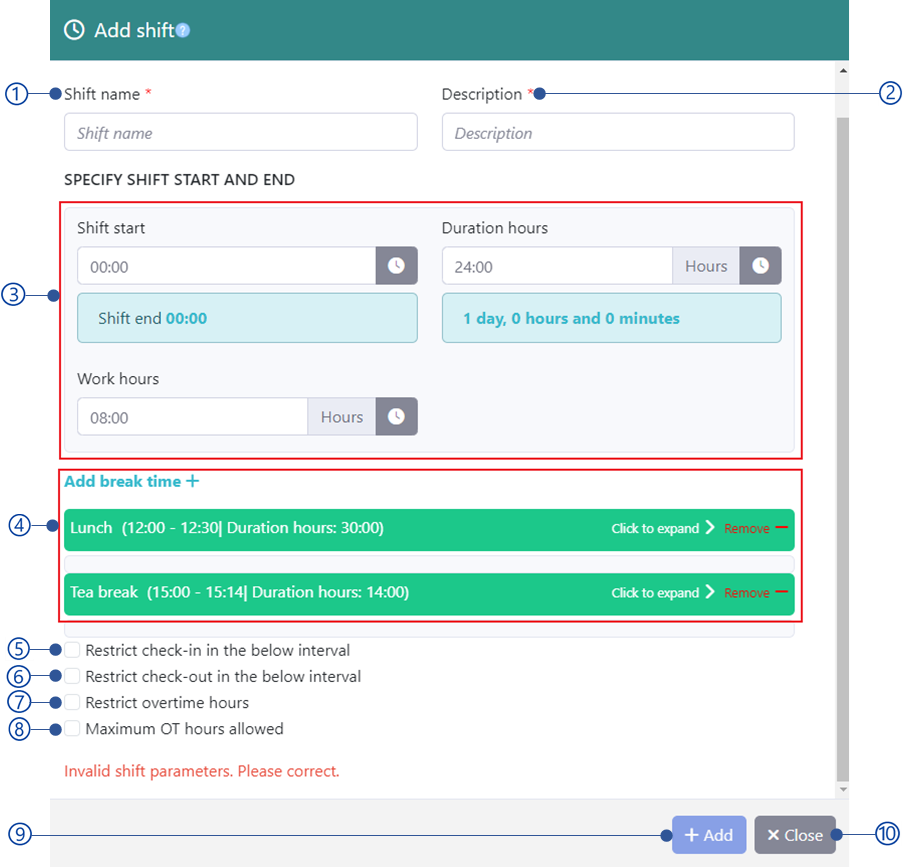
Figure 132 Add/edit shift dialog

  1. Shift stepper

  2. Selected stepper view

  3. Next/save button

Shift details view
_images/image273.PNG

Figure 133 Shift detail view

  1. Shift color

    This color is using in the UI to identify the shift from other shift in the access schedule,

  2. Shift name

  3. Description

  4. Shift time view

  5. Break time view

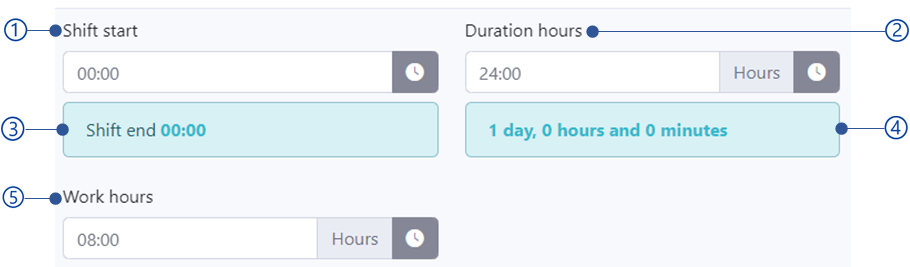
Shift time view
_images/image275.PNG

Figure 134 Shift time view

  1. Shift start time

    Shift start in hours and minutes. Default shifts start time 00:00 hours. You allow to select between 00:00 hours and 24:00 hours.

  2. Duration hours

    Shift duration in hours and minutes. Default value is 24 hours. The shift end can be a value between 00:00 hours and 7 days.

  3. Shift end

    Shift end in hours and minutes

  4. Duration in days, hours, and minutes

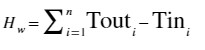
  5. Work hours

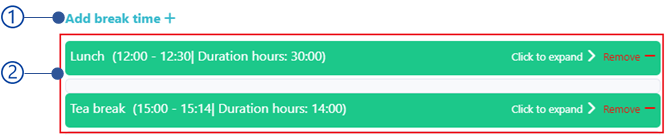
Break time view
_images/image277.PNG
  1. Add break time button

    Add new break time to the shift as mentioned in Add/edit break time section.

  2. Beak time list view

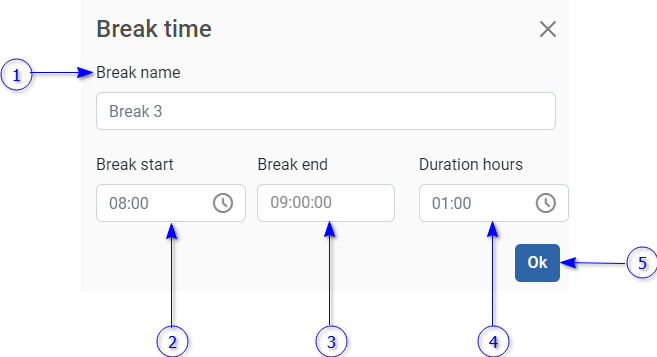
Add/edit break time
_images/image278.PNG

Figure 135 Add/edit break time dialog

  1. Break name

  2. Break start time

    Break start time in hours and minutes.

  3. Break end time

    Break end time in hours minutes and seconds.

  4. Duration hours

    Break duration in minutes and seconds.

  5. OK button

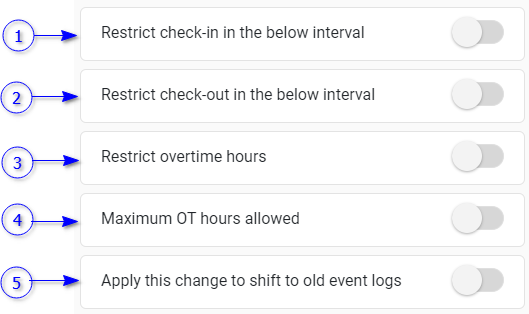
Additional shift settings

_images/image280.PNG

Figure 136 Additional shift settings view

  1. Restrict check-in in the below interval

    Refer Check-in restriction section for more details.

  2. Restrict check-out in the below interval

    Refer Check-out restriction section for more details

  3. Restrict overtime hours

    Refer Overtime restrictions section for more details

  4. Maximum OT hours allowed

    Refer Max OT hours section for more details

  5. Apply this change to the shift to old event lo

Check-in restriction

Restrict user check-ins before and after the shift starts.

_images/image282.PNG

Figure 137 Check-in restriction view

  1. Check-in start

    Number of hours restrict check-ins before shift start. The default value is Minimum (Shift end -24 hours, Shift start). Check-in start hours could be between shift start and (shift start -24 hours).

  2. Check-in end

    Number of hours restrict check-in after shift start. The default value is shift end. Check-in end could be between shift end and 7 days.
Check-out restriction

Restrict user check-outs before and after the shift ends.

_images/image284.PNG

Figure 138 Check-out restriction view

  1. Check-out start

    Number of hours restrict check-out before the shift end. The default value equals to shift start. Check-out start restriction could be a value between (shift start - 24 hours) and 7 days.
  2. Check-out end

    Number of hours restrict check-out after the shift end. The default value is minimum (shift start + 24 hours, shift end). Check-out end restriction could be a value between 0 hours and 7 days.
Overtime restrictions

Overtime hours allowed after the shift ends.

_images/image286.PNG

Figure 139 Overtime restriction view

  1. Overtime start

    Overtime starts hours from the shift end. The default value is 0. Overtime start could be a value between 0 and overtime end.
  2. Over time end

    Overtime end hours from the shift end. The default value is 0. Overtime end could be a value between 0 and 7 days.
Max OT hours

Maximum overtime hours allowed.

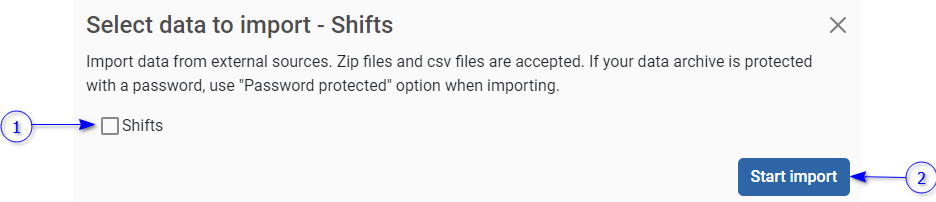
Import shifts

_images/image288.PNG

Figure 140 Import shifts view

Shift information can be imported as mentioned in Import and Export information section. To impot,

  1. Select the Shift to import Shifts information

  2. Start Import button to select the import location.

    Refer Select import location section for more details.

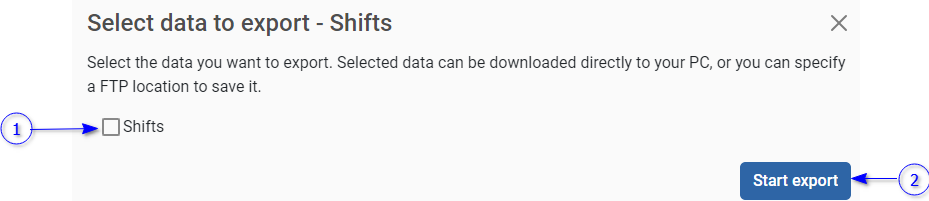
Export shifts

_images/image290.PNG

Figure 141 Export shift view

Shift information can be exported as a password protected zip file as follows.

  1. Select Shifts to export Shifts information

  2. Start Export button to select export location.

    Refer Select export location for more details.

Schedule

A schedule is a list of shifts assigned to each user or user group over a specific period. Refer Schedule management section for more information about managing employee and visitor schedules.

Schedule management

Schedule management view is shown below.

_images/image292.PNG

Figure 142 Roster management view

  1. Create schedule button

    Create new bio attendance or visitor schedules.

    1. Refer Add/edit bio attendance schedule section for more details about creating bio attendance schedules

    2. Refer Add/edit visitor schedules section for more details about creating visitor schedules.

  2. Import button

    Import schedules. Refer Import schedules section for more details.

  3. Schedules view

    Schedules view is showing list schedules as shown in Figure 143 .

    _images/image294.PNG

    Figure 143 Schedule view

  4. Schedule details

    A schedule summery. Refer section for more information about schedule information.

  5. Schedule options menu

    1. Edit

      Edit bio attendance or visitor schedule.

      1. Refer Add/edit bio attendance schedule section for more details about creating bio attendance schedules

      2. Refer Add/edit visitor schedules section for more details about creating visitor schedules.

    2. Delete

      Delete the schedule.

    3. Export data

      Export schedule data as mentioned in Export schedule section.

  6. Access schedule

    Refer Access schedule section for more details.

Add/edit bio attendance schedule

Add/edit schedule dialog is shown below.

_images/image296.PNG

Figure 144 Add/edit schedule dialog

  1. Schedule stepper

  2. Selected stepper view

  3. Next/save button

Schedule detail view

Schedule detail view is shown below.

_images/image298.PNG

Figure 145 Schedule detail view

  1. Schedule name

  2. Repetition

    How many weeks the roster should span - Default is 1 week. Maximum 4 weeks.

  3. Start date of the roster

    You may select any day, but the starting day will be Monday of the selected day’s week by default.

  4. End of repetition

    If no end date specified, the roster will iterate infinitely. If you specified the end date, the roster would end on the specified date and thereafter you will not be able to add roster items to it.

Add group or employees view

Add group or employees view is shown below.

_images/image300.PNG

Figure 146 Add group or schedules view

  1. Select groups

    Select employee groups to add to the schedule from available.

  2. Select users

    Select employees to add for the schedule.

Note

Add group or employees view is available when adding schedule only.

Add/edit visitor schedules

Add/edit visitor schedules involves two steps

  1. Select scenario

  2. Schedule details

Select scenario

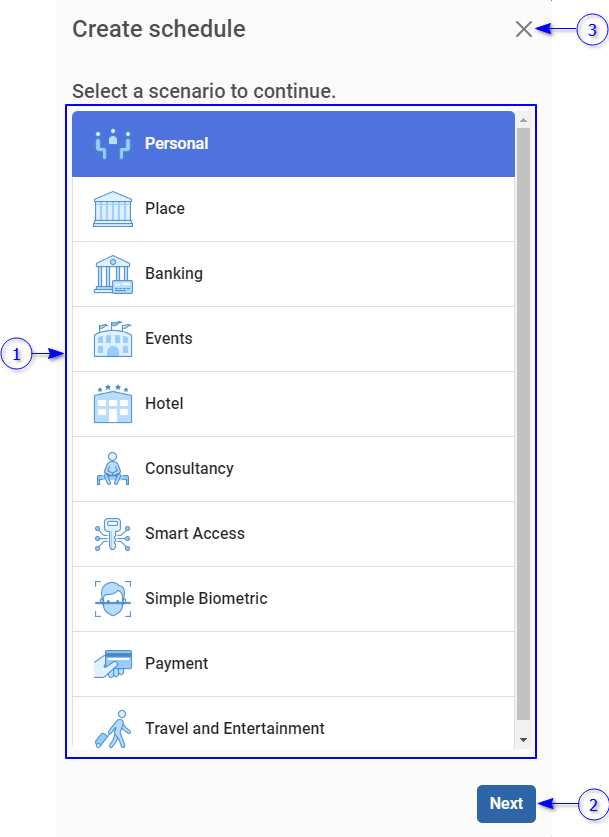
Select scenario from the available scenario list in the scenario selection dialog as below.

_images/image302.PNG

Figure 147 Select scenario view

  1. Scenario list

  2. Next button

    Select next button to enter the schedule details as mentioned in Schedule details section.

  3. Close button

Note

Once the schedule is created the scenario cannot be changed

Schedule details

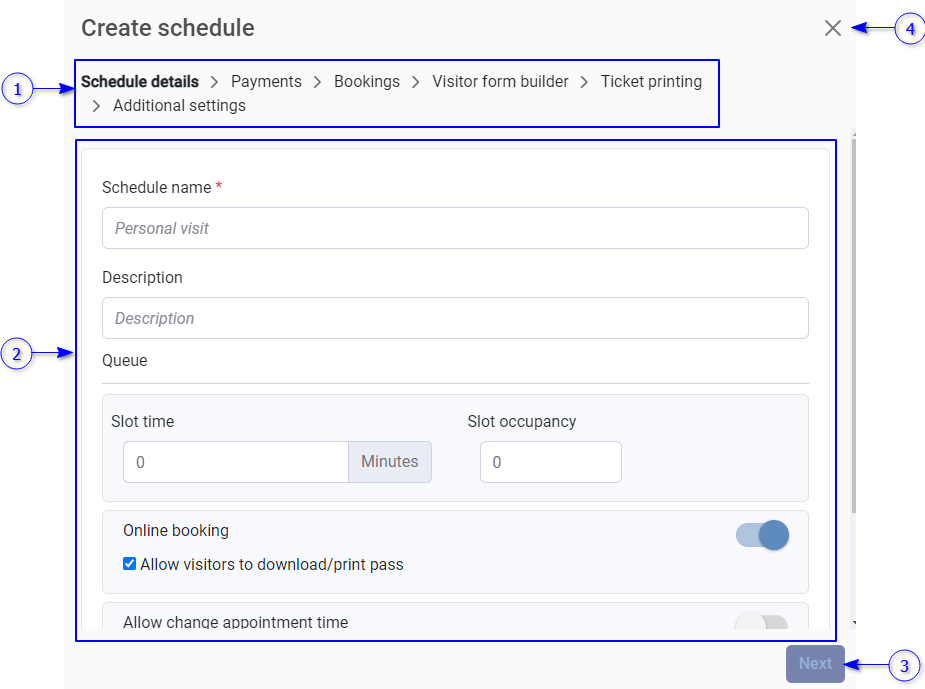
Schedule details dialog is shown below.

_images/image304.PNG

Figure 148 Schedule details dialog

  1. Schedule detail stepper

  2. Schedule detail view

    Detail view for each section in the schedule detail stepper.

  3. Back and Next button

    Stepper back and next navigation

  4. Close button

Schedule detail view

Enter primary details of the schedule in the schedule detail view. Schedule detail view is shown below.

_images/image306.PNG

Figure 149 Schedule detail view

  1. Schedule name

    Schedule name is a mandatory field.

  2. Schedule description

  3. Slot time

  4. Slot occupancy

  5. Online booking

  6. Allow changing appointment time

  7. Reservation time out

Payment detail view

Configure payment and pricing details. Payment detail view is shown below

_images/image308.PNG

Figure 150 Payment detail view

  1. Allow payments

    If the allow payments setting is disabled, visitors can create appointments without payment.

  2. Payment gateway configuration

  3. Currency configuration

    The currency that should be used for the payment can be configured here. The default currency is USD

  4. Pricing configuration

Payment gateway configuration

Payment gateway configuration allows to configure payment gateway(s) for the schedule. If “Configure payment gateway” setting is disabled, the payment is considered as manual payment so that visitor can pay to the person in charge (Ex: Cashier). Any payment gateway can be configured upon the customer request. The payment gateway configuration view is shown below.

_images/image310.PNG

Figure 151 Payment gateway configuration view

  1. Configure payment gateway setting

    Enable/disable payment gateways for the schedule. If the setting is disabled, the payment will be a manual payment so the visitor who create appointment should pay to the person in charge (Ex: cashier).

  2. Available payment gateways

    Select the payment gateway to configure. The selected payment gateway is shown in blue color.

  3. Payment gateway configuration

    Relevant parameters for the selected payment gateway should be provided here. As an example, for PayPal payment gateway, the configurations are client ID and client secret.

  4. Save change button

    This button will be appeared if the valid configurations are provided. Once select the save changes, the payment gateway will be shown with the check icon as shown in Figure 152 .

  5. Remove selected payment gateway configuration

    _images/image312.PNG

    Figure 152 Checkbox appeared for the payment gateway once configured

Pricing configuration

The pricing details are for charge from the visitor. This section can be changed according to the customer requirements

_images/image314.PNG

Figure 153 Pricing configuration view

  1. Pricing details

    The amount should be charge from the visitor on appointment creation

  2. Add seating group button

    Add new seating group.

  3. Seating group view

    Pricing detail can be changed depending on the use case. By default, a basic detail view is shown with the following details.

    1. Name

    2. Capacity

      Number of seats allows for the group.

    3. Number of seats in a row

      This parameter is used to generate seating view as rows.

    4. Price

      Price per seat

Booking configuration

The booking configuration view is shown below.

_images/image316.PNG

Figure 154 Booking configuration view

  1. Period

  2. Booking open

  3. Booking close

Period

Normally the booking time for an appointment is in a single day. But some tasks like a class, seminar etc. span for several days period they can be defined with no of days, weeks, or months.

The period view has shown below.

_images/image318.PNG

Figure 155 Period configuration view

  1. Value

  2. Period type

    1. Days

    2. Weeks

    3. Months

    4. Schedule end

      Period will end on schedule end date if schedule date has specified.

Booking open

Booking starts before n days restricts booking appointments before that time.

Booking open configuration view has the following options.

_images/image320.PNG

Figure 156 Booking open configuration view

  1. Always

    If single appointment, booking opens when schedule start. Otherwise, on period start.

  2. Before

    If single appointment, booking opens for specified number of days before schedule start. Otherwise, the number of specified days before period start.

Booking close

Booking close setting allows to book appointments after starting to book period.

Booking close configuration is shown below.

_images/image322.PNG

Figure 157 Booking close configuration view

  1. No closing

    No closing date. Can be booked booking open date to schedule ends if 1 day period schedule. Otherwise booking open day to period closing date

  2. After

    Minus day(s) to specify number of days booking close before schedule start if 1 day schedule. Otherwise, minus and plus day(s) to specify number of days booking close before period start and after period start.

Visitor detail form builder

Visitor detail forms are used to collect visitor details when booking appointments for the schedule. This section allows to create a visitor form for the schedule by drag and drop form fields from existing fields. By default, schedule have default visitor form fields inherit from the scenario.

_images/image324.PNG

Figure 158 Visitor detail form builder view

  1. Form fields

    By default following form fields are available. Depending on the customer requirement, custom fields can be added.

    1. Name

    2. Phone

    3. Email

    4. Address

    5. Age

    6. ID

    7. City

    8. To Meet

    9. Reason

    10. Amount

    11. Account number

  2. Form field view

Form field view

Visitor form for the schedule. Visitor form can be populated, dropping fields from the form fields.

_images/image326.PNG

Figure 159 Visitor form field view

  1. Field name

  2. Field input

  3. Field configuration

    Field configuration allows the behavior of the form fields to change. For example, field is required or not, minimum, and maximum validation of a number input.

  4. Remove button

    Remove the field from the field.

Ticket printing view

Print the ticket once an appointment is created. Ticket printing view is shown below.

_images/image328.PNG

Figure 160 Ticket print view

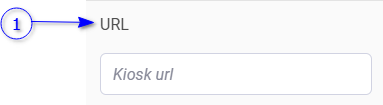
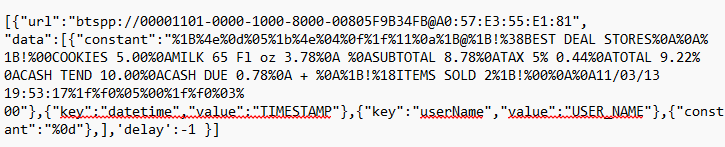
  1. URL

    Path of the external executable file (exe or bat) in the windows registration device or API URL

  2. Ticket parameters

Ticket parameters

Select parameters from the available to pass to the external executable.

By default, the following parameters are available. Custom parameters can be introduced based on the requirements.

Parameter

Single appointment schedule

Session appointment schedule

Schedule name

_images/image481.PNG

Pass code

_images/image481.PNG

First name

_images/image481.PNG

Last name

_images/image481.PNG

Appointment start time

_images/image481.PNG
_images/image491.PNG

Appointment end time

_images/image481.PNG
_images/image491.PNG

Period start date

_images/image491.PNG
_images/image481.PNG

Period end date

_images/image491.PNG
_images/image481.PNG

Note

Exe and bat files can be executed in windows registration devices only.

Additional settings

An additional settings view is shown below.

_images/image330.PNG

Figure 161 Additional settings view

  1. Automatic approval of visit requests

  2. Biometric collection

  3. Pass type

  4. Visitor pass generation

  5. Custom visitor feedback view

Export schedule

_images/image332.PNG

Figure 162 Export rosters view

Roster information can be exported as a password protected zip file as follows.

  1. Select data from the list for export

  2. Select the Start Export button to select the export location

    Refer the Import and Export information section for more details.

Import schedules

_images/image334.PNG

Figure 163 Import rosters view

Roster information can be imported as mentioned in Import and Export information section. To import,

  1. Select data from the list to import

  2. Select Start Import button to select the import location

    Refer the Select import location section for more details.

Access schedule

The access schedule option allows to manage schedule items of each day for visitors and employees. Once shifts and schedules are created, the schedule items should be added for the working days to record attendance for the shift and schedule. Schedule view is shown below.

_images/image336.PNG

Figure 164 Access schedule view for bio attendance

_images/image338.PNG
  1. Access schedule filter view

  2. More actions menu

  3. Repetition selector

  4. Schedule items view

    Schedule items for all employee groups and employees added to the schedule for selected week from the repetition selector. Refer Schedule items view section for more information.

  5. Add more users button

    Update employee groups and employees in the schedule. Refer Add group or employees view section for more information.

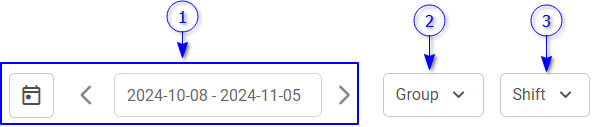
Access schedule filter view

Access schedule filter view is shown below.

_images/image339.PNG

Figure 165 Access schedule filter view

  1. Calendar view

    Select date range to retrieve employee groups and employees with schedule items.

  2. Group selector

    Select employee groups from the list.

  3. Shift selector

    Select shift from the list

Note

Group filer is not available in access schedule view for visitor management

Add/edit schedule item

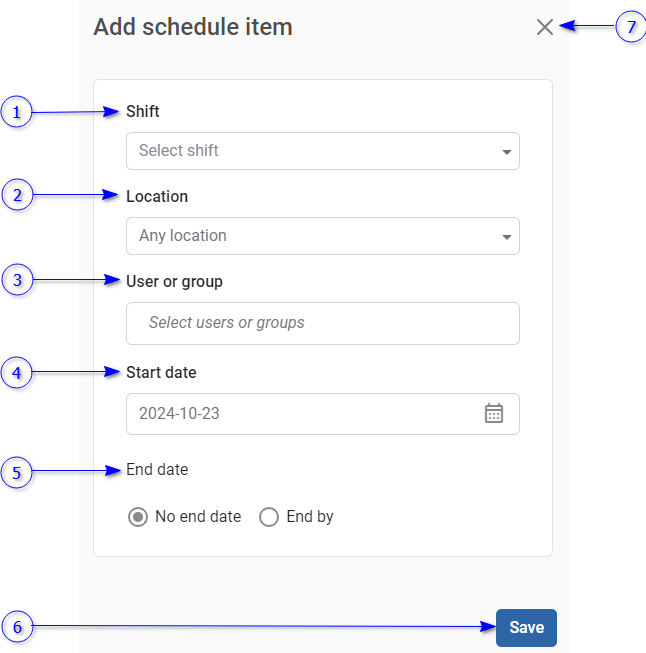
Schedule item is a combination of a employee group/employee with a shift for selected date, which represents how employees should be worked during the day. Add schedule item dialog is shown below.

_images/image341.PNG

Figure 166 Add schedule item dialog

  1. Shift

    Select shift from available.

  2. Location

    Refer Manage Locations section for more details about locations.

  3. Employee/employee group

  4. Start date

  5. End date

    If no end date is selected, schedule items will be created infinitely.

  6. Save button

    Add new schedule item or save changes for the existing schedule item.

  7. Close button

Note

Schedule items for bio attendance are added to the selected user or user group from the access schedule view. Therefore, user or user group of the adding schedule item is pre-selected and cannot be edited in bio attendance.

Schedule items view

_images/image343.PNG

Figure 167 Schedule items view

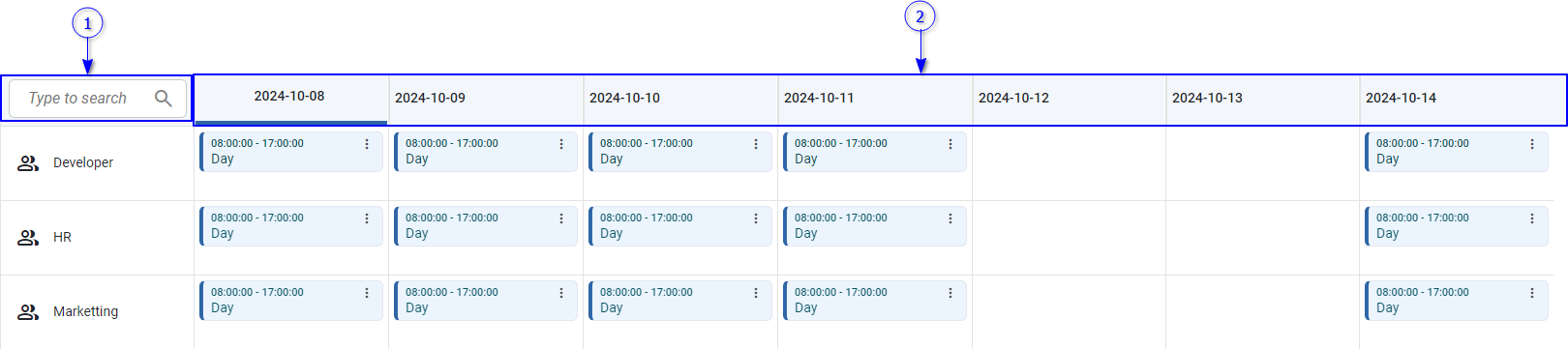
  1. Employee groups/employees added to the schedule

    This column is unavailable in access schedules for visitor management.

  2. Days for the selected week

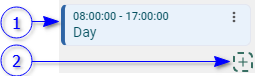
    Each table cell for a day and the employee group/employee represent schedules item(s) for the employee group/employee for the day. You can add schedule item for each cell using the add button that appears in the bottom right corner when hovering on the table cell. A table cell view is shown below.

    _images/image345.PNG

    Figure 168 table cell view

  3. Schedule item view

  4. Add button.

    Add schedule item for the relevant employee group/employee and the day. Refer Add schedule item section for more details.

Schedule item view

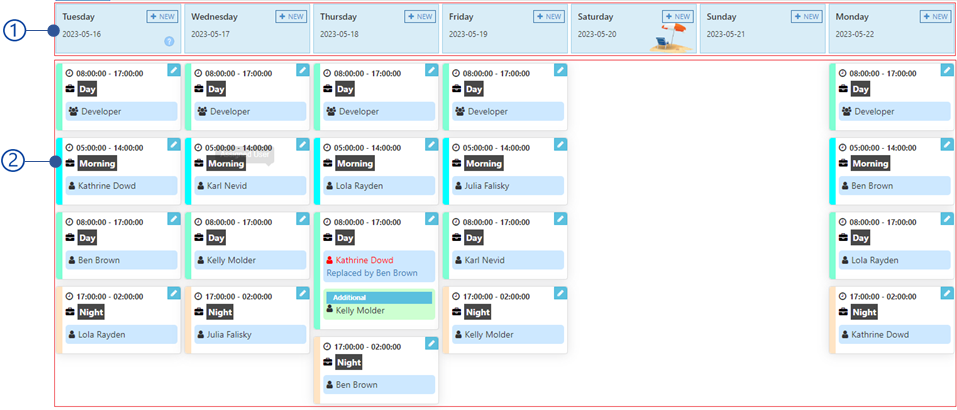
Schedule item view bio attendances and visitor management are shown below.

_images/image347.PNG

Figure 169 Schedule item view for bio attendance

_images/image349.PNG

Figure 170 Schedule item view for visitor management

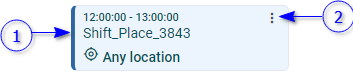
  1. Details of the schedule item

    The details are shown as below

    1. Visitor management

      Shift start and end date with the shift name and location name are showing

    2. Bio attendance

      Shift start and end time with the day are showing.

  2. Menu button

    1. Edit

      Edit schedule item. Refer Add/edit schedule item section for more information.

    2. Booking info

      This option is available for schedule item in visitor management. Refer Booking info section for more information/

    3. Copy to

      Create same schedule item instance for other selected dates in the schedule. Refer Copy schedule item section for details.

    4. Delete

      Delete schedule item.

Copy schedule item

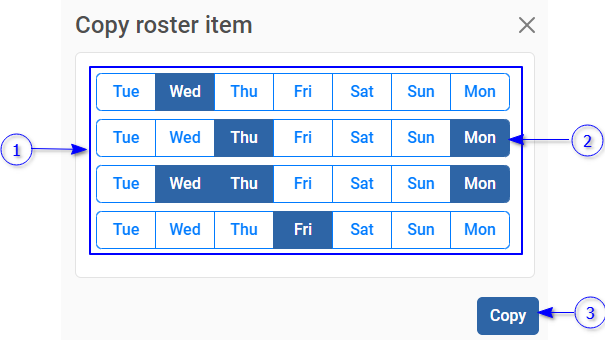
Copy schedule item dialog is shown below.

_images/image351.PNG

Figure 171 Copy schedule item dialog

  1. Repetition weeks

  2. Selected date to copy the schedule item

  3. Copy button

    Copy schedule item for the selected date.

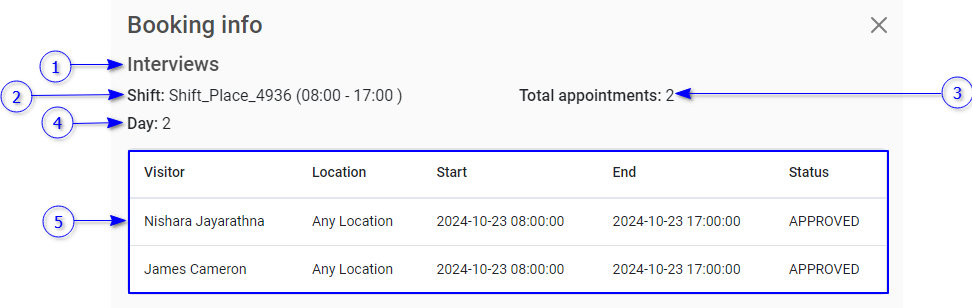
Booking info

The appointment details of each schedule item in visitor management can be seen from booking info. Booking info dialog is shown below.

_images/image353.PNG

Figure 172 Booking info dialog

  1. Name of the schedule

  2. Name of the shift using in the selected schedule item1

  3. Total number of appointments added to the schedule item

  4. Day number

  5. Appointment information

Manage Locations

Visit location is the place where the visitor visits for the purpose of visit. By default, NCheck has default location.

Note

The default location is the system generated location. It is not allowed to change or delete.

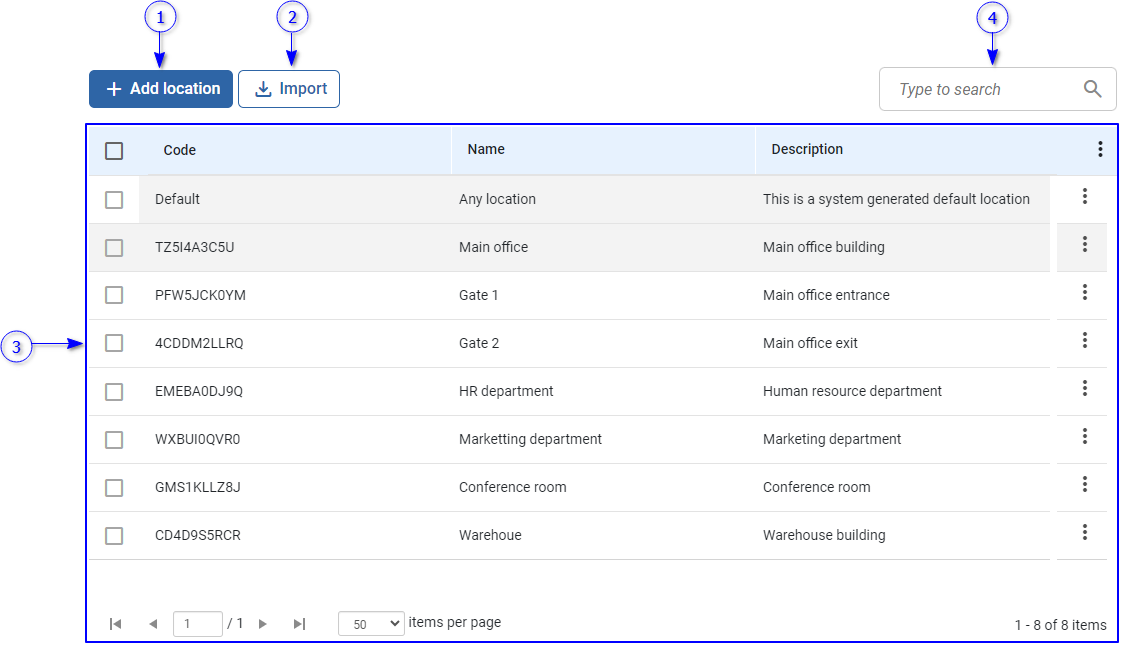
The location management view is shown below.

_images/image355.PNG

Figure 173 Location management view

  1. Add location button

    Add new location. Refer Add/edit location section for more information.

  2. Import button

    Import location(s) to the system. Refer Import location data for more details.

  3. Location list view

    A Data table represent list of locations. Selected location information can be seen in location view. The employee group Quick access menu is showing following options.

    1. Edit

      Edit selected location. Refer Add/edit location section for more information

    2. Delete

The Actions view of the selected locations shows the following options.

  1. Export data

    Refer Export location data section for more details.

  2. Search field

    Search locations in the location list from location name or description.

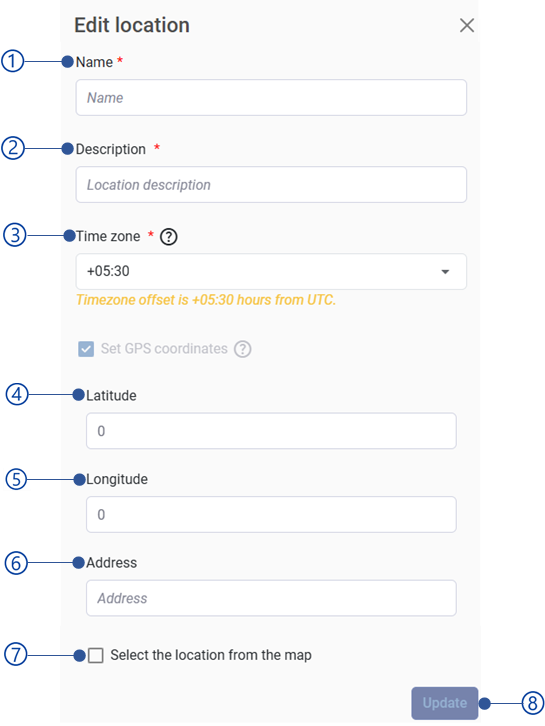
Add/edit location

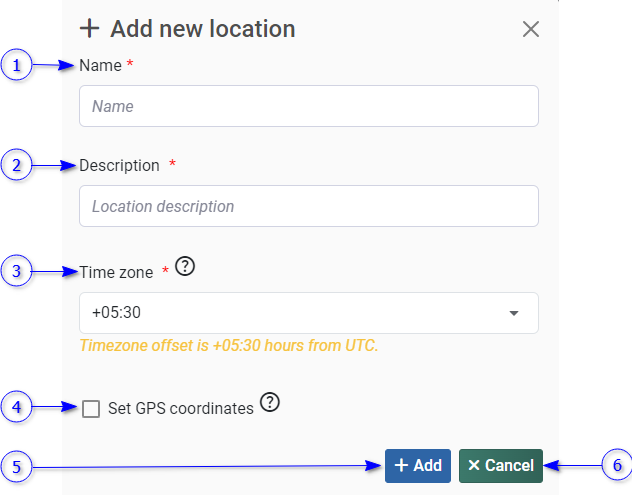
Add edit location dialog is shown below.

_images/image357.PNG

Figure 174 Add edit location dialog

  1. Name

    Name of the location

  2. Description

    Description for the location

  3. Time zone

    Time zone of the location. The default time zone is browser time zone.

  4. Set GPS coordinates

    Select this option if the location have longitude and latitudes. This coordination will be used as fallback location for attendance. After enable the view will be extended as shown below.

    1. Latitude

    2. Longitude

    3. Select the location from the map

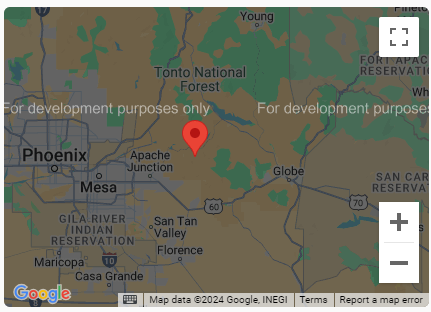
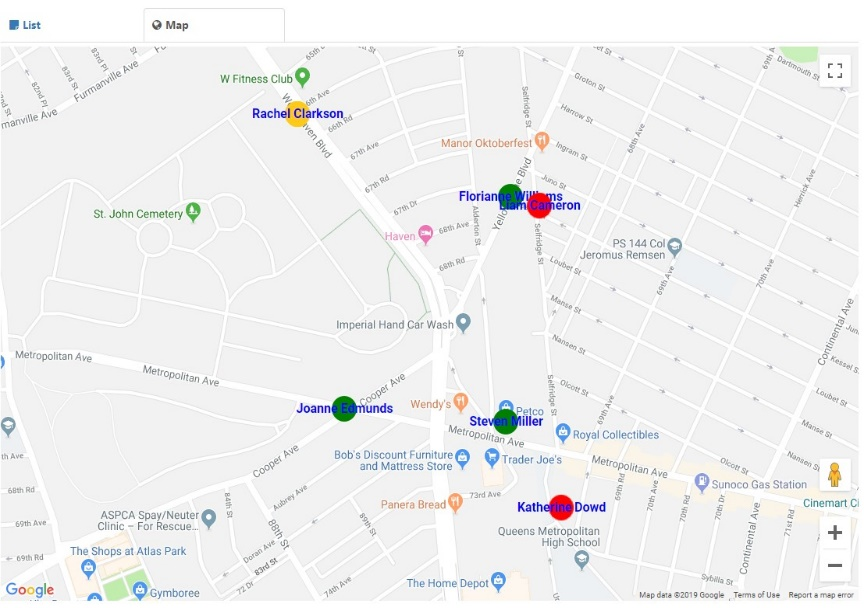
      You can configure map from Web interface settings view section to select to select GPS coordinates form the map as showing below.

      1. Map view

      2. Map marker

        Selected location will be pointed with this marker.

_images/image359.PNG
_images/image360.PNG

Figure 175 GPS coordinate view in add/edit location dialog

Import location data

The import locations to the system are as a zip file. Refer Import and Export information section for more details for importing file structure. The import location data dialog is shown below.

_images/image362.PNG

Figure 176 Import location data dialog

Select the Import button to select the import location. Refer Select import location section for more details about selecting import location.

Export location data

Export selected location information as a zip file. Refer Import and Export information section for more details for importing file structure. Export location data dialog is shown below.

_images/image364.PNG

Figure 177 Export location data dialog

Select start export button to select export location as mentioned in Select export location section.

Location view

The selected location information can be seen from the view.

_images/image366.PNG

Figure 178 Location view

  1. Tabs view

    1. Location details

    2. Access locations

  2. Selected tab content

Location details

Location detail’s view contains following operations.

  1. Edit button

    Edit location as mentioned in Add/edit location section.

  2. Register device button

  3. Delete button

    Delete location from the system.

Register device for location

A device can be registered to a location so that the visitors who have appointments for the specific location can be used to record their attendances. The device registration dialog for location is shown below.

_images/image368.PNG
  1. The select location name and description to generate the registration token.

  2. Generate button

    To generate the registration token. The Registration token view will be shown once the token generated.

  3. Links to download clients.

  4. Close button

Access locations

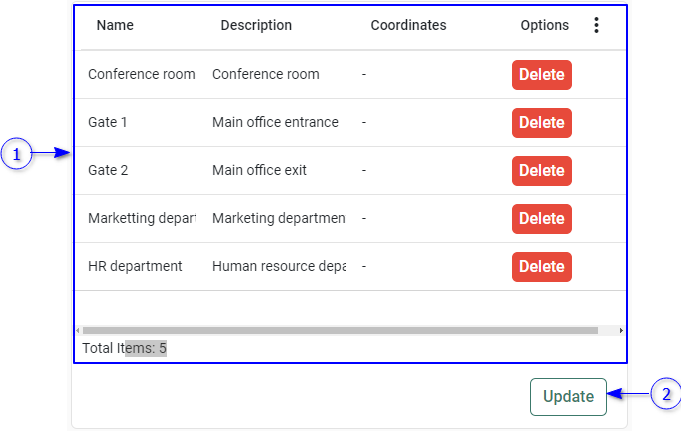
By default, a visitor is allowed to access the appointment location. If the location cannot access directly and visitor must pass additional doors or gates, those places also should be allowed to access. Such locations can be added as access locations for the location. The access location view is showing a list of access locations added to the “Main office” location.

_images/image369.PNG

Figure 179 Access location dialog

  1. Access location list

    A Data table represent a list of access locations. The access location can be deleted from the Delete options.

  2. Update button

    Update access location list. Refer Update access location section for more information.

Update access location

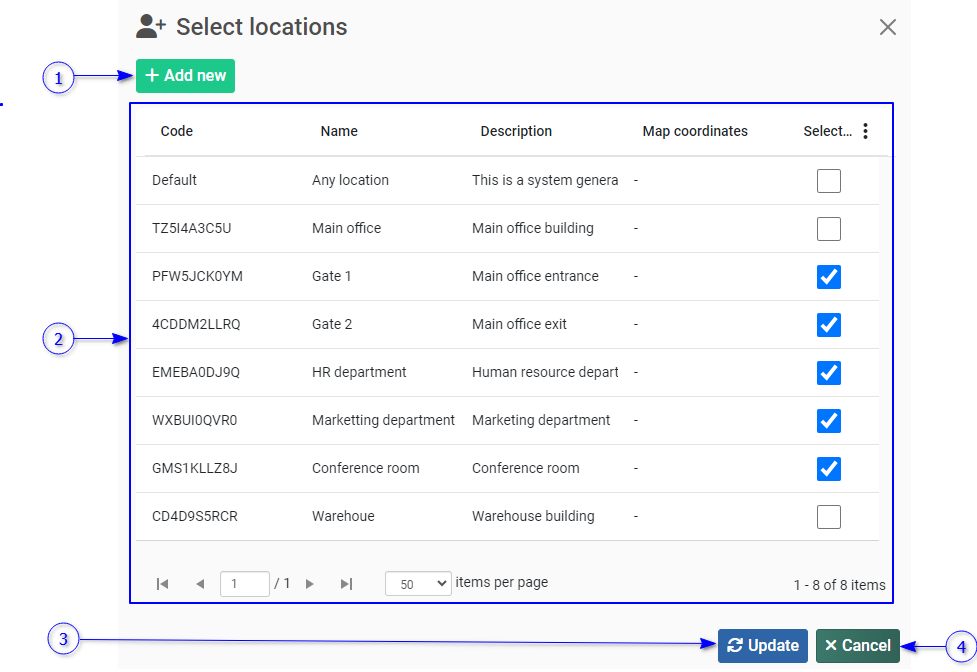
The access locations for the selected location can be added/removed from the select location dialog as below.

_images/image371.PNG

Figure 180 Select location dialog

  1. Add new button

    Add new location as mentioned in Add/edit location section.

  2. List of location.

    A Data table represent list of locations. Use select options to select locations to be updated as access locations. Unselect locations to be removed from the access location list.

  3. Update button

    Update selected locations as access locations.

  4. Cancel button.

Manage appointments

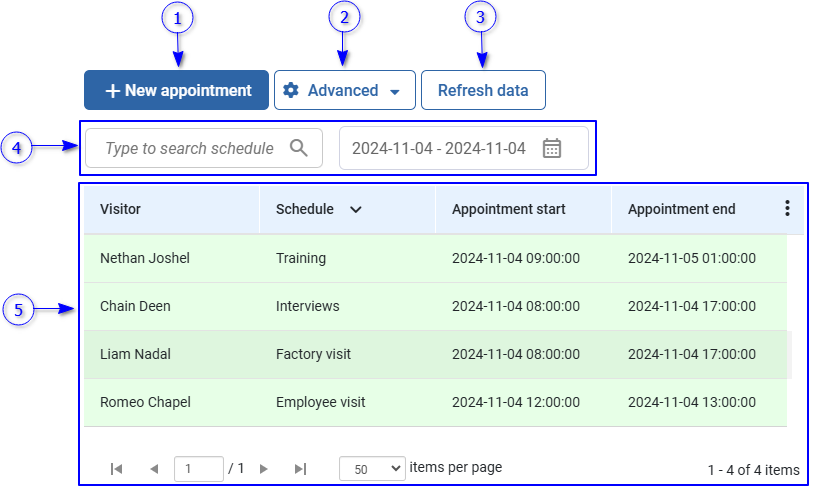
Visitor appointment is a request from the visitor for the visit with specific date and time as defined for the visit schedule. Appointments management is allowing to manage all visitor appointments,

_images/image373.PNG

Figure 181 Appointments view

  1. New appointment button

    Create new appointment as mentioned in New appointment section.

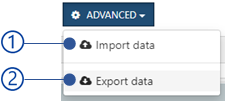
  2. Advanced menu

  3. Refresh appointment

    Refresh appointments

  4. Appointment filter view

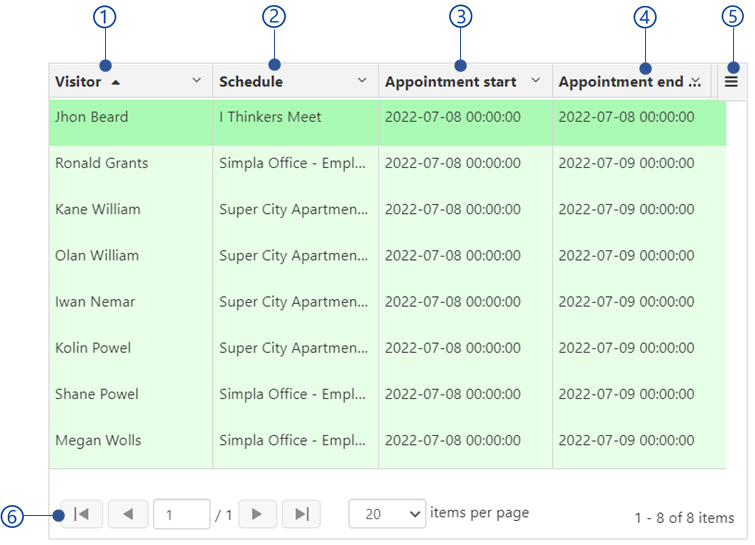
  5. Appointments list

    A Data table shows list of appointments.

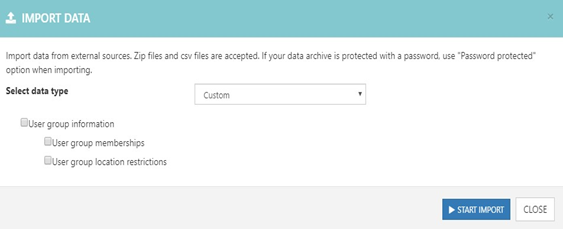
Import data

_images/image375.PNG

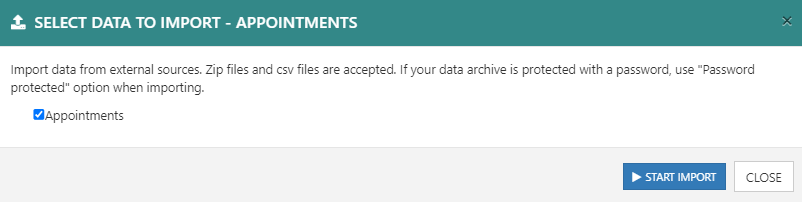
Figure 182 Import appointments data dialog

Select appointments checkbox to import appointments. Once select Start Import button, it will show import data dialog to select import file location as mentioned in Select import location section.

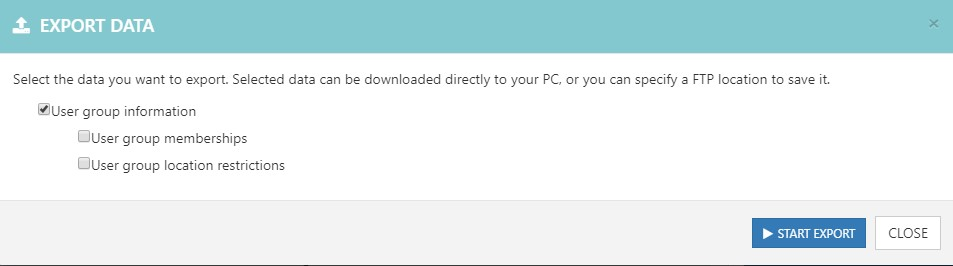
Export data

_images/image377.PNG

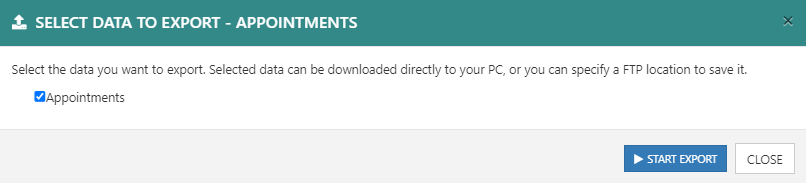
Figure 183 Export appointments data dialog

Select appointments to export all appointments. Once select Start Export button, it will show export data dialog to select export location as mentioned in Select export location section.

New appointment

To book an appointment,

  1. Select visit schedule

  2. Add/edit appointment detail

Select visit schedule

_images/image379.PNG

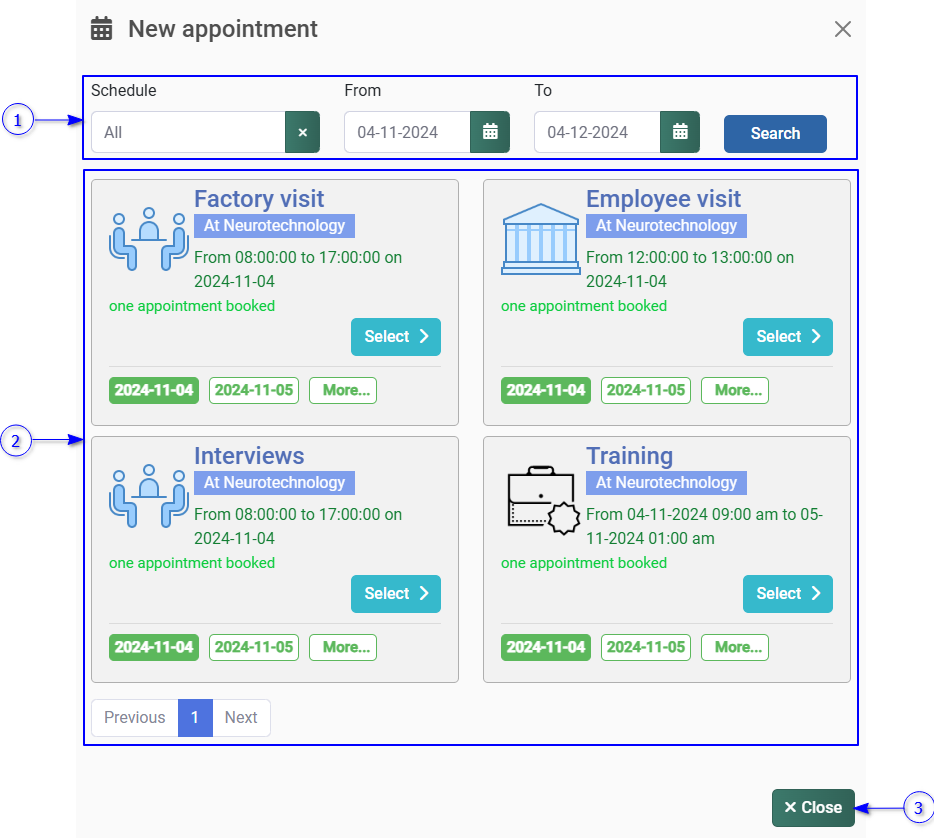
Figure 184 Visit schedule date selection dialog

  1. Schedule item filter view

  2. Schedule item list view

  3. Close button

Schedule item filter view
_images/image381.PNG

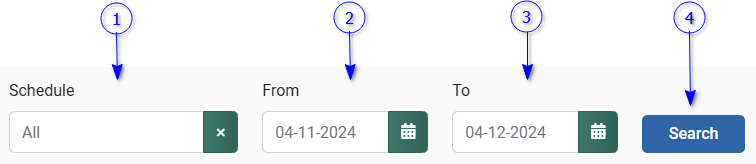
Figure 185 Schedule item filter view

  1. Schedule

    Schedule name

  2. From

    Schedule items start date

  3. To

    Schedule items end date

  4. Search button

    Filter schedule items according to the selected filters

Schedule item list view

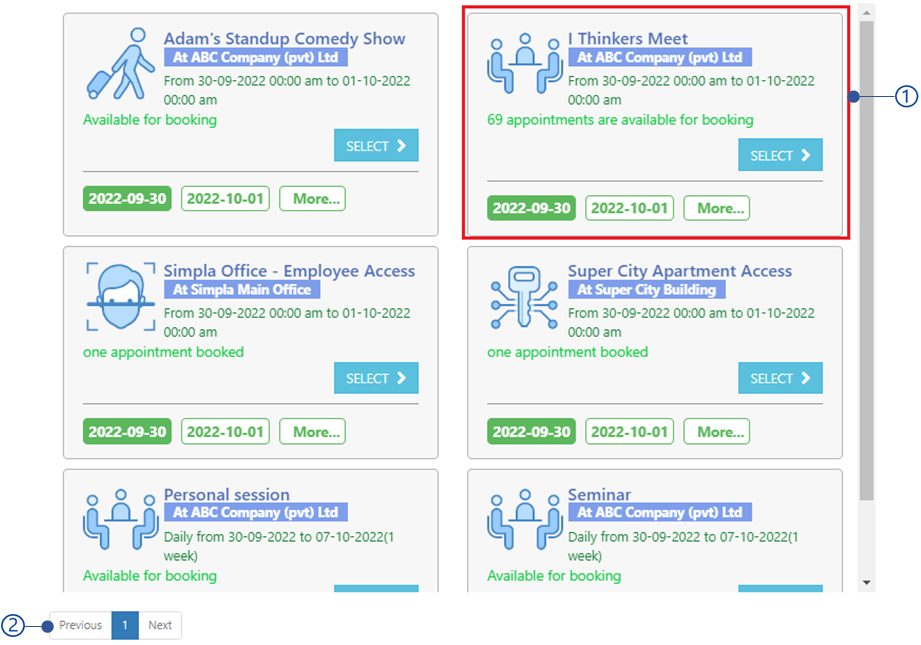
Schedule item is an instance of the schedule for specific date. Schedule item list view is shown below.

_images/image383.PNG

Figure 186 Schedule item list view

  1. Schedule view

  2. Schedule items paging

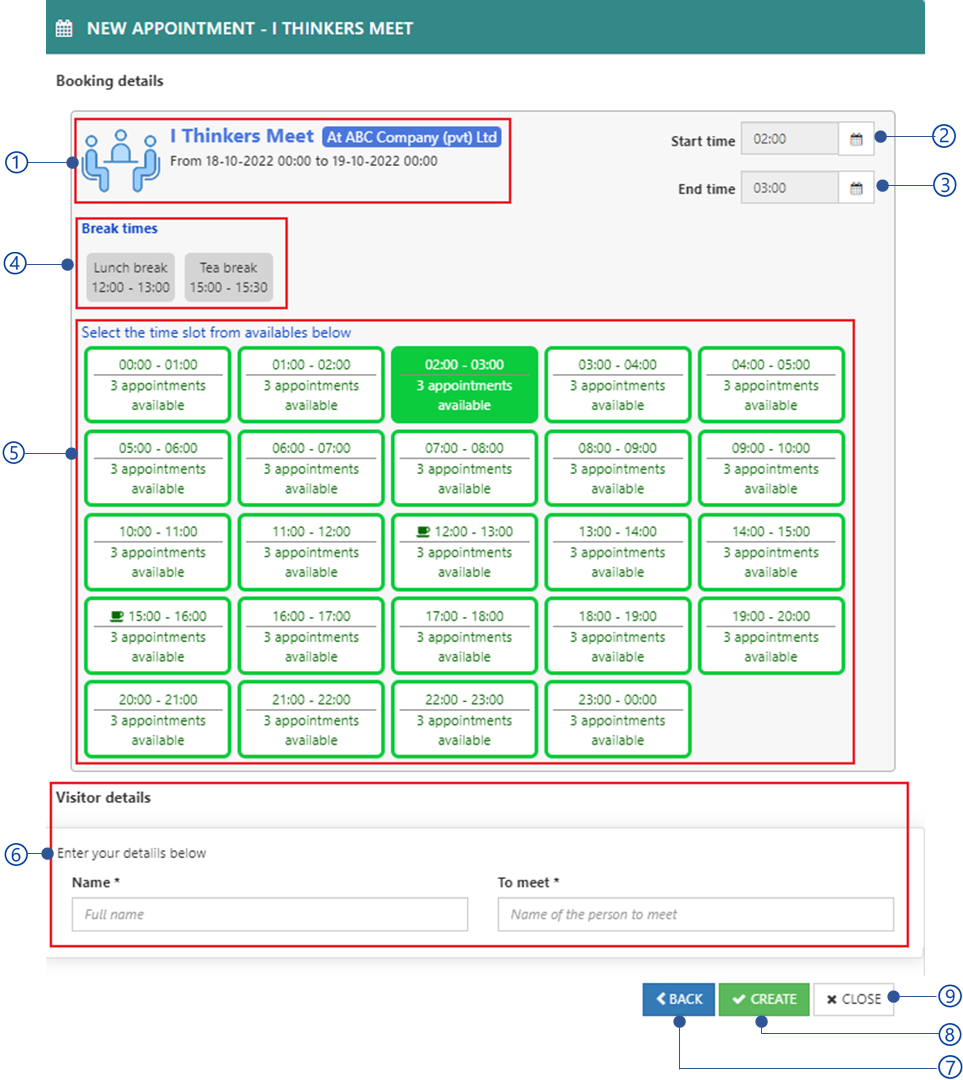
Add/edit appointment detail

_images/image385.PNG

Figure 187 Appointment detail view

  1. Schedule quick view

  2. Appointment start time

    If the Slot time is 0, the default appointment start time is schedule start time. If the Slot time is greater than 0, the default appointment start time is default slot start time. Default appointment start time allows to change between schedule ( Slot time = 0)/slot ( Slot time >0) start time and appointment end time.

  3. Appointment end time

    If the Slot time is 0, the default appointment end time is schedule end time. If the Slot time is greater than 0, the default appointment end time is default slot end time. Default appointment start time allow to change between appointment start and schedule ( Slot time = 0)/slot ( Slot time >0) end time.

  4. Break time view

  5. Time slot view

    Refer Time slots section for more details.

  6. Visitor form

  7. Back button

    Open Select visit schedule view. This button is not available when editing an appointment.

  8. Create/Save changes button

    When add appointment, create the appointment with the selected details. When editing an appointment, save changes with the given details.

  9. Close button

Appointment filter view

_images/image387.PNG

Figure 188 Appointment filter view

  1. Visitor name

    First and last name of the visitor

  2. Schedule

    Name of the schedule

  3. From

    Appointments start date

  4. To

    Appointment end date

Appointment table

_images/image389.PNG

Figure 189 Appointment table view

  1. Visitor

    First name and last name of the visitor

  2. Schedule

    Name of the schedule

  3. Appointment starts

    Date and time of the appointment start

  4. Appointment end

    Date and time of the appointment end

  5. Table menu

Appointment overview

  1. Appointment detail view

  2. Visitor details

Appointment detail view

_images/image391.PNG

Figure 190 Appointment detail view

  1. Schedule name

  2. Appointment approval status

  3. Schedule thumbnail

  4. Visitor first name and last name

  5. Appointment date

  6. Schedule start and end time

  7. Session details

  8. Appointment completion status

  9. Visit notes

  10. Notify menu

  11. Appointment status menu

  12. Edit appointment

    Refer Add/edit appointment detail section for more details.

  13. Delete appointment

  14. Ticket

  15. Session details

Visit notes

Visit notes are customizable templates that can be used to keep additional details to the appointment. Visit note may have maximum number of notes for each appointment as configured. By default, all scenarios consist of default visit note template “Comments” with unlimited notes for appointments. As per customer requirement, additional visit note template(s) can be introduced for each Scenario as an extension as mentioned in Use extension section Available templates of the scenario which is used to create appointment schedule will be listed for the selected appointment as follows.

_images/image393.PNG

Figure 191 Visit notes

  1. Visit note templates list

    All available visit notes template for the scenario are listed here. A visit note template view is showing in Figure 193 .

    1. Visit note template name.

    2. Available visit notes for the templates

      The number of maximum visit notes for a visit note template can be defined if required.

    3. Add button

      Add new visit notes. Refer section for more details about edit comments visit note.

  2. Visit notes list

    Visit notes for selected visit note templates if available. Visit note view is shown in Figure 192 .

    1. Visit note name.

    2. Edit button

      Edit visit note. Refer section for more details about edit comments visit note.

    3. Delete button

      Delete visit note.

      _images/image395.PNG

      Figure 192 Visit note view

      _images/image397.PNG

      Figure 193 Visit note template view

Add/edit comment note

Visit note add/edit view has shown below.

_images/image399.PNG

Figure 194 Add/edit visit note view

  1. Name of the comments note.

  2. Notes list view

    A comment note may have multiple notes as shown in Figure 195 .

  3. Name of the visit note

  4. Close button

  5. Submit button.

Notes list view is shown below.

_images/image401.PNG

Figure 195 Notes view of the Comments visit note

  1. Add note

    Add new note dialog will appear as shown in Figure 197 .

  2. Note view

    Note view is shown in Figure 196 .

Note view is shown below.

_images/image403.PNG

Figure 196 Note view

  1. Note description.

  2. Attachments of the note

  3. Edit button

    Edit note dialog will appear to edit the content of the note as shown in Figure 197 .

  4. Remove button

    Remove the note from the note list view.

Add/edit note dialog for comment view note is shown below.

_images/image405.PNG

Figure 197 Add/edit note view

  1. Note description.

  2. Note attachments

    Following parameters of the attachment can be configured in the Comments visit note template.

    1. Maximum number of attachments

      By default it is allowed to add 5 attachments.

    2. File types

      By default allows to attach JPEG, PNG, and PDF files.

  3. Cancel button.

  4. Add note button

    Add note to the comments.

Notify menu

The notify menu allows to send notifications such as appointment summery, welcome note and reminders for the selected appointment. The notification can be configured to the schedule as mentioned in the Appointment reminders section. From the notify menu the following notifications can be sent to the visitors.

  1. Appointment summery

    Send appointment summery for the visitor. Once select appointment summery, it will show the Notifications to send notification.

  2. Welcome note

    Send welcome note for the visitor. Once select a welcome note, it will show the Notification to send notification.

  3. Reminder

    Set reminder notification for visitor about the appointment start. Once select reminder, it will show the Notification to send notification.

Note

To send notification, either email or SMS notification must be configured as mentioned in Notification section

Appointment status menu

The appointment status menu has the following status types.

  1. Appointment approval status

  2. Appointment completion status

Appointment approval status

Appointment approval has the following statuses.

  1. Approve

    Approve appointment if the appointment status is rejected or pending (If the Automatic approval of visit requests has disabled).

  2. Reject

    Reject the approval that the appointment cannot be used,

Appointment completion status

Appointment completion has the following statuses.

  1. Set complete

    Complete appointment once the visitor completed the appointment.

  2. Set cancel

    Cancel appointment if the appointment is not in use.

  3. Set original state

    Set appointment to original state if the appointment is in use.

Delete appointment

The appointment will be deleted once select OK button from Delete appointment confirmation message.

_images/image407.PNG

Figure 198 Confirmation dialog for delete appointment

Ticket

Once the appointment is created, the visitor pass(ticket). This can be used to identify visitors if the visitor biometric data is not available. Refer Manage passes section for more details about visitor pass.

Session details

If the selected appointment belongs to a session, created from the session schedule, all appointments belong to the session schedule are shown under the session details. The session details are shown below.

_images/image409.PNG

Figure 199 Session details view

  1. New appointment button

    Create new appointments for the session in the same session schedule.

  2. Status button

    Following options are available.

    1. Set Appointment approval status for all appointments in the session.

    2. Set Appointment completion status for appointments in the session.

  3. Session appointments table

Session appointments table
_images/image411.PNG

Figure 200 Session detail tables

  1. Appointment starts

  2. Appointment end

  3. Appointment status

    Appointment status as mentioned in Appointment completion status section.

  4. Request status

    Request status as mentioned in Appointment approval status section.

  5. Options

    Following option are available.

  6. Table menu

  7. Table paging options

Visitor details

_images/image413.PNG

Figure 201 Visitor detail view

  1. First and last name of the visitor

  2. Visitor code

    A unique identification for the visitor

  3. Visitor profile image

  4. Email

  5. Phone

  6. Edit visitor

    Refer add/edit visitor section for more details.

Manage Leaves and holidays

Leaves and holiday management of NCheck web control panel allows to manage all employee leaves and holidays. The Leaves and holiday management view as follows.

_images/image415.PNG
  1. Leave and holiday tab

    Switch between leave management view and holiday management view.

  2. Selected tab content view

Leave management view

Leave management view allows to manage employee leaves. Leave management view is shown below.

_images/image416.PNG

Figure 202 Leave management view for larger screens

_images/image418.PNG

Figure 203 Leave management view for small screens

  1. Leave filters view

    In smaller screen, click on more filer buttons to expand the leave filter view. Refer Leave filter view section for more details.

  2. Leave calendar view

    Refer Leave calendar view section for more details.

  3. List of leaves for the selected date from the calendar

    A Data table which shows list of leaves. Refer Leave table section for more details.

  4. Add leave button

    Refer Add leave section for more information.

  5. Actions menu

    Actions menu is showing following options.

Leave filter view

Leave filter view shown below.

_images/image420.PNG

Figure 204 Leave filter view

  1. Refresh view

  2. Employee search field

    Search employee by employee code or name.

  3. Employee group menu

    Select employee group(s).

  4. Only rejected leaves checkbox

    Check this option to retrieve only the rejected leaves.

Leave calendar view

Leave calendar view is used to select the date to show the employee leaves. There are two calendar views in smaller screens(mobile) and larger screens. The detailed calendar view is available for larger screens as mentioned in Calendar view section. For smaller screens, the calendar popup view is showing. Detailed calendar view shown below.

_images/image422.PNG

Figure 205 Detailed calendar view

Each date of the calendar shows the number of leaves (Approved and requested leaves only).

Leave table

A Data table represent list of employee leaves. All available leaves for the selected date are shown in the leave table as below. Please refer Add leave section for more details about leave table column.

_images/image424.PNG

Figure 206 Leave table view

In the location table, Quick access menu of each location are showing following options.

  1. Edit

    Edit location. Refer Edit leave section for more information

  2. Delete

    Delete location from the system.

Leave approval status

Once leave is added to a system, the leave approval status can be shown as below.

  1. Requested

    If the leave is in requested, it is considered as leave request. Requested leaves are not taken as leaves until it is approved by an admin.

  2. Rejected

    If a leave is rejected the status can be set as rejected. Rejected leaves cannot be taken by employees.

  3. Approved

    If the leave status is approved, the system is considering the leave as valid leave.

Note

Employees are allowed to request leave. Once an employee requests a leave, any person who has an administrator role can approve or reject the leave. If an administrative add a leave, the leave type will be approved by default.

Add leave

Add/edit leave dialog is shown below.

_images/image426.PNG

Figure 207 Add/edit leave dialog

  1. Leave type selection

    The default leave types are Casual, Medical and Annual. Administrator allows to add custom leave types as mentioned in Select user Select the username who need to apply the leave.

  2. Start date

    Start date of the leave.

  3. End date

    End date of the leave

  4. Leave policy

    There are two available leave policies.

    1. Normal

      This is the default leave policy. No restriction will be applied for the leave.

    2. Restricted

      Once the leave is approved, employee will not able to check-in or check-out while on leave.

  5. Request reason

    The reason for the leaves.

  6. Approve reason

    The reason for leave approval.

  7. Add/edit button

  8. Close button

Edit leave

The edit leave dialog is shown below.

_images/image428.PNG

Figure 208 Edit leave dialog

  1. Name

    The name of the employee the leave has applied for. This field is not editable.

  2. Requested

    The leave requested period. These fields are not editable.

  3. Approved

    The approved period.

  4. Leave types

    The leave types as mentioned in Configure leave type section

  5. Leave policy

    There are two available leave policies.

    1. Normal

      This is the default leave policy. No restriction will be applied for the leave.

    2. Restricted

      Once the leave is approved, employee will not be able to check-in or check-out while on leave.

  6. Request reason

  7. Approve/reject reason

    Reason for leave approval and rejection by the administrator.

  8. Approval status

    Leave approval status as Requested, rejected or approved. Refer Leave approval status section for more information about leave types.

Configure leave type

Instead of the default leave types (casual, medical, and annual), Administrator allows to add custom leave types as follows.

_images/image430.PNG

Figure 209 Leave type view

  1. Leave type table

  2. Show deleted leave type

    Check this option to show deleted leave types

  3. Delete button

    Delete selected leave type form the table.

  4. Add/edit leave type

  5. New leave type button

    Add new leave type. Refer Add/edit leave type section for more details.

  6. Close button

    Close leave type dialogue

Add/edit leave type

Add a new leave type or edit existing leave types follows.

_images/image432.PNG

Figure 210 Add leave type dialogue view

  1. Type name

    Name of the leave type. This is not editable when editing the leave type.

  2. Type description

  3. Entitlement

    Number of leaves available for users.

  4. Add button

    Add leave.

  5. Close button

    Close Add leave type dialogue.

Leave type table
_images/image434.PNG

Figure 211 Leave type table view

  1. Leave type

  2. Description

  3. Entitlement

    Number of available leaves for the leave type

  4. Created at

    Created date of the leave type

  5. Modified at

    Modified fate of the leave type

  6. Deleted

    Deleted date of the leave type if deleted.

Import leave data

This option allows to import leaves and holidays as mentioned in Import and Export information section. Tio import data,

_images/image436.PNG

Figure 212 Import leaves and holiday data view

  1. Select information to be imported from the list

  2. Select Start Import button to select the import location.

Refer Select import location section for more details.

Export leave data

This option allows export all leaves and holidays as password protected zip file as follows

_images/image438.PNG

Figure 213 Export leaves and holidays data view

  1. Select information to be imported from the list

  2. Select Start export button to select the export location.

    Refer Select export location for more details

Holiday management view

Holiday management view allows to manage holidays of the organization. Holiday management view is shown below.

_images/image440.PNG

Figure 214 Holiday management view for larger screens

_images/image442.PNG

Figure 215 Add holiday view for smaller screens

  1. Holidays calendar view

  2. List of holidays for selected date

    Refer Holiday table section for more details.

  3. Add holiday button

    Add new holiday. Refer Add/edit holiday section for more information.

  4. Actions menu

Holidays calendar view

Holiday calendar view is used to select the date to retrieve available dates. There are two calendar views in smaller screens(mobile) and larger screens. The detailed calendar view is available for larger screens as mentioned in Calendar view section. For smaller screens, the calendar popup view is showing.

Detailed calendar view shown below.

_images/image444.PNG

Figure 216 Holiday calendar view

Each date of the calendar shows available leaves.

Holiday table

A Data table represent list of holidays. All available holidays for the selected date are shown in leave table as below

_images/image446.PNG

Figure 217 Leave table view

In the holiday table, Quick access menu of each holiday are showing following options.

  1. Edit

    Edit holiday. Refer section for more information

  2. Delete

    Delete holiday from the system.

Add/edit holiday

This allows to add a holiday for the selected date. Add/edit holiday dialog is shown below

_images/image448.PNG

Figure 218 Add/edit holiday dialog

  1. Holiday type

    1. Normal holiday type

    2. Recurring holiday type

  2. Content of the selected holiday type

  3. Add button

  4. Close button

Normal holiday type

The normal holiday type is as follows.

_images/image450.PNG

Figure 219 Add normal holiday view

  1. Date

    Holiday date

  2. Description

Recurring holiday type

The recurring holiday can be added as follows.

_images/image452.PNG

Figure 220 Add recurring holiday view

  1. Recurring type

    Recurring type as

    1. Weekly

      Add the holiday for once every week

    2. Monthly

      Add the holiday for once every month

    3. Yearly

      Add the holiday for once a specified month in every year. A field will appear to select the specified month.

  2. Day

    Select the date to apply the holiday

  3. Start

    The start date of the recurring holiday. Select start from option and specify the start date if required.

  4. End

    The end date of the recurring holiday. Select ends on option and specifies the end date if required.

  5. Description

Manage devices

Device management page allows managing all NCheck client devices and API registered with the NCheck NCheck server.

The device management view is shown below.

_images/image454.PNG

Figure 221 Device management view

  1. Device table

    A Data table represent list of devices and APIs. Selected device information can be seen in device view. The selected device information from the table is shown in device view. The employee group Quick access menu is showing following options

    1. Edit

      Refer Edit device / Edit API section for more information.

    2. Re-register

      Re-register client device. Re-register client option can be used to register the client application for the previously registered device in the server in case of application get deleted. For reregistration, registration token can be generated as mentioned in Register device section.

    3. Block/unblock

      Block/unblock device or API. Once blocked the client/API cannot be used with the system until it unblocked.

    4. Unregister

      Unregister client/API from the system. Once unregistered, the device/API no longer use with the server.

  2. Device search field

    Search device by device name

  3. Register device button

    Register device as mentioned in Register device section.

  4. API access button

    Refer API Access section form more details.

Register device

NCheck clients should be registered with NCheck server to use for attendance recording. The client application can be installed in Android, Windows and IOS (Attend client only) devices in the following modes

  1. Register for employee

    Employees can install the client application in their personal device and register to record the personal attendance, check reports etc.

  2. Register for groups

    Register client application for employee groups. Once client application is registered to a group, any employee in the group can record their attendances using the device.

  3. Register for location

    Once client application registered for a location, any visitor who has appointments in the device location can be used the device to record their attendance.

  4. Register for group and location

    This is combination of register for groups and locations.

  5. Register for registration kiosk or overhead display

    Use the device either registration kiosk to create appointments for visitors or overhead display as mentioned in section. Employees or visitors are not allowed to record attendances in these devices.

The register device dialog is shown below.

_images/image456.PNG

Figure 222 Register device dialog

Device registration has two steps to register device.

  1. Registration type view

  2. Registration token view

Registration type view

_images/image458.PNG

Figure 223 Registration type view

  1. Registration type

  2. Selected registration type view

    This is where the view for selected registration type appears.

Attendance device

Generate registration token to record employee, visitor or both attendances. The attendance device registration view is shown below.

_images/image460.PNG

Figure 224 Attendance device registration view

  1. Employee selection

    Select employees by name

  2. Employee group selection

    Select employee group by group name

  3. Location selection

    Select location by location name

  4. New location button

    Add new location and use the location to generate token. Refer Add/edit location section for more details about adding new location.

Registration kiosk

Generate registration token to register device for registration kiosk to create appointments for visitor or overhead display. The kiosk registration view is shown below.

_images/image462.PNG

Figure 225 Kiosk registration view

  1. Kiosk page type

  2. Selected kiosk type view

    This is where the view of selected kiosk type is showing

Internal page

The pages available for attendance management and visitor management to use as either a registration kiosk or overhead display. Any page can be added to the system depending on the use case. Refer section for more details about adding pages to the system. If configuration requires, the configure button is available next to the page selection control.

_images/image464.PNG

Figure 226 internal page view

  1. Page

    The default pages are

    1. Default employee overhead display

      The overhead display for employees with attendance details.

    2. Common booking page

      Users can select schedule from the available and create appointments.

    3. Login page

      This shows NCheck login page so employees can login to the system using their credentials and use web control panel.

    4. Schedule booking page

      Open specific schedule from available so that the user can create appointment. Use the configure button to select the schedule that needs to be open with this page in the device.

    5. Overhead display for schedule

      Open specific schedule which showing the current in progress appointment number. Use the configure button to select the schedule to be displayed.

    6. Overhead display for multiple schedule

      Show all schedules with the current appointment details in progress.

External page

The external page options can be used to show any third-party URL.

_images/image466.PNG

Figure 227 External page view

  1. URL

    The URL to the page need to be displayed

Registration token view

Refer Client registering view section for more details about registration token view.

API Access

NCheck server has given API access to access user, biometric, event data across given user group to use in third party applications.

_images/image468.PNG

Figure 228 API credentials dialog

  1. Selected user group

    The default is All user group.

  2. Description

  3. API access

    Assign permission to use API.

    1. Read only (Auditor)

      Assigned user group allows only to retrieve data from the API.

    2. Read-Writer (Admin)

      Assigned user group has permission to retrieve and alter data.

  4. Create button

    Create button will be enabled if the API description has added. After creating API, username and password which is required for API access will appear as shown in Figure 229 . For more details refer to the API Documentation section.

  5. Close button

Once created an API access credential view will appear in the API credentials dialog.

_images/image470.PNG

Figure 229 API access credential view

  1. Username

    Username for API access.

  2. Password

    Password for API access

  3. Email field

    Email API access credentials.

Edit device

This view allows the editing of the device details.

_images/image472.PNG

Figure 230 Edit device dialog

  1. Device code

  2. Device description

  3. Device configuration

    Refer Device configuration section for more details.

  4. Save button

    Save button will be disabled if the mandatory fields are empty or Validation errors exists.

  5. Cancel button.

Device configuration

Device configuration view as follows.

_images/image474.PNG

Figure 231 Edit device configuration view

  1. Authentication mode

  2. Verification order

  3. External executables

  4. Events

    Event type as check-in, check-out, and any events.

  5. Reset configuration.

Authentication mode

Authentication mode can be applied to authenticate users to identify or verify user. Available authentication modes are,

  1. Biometric

    User biometric data such as face, fingerprint and iris are comparing against the database with previously collected biometric samples depending on the Recognition threshold . If the matching score is greater than the Recognition threshold value, user is considered as identified. Therefore, this mode may demand large processing time.

  2. Pass

    User id data such as QR code, RFID or Number plates are comparing against the database and giving the matching users.

  3. Biometric and pass

    The verification mode can be applied with a id peripheral and a biometric peripheral to verify the user against the previously collected biometric sample. To get verified, matching score should be greater than Verification threshold .

  4. Biometric or pass

    Users allows to record attendance using either biometric or pass.

Verification order

As mentioned in Authentication mode section, if the verification mode is selected, the verification order can be set as either the “id first” to enter the user id(barcode, RFID) first or the “Biometric first” to capture the biometric first.

External executables

System can be configured to run external scanners, printers and IOT devices during user identification. For example, an automatic door opening program can be executed upon successful user identification. The connection between NCheck Admin client and external devices is obtaining using following technologies.

  1. REST API

  2. Bluetooth

    Bluetooth scanners and printers connected with the device.

  3. MQTT

    Parse data to the MQTT compatible IOT devices such as doors, gates.

  4. Intent

    Intents are using to parse data to the applications using app links.

This view allows us to add new external executables or edit existing external executables.

_images/image476.PNG

Figure 232 Device management add/edit external executable

  1. Name

    Unique name for the external executable.

  2. Executable path

    Refer External executable path section for more details about external executables path.

  3. Trigger on

    Trigger the external executable on,

    1. Check-ins

    2. Check-outs

    3. Any events

    4. Unidentified events

  4. Parameters

    Primitive or custom parameters. Primitive parameters are parameters which have value Strings. Custom parameters are parameters which have value in Json format. Parameters can be introduced depending on the requirements. The default parameters available with the system are shown below.

    1. Event (EVENT)

      Event type as CHECKIN, CHECKOUT or UNIDENTIFIED.

    2. Sequence id (SEQUENCE_ID)

      Id of the event.

    3. Time stamp (TIMESTAMP)

      Date and time of the event.

    4. User reference (USER_REF)

      Employee code of the user.

    5. Username (USER_NAME)

      First name and last name of the user event recorded.

    6. Shift code (SHIFT_CODE)

      Shift code of the NCheck Admin clients. In the standalone mode shift code is DEFAULT.

    7. Location (LOCATION)

      Longitude and latitude of the event geo location. example {Longitude, Latitude

    8. User status (USER STATUS)

      User is blocked or not. Pass 0 if the user has blocked otherwise 1.

    9. Address (ADDRESS)

      Address of the user.

    10. Peripheral code (PERIPHERAL_CODE)

      Unique identified number of the peripheral.

  5. Remove button

    Remove external executable.

External executable path

The external executable can be configured to trigger following type of executables

  1. Execute rest APIs

    The primitive type parameters will pass as URL parameters. Custom type parameters will be added to the request body. To add custom type parameters, the Rest API should be POST API.

  2. Windows executable

    This can be used only for Windows Admin clients only. Absolute path to the .exe file in the client device.

  3. Bluetooth device/printer

    The Bluetooth device/print connected with the client device can be triggered using Json array as external executable path as follows.

    The Json array can be used to parse data to multiple Bluetooth scanners. Each Json object has following properties

    _images/image478.PNG
    1. url

      The url to the Bluetooth device/printer. The format should be “htspp://{UUID}&{Bluetoothe device address}”

    2. data

      The data parsing to the Bluetooth device. This is a Json array that contains constant and variable data. The constant type of data object is a text. The variable type objects contain key and value to the primitive parameters selected from the external executable parameter list. The Bluetooth device receives text concatenating all the constants and parameter values in the sequence in the data array.

    3. Delay

      This is not a required. This can be used to set the number of seconds to delay Bluetooth scanner trigger.

  4. Trigger MQTT device

    Trigger any MQTT compatible IOT devices. This can be done using Json array as external executable path as shown below

    The Json array is used to trigger multiple IOT devices connected to broker topics. Json objects contain following properties

    _images/image479.PNG
    1. url

      The url of the MQTT topic that the IOT device connected. The format should be “mqtt://{MQTT broker URL}/{topic}”. Admin client has a default MQTT broker. In that case use localhost as the MQTT broker URL. Otherwise, the URL of the MQTT broker service.

    2. Username, password

      The username and password to connect with the MQTT broker.

    3. data

      The data publishing to the MQTT IOT device. This is a Json array that contains constant and variable data. The constant type of data object is a text. The variable type objects contain key and value to the primitive parameters selected from the external executable parameter list. The IOT device receives text concatenating all the constants and parameter values in the sequence in the data array.

    4. Delay

      This is not a required. This can be used to set the number of seconds to delay Bluetooth scanner trigger.

  5. Intent

    This type is using for Android clients only. Intents are used to parse data between android applications in Android. In NCheck , intent can be used to trigger application installed in android device where the Admin client is install using app links. The external executable URL is {scheme}://{host}. The primitive type parameters are parsed as URL parameters of the app link. The object type parameters are parsed as intent extras (String).

Edit API

This view allows editing of the API details.

_images/image480.PNG

Figure 233 Edit API dialog

  1. Username

    Username is not editable

  2. Description

  3. Password

  4. API access permission

    This is not editable

  5. Save button

    Save button will be disabled if the mandatory fields are empty or Validation errors exists.

  6. Close button

Device view

Selected device information from the device table can be seen in the device view. Device view is shown below.

_images/image482.PNG

Figure 234 Device view

  1. Tab view

  2. Selected tab content view

Device detail view

Device detail view shows information for the selected device or API from the device table.

Device detail view is shown below.

_images/image484.PNG

Figure 235 Device detail view

  1. Name

    Name of the device

  2. Operation system

  3. OS version

  4. Device configuration

    Authentication mode and allowed events as mentioned in Device configuration section.

  5. Device settings

    Kiosk mode and client mode settings values are shown here.

  6. Edit button

    Open Edit device dialog as mentioned in Edit device section.

  7. Re-register button

  8. Additional settings menu

    1. Block

      Block/unblock device. Once the device is blocked, it cannot be used for attendance recording until it unblocked.

    2. Unregister

      Unregister device from the system. Once the device is unregistered, it’s no longer can be used with server.

    3. Settings

API detail view is shown below

_images/image486.PNG

Figure 236 Edit API view

  1. API access permissions

    Assign permission to use API.

    1. Read only (Auditor)

      Assigned user group allows only to retrieve data from the API.

    2. Read-Writer (Admin)

      Assigned user group has permission to retrieve and alter data

  2. Username

  3. Password

    Select “change” link open Edit API dialog as mentioned in Edit API section.

  4. Edit button

    Open Edit API dialog as mentioned in Edit API section.

  5. Additional settings menu

    1. Block/unblock

      Block/unblock API access. Once API blocks, it cannot be used until unblock.

    2. Unregister

      Unregister API from the system. Once API unregistered from the system, it cannot be used to access server API.

Device settings

The service settings section has following setting types

  1. Client settings

Client settings

Client setting

Attend client

Admin client

Result dialogue timeout

_images/image481.PNG

Self-enroll templates

_images/image491.PNG
_images/image481.PNG

Enable licensing

_images/image491.PNG
_images/image481.PNG

Show work time on clients

_images/image481.PNG

Allow automatic peripheral enabling of new clients

_images/image481.PNG

Offline operation mode

_images/image491.PNG
_images/image481.PNG

Manual capture start

_images/image481.PNG

Automatically synchronize offline data

_images/image491.PNG
_images/image481.PNG

Offline data synchronize interval

_images/image491.PNG
_images/image481.PNG

Reset offline client password

_images/image491.PNG
_images/image481.PNG

Allow predefined location

_images/image481.PNG

Safety helmet detection

_images/image491.PNG
_images/image481.PNG

Safety helmet detection threshold

_images/image491.PNG
_images/image481.PNG

Hide user list

_images/image481.PNG

KIOSK mode operation

_images/image491.PNG
_images/image481.PNG

Client mode

_images/image481.PNG

Use in-built biometric verification on personal clients

_images/image491.PNG
_images/image481.PNG

Mask detection

_images/image491.PNG
_images/image481.PNG

Mask detection threshold

_images/image491.PNG
_images/image481.PNG

Cancel event button in the feedback view

_images/image481.PNG
Biometric settings

Client setting

Attend client

Admin client

Face liveness mode

_images/image491.PNG
_images/image481.PNG

Face liveness threshold

_images/image491.PNG
_images/image481.PNG

Face quality

_images/image481.PNG

Mask detection

_images/image491.PNG
_images/image481.PNG

Server-side face liveness setting

_images/image481.PNG

Server face liveness confidence threshold

_images/image481.PNG
Biometric settings

Peripheral view

Information of all available peripherals with the registered device can be seen in the peripheral view. The peripheral view is shown below.

_images/image488.PNG

Figure 237 Peripheral view

  1. Peripheral table

    A Data table represent list of available peripherals. The peripheral table shows the following information.

    1. Name

      Peripheral name

    2. Type

      1. Face

      2. Fingerprint

      3. Iris

      4. Barcode

      5. RFID

    3. Status

      Enable/disable status of the peripheral.

    4. Connection status

      1. Connected

        When the peripheral is available with the device.

      2. Disconnected

        When the peripheral is not available with the device

  2. Edit button

    Edit peripheral as mentioned in Edit peripheral section.

  3. Enable/disable button

    Once disable peripheral, it cannot be used for attendance recording until enable it.

Edit peripheral

Edit peripheral dialog is shown below.

_images/image490.PNG

Figure 238 Edit peripheral dialog

  1. Peripheral code

    This is unique ID generated by the system and cannot be changed.

  2. Name

    Name for the peripheral.

  3. Peripheral type

    If ID peripheral type can be either barcode or RFID. If biometric, type can be face, finger or iris.

Device settings

This view allows to add client or biometric settings to the selected device from the device lit.

  1. Client settings

  2. Biometric settings

Client settings

Client settings are shown below.

Table 21 Client settings for selected device

Client setting

Attend client

Admin client

Result dialogue timeout

_images/image481.PNG

Enable licensing

_images/image491.PNG
_images/image481.PNG

Show work time on clients

_images/image481.PNG

Allow automatic peripheral enabling of new clients

_images/image481.PNG

Offline operation mode

_images/image491.PNG
_images/image481.PNG

Manual capture start

_images/image481.PNG

Automatically synchronize offline data

_images/image491.PNG
_images/image481.PNG

Offline data synchronize interval

_images/image491.PNG
_images/image481.PNG

Reset offline client password

_images/image491.PNG
_images/image481.PNG

Allow predefined location

_images/image481.PNG

Self-enroll templates

_images/image491.PNG
_images/image481.PNG

Safety helmet detection

_images/image491.PNG
_images/image481.PNG

Safety helmet detection threshold

_images/image491.PNG
_images/image481.PNG

Use in-built biometric verification on personal clients

_images/image491.PNG
_images/image481.PNG

Mask detection

_images/image491.PNG
_images/image481.PNG

Mask detection threshold

_images/image491.PNG
_images/image481.PNG

Cancel event button in the feedback view

_images/image481.PNG

KIOSK mode operation

_images/image491.PNG
_images/image481.PNG

KIOSK mode exit code

_images/image491.PNG
_images/image481.PNG
Biometric settings

Biometric settings for the selected device are shown below

Table 22 Biometric settings for Attend /Admin client

Client setting

Attend client

Admin client

Face liveness mode

_images/image491.PNG
_images/image481.PNG

Face liveness threshold

_images/image491.PNG
_images/image481.PNG

Face quality

_images/image481.PNG

Mask detection

_images/image491.PNG
_images/image481.PNG

Server-side face liveness setting

_images/image481.PNG

Server face liveness confidence threshold

_images/image481.PNG

Manage Event logs

Employee and visitor event logs can be managed in the event logs section. Event log view is showing event logs for employees and visitors. The view can be switched to either employee or visitor as mentioned in Bio attendance and visitor mode selection Event logs management view is shown below.

_images/image492.PNG

Figure 239 Event logs management view

  1. Event logs tabs

    1. Events

    2. Maps

    3. Overtime

    4. Event images

  2. Event logs filter view

  3. Event log tab content view

  4. Add new menu

  5. Actions menu

    Following action menu options are available.

    1. Refresh data

    2. Re-evaluate

      Refer Re-evaluate data section for more details about re-evaluate

    3. Import event logs

    4. Export event logs

    5. Restore events

Add/edit employee event

There are two ways to record employee events.

  1. Record event from attendance device

  2. Add event by admin

Add/edit employee event dialog is shown below.

_images/image494.PNG

Figure 240 Add/edit employee event dialog

  1. Event image

    Event image of the editing event. This can be either face, finger or iris image if the event is recorded using biometric.

  2. Event source

    The event source how the event is recorded. This could be either by admin or attendance device.

  3. Event type

    Event type as check-in, check-out or access

  4. Employee name

    Select employee name. Once an event is added, employee name cannot be changed.

  5. Select date

    Select event date

  6. Event time and time zone

  7. Shift

  8. Shift date

    When an employee Check-in or Check-out is not in the same date, (E.g. Working overtime or Shift spans for two days) shift date should be specified. Otherwise, the event will belong to the current day’s shift

  9. Location

    Location coordinate where the event recorded. Once the location coordinate added, the location can be seen in the map as configured from Location map provider setting.

  10. Description

  11. Device

    The device name if the attendance recorded form attendance device.

  12. Authentication

    Authentication mode and peripheral used to record attendance.,

  13. Add/Save changes button

  14. Close button

Add/edit visitor event

There are two ways to record visitor events.

  1. Record event from attendance device

  2. Add event by admin

Add/edit viitor event dialog is shown below.

_images/image496.PNG

Figure 241 Add/edit visitor dialog

  1. Event image

    Event image of the editing event. This can be either face, finger or iris image if the event is recorded using biometric.

  2. Event source

    The event source how the event is recorded. This could be either by admin or attendance device.

  3. Event type

    Event type as check-in, check-out or access

  4. Visitor name

    Select visitor name. Once an event is added, the visitor’s name cannot be changed.

  5. Select date

    Select event date

  6. Appointment

    Select the visitor appointment to add the event.

  7. Event time and time zone

  8. Location

    The location coordinate where the event recorded. Once the location coordinate added, the location can be seen in the map as configured from Location map provider setting.

  9. Description

  10. Device

    The device name if the attendance recorded form attendance device.

  11. Authentication

    Authentication mode and peripheral used to record attendance.,

  12. Add/Save changes button

  13. Close button

Add event from unidentified

When recording events from NCheck client devices events may be recorded as unidentified event due to the following reasons

  1. Biometric is not enrolled for the employee or visitor.

  2. The biometric image is not clear enough to identify.

The unidentified event images can be added as employee or visitor. Add an event from unidentified dialog is shown below.

_images/image498.PNG

Figure 242 Add event from unidentified dialog

  1. Unidentified event filter view

  2. Unidentified event list view

  3. Add button

  4. Close button

Unidentified event filter view

_images/image500.PNG

Figure 243 Unidentified event filter view

  1. From

    Unidentified event filtering start date

  2. To

    Unidentified event filtering end date

  3. Biometric type

    Filter unidentified events from the biometric image type

  4. Filter by user group

    Filter by the employee group that the client device where the unidentified event recorded registered to

  5. Refresh button

Unidentified event list view

_images/image502.PNG
  1. Unidentified event view

  2. Unidentified events paging view

Unidentified event view

Biometric thumbnail image with the event timestamp is showing as follows.

_images/image503.PNG

Figure 244 Unidentified event view

  1. Modality thumbnail

  2. Delete unidentified event button

  3. Unidentified event details button

    Refer Unidentified event detail view section for more details.

  4. Event date and time

Unidentified event detail view

A detail view of the unidentified events.

_images/image505.PNG

Figure 245 Unidentified event detail view

  1. The date and time of the event

  2. Modality thumbnail

  3. Unidentified event details

    1. Modality type

      1. Face

      2. Fingerprint

      3. Iris

    2. Event time

    3. Location coordinates

    4. Event address

  4. Event date and time

  5. Close button

Re-evaluate data

Check-in and check-out recorded by the same employee or visitor are paired to count the system hours. But due to the following reasons the check-in check-outs might not be paired when added to the system.

  1. Check-out event is synchronized with the server before the check-in event is recorded from another device.

  2. Check-in or check-out event get deleted.

When the events are not paired correctly, re-evaluate option can be used to pair those events. Re-evaluate event logs dialog is shown below.

_images/image507.PNG

Figure 246 Re-evaluate event logs dialog

  1. Strategy

    1. Re-order check=in and check-out pairs

      Order all check-in and check-out event pairs.

    2. First check-in and last check-out

      Paie first check-in and last check-out. All other events in between will change as access events.

  2. Re-evaluate button

  3. Close button

Import event logs

_images/image509.PNG

Figure 247 Import event logs view

Import event logs information can be imported as mentioned in Import and Export information section. To import event logs,

  1. Select event logs

  2. Select Start import button

    Select Start import button to select event logs file. Refer Select import location for more details.

Export event logs

_images/image511.PNG

Figure 248 Export event logs view

Event log details can be exported as password protected zip file as below.

  1. Export event log information for selected date.

  2. Start export button

  3. Select start export button to select the event log export location.

    Refer Select export location for more details.

Restore events

Restore previously deleted events. Retore event dialog is shown below.

_images/image513.PNG

Figure 249 Restore events dialog

  1. Events data filter

    Select filter starting and end date

  2. Refresh button

  3. Deleted event list

    A Data table represent a list of employee or visitor deleted events.

  4. Restore button

  5. Close button

To restore a deleted event, Select the deleted event from the list and select the restore button.

Event log calendar view

Eventlog calendar view shows an overview of valid and error event logs over the month. A day which has paired eventlogs in order is considered as valid event date. A day which has unpaired event logs considered as error event date. Event log calendar view is shown below.

_images/image515.PNG

Figure 250 Event log calendar view

  1. Calendar month and year navigation controllers. Refer Calendar view for more details.

  2. Date with error events

  3. Date with valid events

  4. Date with no events

  5. Selected date

  6. Current date

  7. Legend

Event log tabs

Event logs tab represents event logs data in 4 different ways as follows.

  1. Events view for employee/visitor event logs

  2. Events map view for employee/visitor event logs

  3. Overtime view for employee events logs

  4. Event image view for employee/visitor event logs

Events view for employee/visitor event logs

The employee/visitor events view is shown below.

_images/image517.PNG
  1. Event log calendar view

  2. Events table

    A Data table represent list of event logs. The employee/visitor event log Quick access menu is showing following options

    1. Edit

      Edit selected event log. Refer Add/edit employee event section for more details about editing employee event log. Refer Add/edit visitor event section for more details about editing visitor event log.

    2. Delete

      Delete selected employee/visitor event log.

The following table shows event logs data showing in the event table. The columns can be visible/hide from the table as mentioned in Table menu section.

Column name

Description

Available for employee events view

Available for visitor events view

Name

Name of the employee/visitor

_images/image481.PNG

Employee/visitor code

_images/image481.PNG

Scenario

Scenario used to create a visitor schedule that the appointment has created

_images/image491.PNG
_images/image481.PNG

Schedule name

The name of the schedule

_images/image491.PNG
_images/image481.PNG

Appointment location

The location of the schedule that the appointment created

_images/image491.PNG
_images/image481.PNG

Shift name

Name of the shift that the event log created for

_images/image481.PNG
_images/image491.PNG

Shift start

Start time of the shift

_images/image481.PNG
_images/image491.PNG

Schedule start

Start time of the schedule

_images/image491.PNG
_images/image481.PNG

Direction and status

Event types such as check-in, check-out or access

_images/image481.PNG

Sensor data

The sensors (ex: temperature sensors) available with the attendance device can be configured to get the data when recording attendance. This data will be shown here

_images/image481.PNG

Index number

Appointment number

_images/image491.PNG
_images/image481.PNG

Time (GMT)

Event time in GMT

_images/image481.PNG

Time

Local event time

_images/image481.PNG

Event location

The location where the attendance recorded

_images/image481.PNG

Address

_images/image481.PNG

Device code

A unique identification for the device that the client application is installed. System assigns unique ID when register the device

_images/image481.PNG

Device description

_images/image481.PNG

Device OS

_images/image481.PNG

Client app name

The client application name as, Admin or Attend

_images/image481.PNG

Created time

Th

_images/image481.PNG

Modified time

_images/image481.PNG

Modified by

_images/image481.PNG

Description

_images/image481.PNG

Restriction group name

_images/image481.PNG

Edited by

The role of the person who edited the event.

_images/image481.PNG

Events map view for employee/visitor event logs

Events map shows employee/visitor recent events in a map for the given location coordinates. The map provide can be either google or Baidu configured from Event log location map provider setting, The events map view is shown below.

_images/image518.PNG
  1. Event log calendar view

  2. Events map view.

    Event location is showing in below colors codes.

    _images/image519.PNG

    Check-in events are showing in green color

    _images/image520.PNG

    Checkout events are showing in red color

    _images/image521.PNG

    Selected event is showing in yellow color

The map view can be configured as follows

  1. The event log map can be configured using following map services

  2. After obtain a map key, go to Settings > Web and select map provide from Event log location map provider setting and set the obtained API key for Map API key setting.

Google map

To configure google maps obtain a google map API key as mentioned here. If you can see “For development purposes only” water mark on the event log map once you have configured with Google map, you must make sure that.

  1. Billing has not been enabled on your account.

  2. The provided billing method is invalid (for example an expired credit card).

  3. API access daily limit has been reached

To remove the watermark, you need to log in to Google cloud services console (https://console.cloud.google.com/project/_/billing/enable) and check the status of particular project created for Map API access. If the API key is correctly provided, you should see Google maps loaded properly. If it’s still showing some error on top as follows, you need to check whether the API key is correct.

_images/image522.PNG

Figure 251 Eventlog map view for invalid google map API key

Baidu map

To configure Baidu map, obtain API key as follows,

  1. Create an account at https://passport.baidu.com/v2/?login

  2. Set up a developer account at http://developer.baidu.com/user/reg.

  3. Go to http://lbsyun.baidu.com/apiconsole/key

  4. Click the “I agree button”

  5. Choose “Browser” as the application type

Overtime view for employee events logs

Note

Overtime view is not available for visitors.

Overtime is showing employee overtime work hours details. The overtime view is shown below.

_images/image524.PNG

Figure 252 Overttime view

  1. Overtime calendar view

  2. Overtime table

    A Data table represent list of overtime logs from employee for selected date. The employee/visitor event log Quick access menu is showing following options

    1. Edit

      Edit overtime hours as mentioned in Edit overtime hours section.

The overtime table is showing following columns.

  1. Name

  2. Id

  3. First check-in

  4. Last check-out

  5. Max OT status

    Admin can change the overtime status. Max OT status as

    1. None

      Once user completed the events for the day, approval status will be none.

    2. Approved

      Approved overtime logs will be considered to calculate employee workhours.

    3. Rejected

      Rejected overtime logs will not be considered to calculate employee work hours.

  6. Overtime hours

  7. Max overtime hours (OTMAX)

Overtime calendar view

Overtime calendar view is shown below

_images/image526.PNG

Figure 253 Overtime calendar view

  1. Calendar month and year navigation controllers. Refer Calendar view for more details

  2. The date which has overtime logs. The number of logs is also shown

  3. The date which doesn’t have overtime logs.

  4. Legend

Edit overtime hours

Admin allows employees to edit overtime logs and set the overtime status as approved or rejected. The edit overtime dialog is shown below.

_images/image528.PNG

Figure 254 Edit overtime dialog

  1. Username

    Username cannot be adapted.

  2. Check-in date

    Check-in date cannot be adapted.

  3. Overtime hours

    Number of overtime hours user has worked. This entry cannot be updated.

  4. Max OT

    Number of maximum overtime hours allocated for user.

  5. Max OT status

    Max OT status as

    1. None

      Once user completed the events for the day, approval status will be none.

    2. Approved

      The approved overtime logs will be considered to calculate employee workhours.

    3. Rejected

      The rejected overtime logs will not be considered to calculate employee work hours

  6. Shift

    The Shift cannot be updated

  7. Save changes button

  8. Cancel button

Event image view for employee/visitor event logs

Event image view shows all employee/visitor event logs for the selected date as event image list as shown below.

_images/image530.PNG

Figure 255 Event image view

  1. Event log calendar view

  2. Event image list view

Event image list view
_images/image532.PNG

Figure 256 Event image list view

  1. Event image view

    Event image view is showing event image (face, iris or finger) with employee name, event type (check-in, check-out or access) and event time. To edit an employee or visitor event, click on the event image view. For more details about edit employee/visitor events,

  2. Event image list paging

Reports

The reports section includes a set of reports for employees and visitors. The report view can be switched to either employee reports or visitor reports as mentioned in Bio attendance and visitor mode selection section

Employee reports

The employee report selection view is shown below.

_images/image534.PNG

Figure 257 Employee report selection view

Once select a report, selected report will be shown in employee report view as shown below

_images/image536.PNG

Figure 258 Employee report view

  1. Report name

    Name of the selected report.

  2. Report parameter’s view

    Refer Report parameters section for more details.

  3. Report filter view

    Refer Report filters section for more details.

  4. Report table

    A Data table which showing report data.

  5. Export menu

    Refer Export report data section for more details.

  6. More actions menu

The following employee reports are available.

  1. Total work hour report

  2. Work hour summary report

  3. Productivity report

  4. User detail report

  5. Event details

  6. Arrival and Departure report

  7. Devices report

Total work hour report

The Total work hours report provides work hours details for a selected date range. Those details can be calculated on a daily, weekly, and monthly basis. The important parameters are

  1. Employee code

  2. First name

  3. Last name

  4. From

    Date range start

  5. To

    Date range end

  6. Productive work hours (HPS)

  7. Overtime hours

  8. Deleted employee

  9. Email

  10. Phone

  11. Address line 1

  12. Address line 2

  13. City

  14. County

  15. State

  16. Zip/postal code

  17. Employee status

  18. Terminated date

  19. Total shift hours

  20. Total shift work hours

  21. Total work hours

    Total Work hours employee has covered.

  22. In-out hours

  23. Productive hours (HP)

  24. Early arrival

  25. Late arrival

  26. Early departure

  27. Late departure

  28. Unproductive hours

  29. Actual break hours

  30. Break hours

  31. First check-in

  32. Last check-out

  33. Holiday

  34. Leave

  35. Attendance

Work hour summary report

This report provides the details as follows for users/employees.

  1. Employee code

  2. Name

  3. Employee status

  4. Terminated date

  5. Address line 1

  6. Address line 2

  7. City

  8. County Zip/postal code

  9. Phone

  10. Work hours

  11. Overtime hours

  12. Shift hours

  13. Shift work hours (HS)

  14. Productive hours (HP)

  15. Productive work hours (HPS)

Productivity report

Productivity report is generated for a selected time period with user/employee productivity parameters as follows.

  1. Employee code

  2. First name

  3. Last name

  4. From

    Date range start

  5. To

    Date range end

  6. Productive work hours (HPS)

  7. Overtime hours

  8. Deleted employee

  9. Email

  10. Email

  11. Phone

  12. Address line 1

  13. Address line 2

  14. City

  15. County

  16. State

  17. Zip/postal code

  18. Employee status

  19. Terminated date

  20. Total shift hours

  21. Total shift work hours

  22. In-out hours

  23. Total work hours

    Total Work hours employee has covered.

  24. Productive hours (HP)

  25. Early arrival

  26. Late arrival

  27. Early departure

  28. Late departure

  29. First check-in

  30. Last check-out

  31. Work hours

  32. Late arrival

  33. Late departure

  34. Early arrival

  35. Early departure

  36. Unproductive hours

  37. Actual break hours

  38. Break hours

  39. First check-in

  40. Last check-out

User detail report

The user details report provides a list of employee information. The available details are

  1. Employee code

  2. First name

  3. Last name

  4. Deleted person

    Whether the user has deleted or not

  5. Email

  6. Phone

  7. Address line 1

  8. Address line 2

  9. City

  10. County

  11. State

  12. Zip/postal code

  13. Employee status

  14. Terminated date

  15. Created at

  16. Group memberships

    Number of the employee groups the employee has bee added.

Event details

Event details represent all users/employees event details information as follows.

  1. Employee code

  2. First name

  3. Last name

  4. Shift name

  5. Event type

    Event type as check-in, check-out or access

  6. Event log status

  7. Date

    Event date

  8. Time

    Event time

  9. Time zone

  10. Longitude

  11. Latitude

  12. Description

  13. Deleted employee

  14. Email

  15. Phone

  16. Address line 1

  17. Address line 2

  18. City

  19. County

  20. State

  21. Zip/postal code

  22. Employee status

  23. Terminated date

  24. Device description

  25. Device group name

  26. Device group description

  27. Device address

  28. Sensor data

    Admin clients can be configured to capture data from the sensor available with the devices. For example, the devices have sensors that can capture a nearby person and can be used to capture the employee temperature with the event. Such data is available with this column.

Arrival and Departure report

Arrival and departure report contain all arrival, departure, and absentee data. It also includes information about Roster items, Additional staff adding, Replacements, Holidays and Leaves for all employees. Using this report, you can track, • Shift details for the employee (Shift name, start and end time)

  1. Employee code

  2. First name

  3. Last name

  4. Date

  5. Availability

    Preset or absent

  6. Shift name

  7. Shift start

    Start time of the shift as mentioned in Add/edit shift section

  8. Shift end

    End time of the shift as mentioned in Add/edit shift section

  9. Shift description

  10. First check-in

  11. Early arrival

  12. Late arrival

  13. Last checked-out

    Last checked-out time

  14. Early departure

  15. Late departure

  16. Event logs count

  17. Deleted employee

  18. Email

  19. Phone

  20. Address line 1

  21. Address line 2

  22. City

  23. County

  24. State

  25. Zip/postal code

  26. Employee status

  27. Terminated date

  28. First check-in time zone

  29. Last check-out time zone.

Devices report

Device report provides information about the client devices register to the server. Device report contain,

  1. Description

  2. Device code

  3. Hardware ID

  4. Operating system

    Operating system as Windows, IOS or Android.

  5. OS version

  6. Network ID

  7. App version

    Version number of the client application installed in the device.

  8. Application

    Application type as Admin or attendance.

  9. User group

    Name of the employee group, if the client application is registered with a group.

  10. Employee

    Name of the employee if the client application is registered for an employee

  11. Location

    Name of the location if the client application is registered to a location.

  12. Last access

  13. Last updated

  14. Client to server

    Last client to server data synchronization date and time if the client is Admin application and offline enabled.

  15. Server to client

    Last server to client data synchronization date and time if the client is Admin application and offline enabled.

Report parameters

_images/image538.PNG

Figure 259 Report parameters

_images/image540.PNG

Figure 260 Report parameters

  1. Report calculation strategy

    Change the calculation based on Daily, Weekly and Monthly basis.

  2. Date range

    Date range can be changed daily, weekly, and monthly according to the report calculation strategy selected above.

  3. Time format

    Time format as hours only, hours and minutes only or hours minutes seconds only.

  4. Events

    1. Show first and last events

      Show first check-in and last check-out event time.

    2. Show all events

      Show all records for each check-in and check-out pairs.

    3. Don’t show events

      Don’t show any event details.

  5. Group by devices

    Show events for each device.

  6. Work hours

    This setting allows to add the following columns to the Workhour report

Report filters

_images/image542.PNG

Figure 261 Report filters view

  1. Search field

    Search employee by name

  2. Shifts filter

    Filter report by shift.

  3. User groups filter

    Filter report by user group.

  4. User type filter

    User type as either employee or visitor.

Visitor reports

Visitor reports selection view is shown below.

_images/image544.PNG

Figure 262 Visitor report selection view

Once a visitor report is selected from the selection view, the report data will be shown in the visitor report view as shown below.

_images/image546.PNG

Figure 263 Visitor reports view

  1. Name of the visitor report

  2. Parameter view of the visitor report

  3. Report filter view of the visitor report

  4. Report data

    A Data table which showing report data.

  5. Export menu

    Refer Export report data section for more details.

  6. More actions

Available visitor reports are,

  1. Incoming visitors report

  2. Checked-in visitors

  3. Checked-out visitors

  4. Current visitor list

  5. Visitor summery report

Incoming visitors report

Incoming visitor report shows visitors who have appointments for the selected date. The available details are

  1. Visitor code

  2. Visitor first name

  3. Visitor last name

  4. Scenario name

  5. Schedule name

  6. Schedule location

  7. Appointment starts

  8. Appointment end

  9. Appointment time zone

  10. Appointment status

  11. Time spent

  12. Email

  13. Phone

  14. Address line 1

  15. Address line 2

  16. City

  17. Country

  18. State

  19. Zip/postal code

Checked-in visitors

Checked-in visitors report is showing visitors who recorded their event in the NCheck client devices as check-in event. Following details available in the report

  1. Visitor code

  2. Visitor first name

  3. Visitor last name

  4. Scenario name

  5. Schedule name

  6. Schedule location

  7. Appointment starts

  8. Appointment end

  9. Appointment time zone

  10. Appointment status

  11. First checked-in

  12. First checked- in time zone

  13. First checked in device

  14. First checked- in location

  15. Email

  16. Phone

  17. Address line 1

  18. Address line 2

  19. City

  20. Country

  21. State

  22. Zip/postal code

Checked-out visitors

Checked-out visitor report is showing visitors who recorded their event in the NCheck client devices as check-out device. Following details available in the report

  1. Visitor code

  2. Visitor first name

  3. Visitor last name

  4. Scenario name

  5. Schedule name

  6. Schedule location

  7. Appointment starts

  8. Appointment end

  9. Appointment time zone

  10. Appointment status

  11. Last checked-out

  12. Last checked-out time zone

  13. Last checked out device

  14. Last checked- out location

  15. Time spent

  16. Email

  17. Phone

  18. Address line 1

  19. Address line 2

  20. City

  21. Country

  22. State

  23. Zip/postal code

Current visitor list

The current visitor list report shows visitors who have arrived to the appointment. This report shows the following details,

  1. Visitor code

  2. Visitor first name

  3. Visitor last name

  4. Scenario name

  5. Schedule name

  6. Schedule location

  7. Appointment starts

  8. Appointment end

  9. Appointment time zone

  10. Appointment status

  11. First checked-in

  12. First checked- in time zone

  13. First checked in device

  14. First checked- in location

  15. Last checked out

  16. Last checked-out time zone

  17. Last checked out device

  18. Last checked- out location

  19. Time spent

  20. Email

  21. Phone

  22. Address line 1

  23. Address line 2

  24. City

  25. Country

  26. State

Visitor summery report

The visitor summery report shows an overview of visitor engagement with each schedule for given time period. The visitor summery report contains the following details.

  1. From

  2. To

  3. Schedule name

  4. Schedule description

  5. Appointments

  6. Present

  7. Access visitors

  8. Attendance visitors

Parameter view of the visitor report

_images/image548.PNG

Figure 264 Parameter view of the visitor report

_images/image550.PNG

Figure 265 Parameter view of the visitor report

  1. Date selection

  2. Time selection

  3. Time format as hours only, hours and minutes only or hours minutes seconds only

  4. Report calculation strategy

    Change the calculation based on Daily, Weekly and Monthly basis.

  5. Date range selection

Report filter view of the visitor report

_images/image552.PNG

Figure 266 Report filter view of the visitor report view

  1. Seach schedule field

    Search schedule from available schedules.

  2. Search visitor field

    Search visitors from available visitors.

Export report data

Before export report, make sure to hide columns from the report view those are not needed in the exported report. This can be done using the table menu as mentioned in Table menu section. Report can be exported as follows

  1. PDF format

  2. CSV format

PDF format

Download the selected report in PDF format. When selecting PDF format, it will ask the font size of the pdf as follows.

_images/image554.PNG

Figure 267 Configure PDF font size in the report

  1. Report font size

    Set the font size of the PDF report between 9 and 15.

  2. Generate button

    Generate report

  3. Close button

CSV format

Download the selected report in CSV format.

Schedule reports

Note

Schedule report feature is not available for work hour summery report.

Schedule export option allows to

  1. Send reports in CSV format for the selected users daily weekly or monthly basis

  2. Backup CSV report in FTP daily, weekly, or monthly

Schedule report configurations are shown below.

_images/image556.PNG

Figure 268 Schedule reports view

  1. Report configuration

    This view is showing the specific configurations applied from Report settings and Report filters to the selected report

  2. Sending options

  3. Send date

    Report sending date

  4. Send time

    Time to send the report. Time zone should be specified. Preferred time can be selected, or else the following options can be selected.

    1. Day start

    2. Shift start

      Start time of the shift.

    3. Shift end

      End time of the shift.

  5. Frequency

    1. Every day

      Send the report on every day at the schedule time

    2. Every week

      Send the report once a week in above scheduled date time

    3. Every month

      Send the report once per month based on the scheduled date and time

Checking at advanced option allows to configure the period in days to send the report at once.

  1. Schedule end

    1. No end date

      Report will send continuously

    2. Have end date

      Specify the date to stop receiving the report

  2. Save changes button

    Table 23 shows error messages after select save changes button.

  3. Close button

Table 23 Error messages of schedule reports

Error code

Error message

1003

Unable to connect with the FTP server {server name}

2045

Could not email reports for the recipients.

2046

Invalid FTP file path

2047

Invalid FTP username or password

Sending options

The following sending option(s) can be selected

  1. Email

  2. FTP configuration

  3. Local folder

Email

The report will be emailed to the selected recipients

_images/image558.PNG

Figure 269 Email configuration of the schedule report view

  1. Enter recipients’ email(s) separated by commas

  2. Find recipients from employees using the name

  3. Find recipients using the user group

FTP configuration

The report will be saved in the FTP location.

_images/image560.PNG

Figure 270 FTP configuration of the schedule report view

  1. FTP URL

  2. Check this if the FTP access credentials are required

  3. FTP Username

  4. FTP password

Local folder

The report will be downloaded into the given file path in the local file system.

View schedules

This feature allows to view/edit all report schedules as follows.

_images/image562.PNG

Figure 271 View report schedules

  1. List of reports scheduled

    A Data table represent scheduled reports. The following information is shown in each report.

    1. Report type

      Type of the scheduled report

    2. Emails

      Email(s) of the recipients

    3. Users

      Username(s) of the recipients

    4. Groups

      Group names to send the reports for all users in the groups

    5. Sum by

      Report frequency daily, weekly, or monthly

    6. Next schedule date

    7. Next schedule time

    8. Ends on

      Report end date if specified

    9. Local folder

    10. Send time base

    11. FTP export

    12. Created time

      Created time of the report schedule

  2. Edit button

    Edit report schedules as mentioned in Schedule reports section

  3. Delete selected report schedule

  4. Close button

Settings

NCheck server control panel settings view is shown below.

_images/image564.PNG

Figure 272 Customer settings view

  1. Customer settings tabs

    All settings groups are shown in this tab. All customer Settings are grouped for convenience. Current group are,

  2. Customer settings area

  3. Reset to default button

    Reset all settings in the currently selected setting group.

General settings view

_images/image566.PNG

Figure 273 General settings view of Settings

  1. Day start time

  2. Week start date

  3. Month start date

  4. Year start month

  5. Date format

  6. Time format

  7. Default shift selection behavior

  8. Auto checkout at the end of the shift

  9. Auto checkout at the end of the shift

  10. Notify check-in attempts on restricted leave

  11. Unidentified event log count to keep

  12. Event log images retention period

  13. External resource URL

Client settings view

_images/image568.PNG

Figure 274 Client settings view of Settings

  1. Result dialogue timeout

  2. Enable licensing

  3. Show work time on clients

  4. Offline operation mode

  5. Manual capture start

  6. Automatically synchronize offline data

  7. Offline data synchronize interval

  8. Allow automatic peripheral enabling of new clients

  9. Reset offline client password

  10. Duplicate event timeout

  11. Event log image size

  12. Allow predefined location

  13. Self-enroll templates

  14. Guard application support

  15. Hide user list on windows client

  16. Multi face mode

  17. Cancel event button in the feedback view

Biometric settings view

_images/image570.PNG

Figure 275 Biometric settings of settings

  1. Manual face selection

  2. Use in-built biometric verification on personal clients

  3. Server-side face liveness setting

  4. Face liveness mode for client application

  5. Mask detection

  6. Safety helmet detection

  7. Recognition threshold

  8. Verification threshold

  9. Enrollment threshold

  10. Face confidence

  11. Face quality

  12. Maximum face yaw

  13. Fingerprint quality

  14. Iris quality

  15. Enrollment

  16. High-speed face detection

  17. Disable duplicate checking

Passes

Pass is used to identify employees and visitors when biometric data is not required. Pass can be generated from either NCheck or imported from any 3rd part system. Once a pass is assigned for a employee/visitor, that can be used to record their attendance from the allowed period (If defined) or else forever. Passes can be assigned to an employee/visitor in the following ways.

  1. Assign a new pass to the employee/visitor

    Generated pass either from NCheck or any 3rd party system.

  2. Reuse existing pass

    Once pass unassigned from employee/visitor, it is available for assign

Refer pass types section for more information about pass types NCheck support. Passes in the setting section allows to manage all passes using the pass management view. The Pass management view is shown below.

_images/image574.PNG

Refer existing pass management view section for more details about pass management.

Web interface settings view

_images/image575.PNG

Figure 277 Web settings view of Settings

  1. Dashboard refresh interval

  2. Show meridian in time

  3. Report export PDF font

  4. Location map provider

  5. Map API key

Notifications

_images/image577.PNG

Figure 278 Notification settings view of settings

  1. Email notification settings

  2. SMS notification settings

  3. Save button

    Save email and SMS notification settings changes.

Email notification settings

Email server can be configured with NCheck On-premises server to receive notifications such as change login details, share device registration token, schedule reports.

_images/image579.PNG

Figure 279 Email notification setting view

  1. Mail service provider

    Following mail server providers can be configured to send email notifications.

  2. Mail server provider configuration view

Gmail
_images/image581.PNG

Figure 280 Gmail configuration view

  1. Host, port and encryption for Gmail

  2. Gmail username

  3. Gmail password

  4. If 2-step verification has enabled for the Gmail account, you must generate app password for Gmail and use it as the password.

Outlook Mail

To configure outlook online as the email server on NCheck, first register NCheck application to get application credentials to send email using outlook email.

  1. Sign in to the Microsoft Entra admin center as your company global admin.

  2. Navigate to Microsoft Entra Id > App registration > New Registration.

  3. Provide “NCheck” for the application name and configure “Accounts in this organizational directory only” account type.

    _images/image583.PNG

    Figure 281 Register an application

  4. Register the application.

  5. Navigate to Add permission > Microsoft Graph > Application permission > Mail > Mail Send and “Add permission”.

    _images/image585.PNG

    Figure 282 Add permission

  6. Grant admin consent for the user.

    _images/image587.PNG

    Figure 283 Grant admin consent for the user

  7. Navigate to Certificates & secrets > Client secrets > New secret, provide “NCheck secret” for description, select the secret validity period and create the secret.

    _images/image589.PNG

    Figure 284 Add client secret

  8. Collect NCheck secret and navigate to “Overview” and collect NCheck application (client) id, your company Directory (tenant) ID.

_images/image591.PNG

Figure 285 Outlook registration overview

Once Outlook registration is completed, configure outlook email server in NCheck as follows.

_images/image593.PNG

Figure 286 Outlook configuration view

  1. Sender email address

  2. Sender name. By default, this is “NCheck Admin”

  3. Outlook client ID

  4. Outlook client secret

  5. Outlook tenant id

Yahoo mail
_images/image595.PNG

Figure 287 Yahoo mail configuration view

  1. Host, port and encryption for Yahoo

  2. Gmail username

  3. Gmail password

  4. If 2-step verification has enabled for the Yahoo account, you must generate app password for Yahoo mail and use as the password.

Brevo
_images/image597.PNG

Figure 288 Brevo configuration view

  1. Sender email address

  2. Sender name. By default, this is “NCheck Admin”

  3. Brevo API key.

    Refer this document to generate Brevo API key.

Custom SMTP server

The custom SMTP server configuration view is shown below.

_images/image599.PNG

Figure 289 Custom CMTP server configuration view

  1. Host name

    SMTP server to manage emails. For custom SMTP servers, a host name should be provided.

  2. Port

    SMTP Server port for custom SMTP servers. The default port is 587.

  3. Sender email address

  4. Sender name. By default, this is “NCheck Admin”

  5. Encryption

    Enable SSL2 or TLS configuration for custom SMTP servers to ensure the safety and security of the emails.

  6. Authentication

    Enable disable authentication for custom SMTP servers.

  7. Username

    The Username of the host. This is also the sending email address for all email notifications.

  8. Password

    The password of the host server.

SMS notification settings

SMS notification settings allow to add SMS gateway to receive SMS notification send registration token, leave and holiday notifications.

_images/image601.PNG

Figure 290 SMS notification settings

  1. Host name

    Host name of the SMS gateway

  2. Username

  3. Password

  4. Port

License

NCheck clients can be activated from on-premises server license. This section explains on-premises server license management for clients.

_images/image603.PNG

Figure 291 License view

  1. License table

  2. New license button

    Refer Add/edit license. Section for more details.

License table

A Data table . Showing all available licenses below.

_images/image605.PNG

Figure 292 License table view

  1. License description

  2. Enabled

    Whether the license is enabled or not.

  3. Current activations

    Number of clients using the license.

  4. Max activations

    Number of clients activate from the license.

  5. Expired on

    License expiry date.

  6. Options

    Following options are available.

    1. Show devices button

      Refer Assigned devices section for more details about managing client devices activates to a license.

    2. Edit button

      Refer Add/edit license. Section for more details.

    3. Delete button

      Delete currently used license.

  7. Table menu

Assigned devices

This shows the devices activated using the selected license file as shown below.

_images/image607.PNG

Figure 293 Assigned devices view

  1. Assigned device table

  2. Close button

Assigned device table
_images/image609.PNG

Figure 294 Assigned device table view for the license

  1. Device description

  2. Application type

  3. Assigned to

    Device location.

  4. Last updated time

  5. Options

    1. Unregister button

      Unregister device, so that the license will be released from the device.

Note

We strongly recommend deactivating serial license from the client device before unregistering from the server to make sure that the license is available for another client to activate.

Add/edit license.
_images/image611.PNG

Figure 295 Add/edit license dialog

  1. License file

    Browse the license file located in the device. License files cannot be changed when editing license.

  2. Description

  3. Expiry date

    Expiry date of the license.

  4. Max activation count

    Number of maximum activations.

  5. Add/update button.

  6. Cancel button.

Miscellaneous

Miscellaneous contains the following sections.

  1. Designation

Designation

This allows employees to manage designations when add/edit employee as mentioned in section. Designation view is shown below.

_images/image613.PNG

Figure 296 Designation view

  1. Designation table

  2. Add new button

    Add new designation as mentioned in Add/edit designation section.

Designation table

All designations showing in a Data table .as below.

_images/image615.PNG

Figure 297 Designation table view

  1. Designation name

  2. Designation description

  3. Options

    1. Edit button

      Refer Add/edit designation section for more details about edit designation.

    2. Delete button

      Delete designation. Select OK button from the Delete designation confirmation dialog as shown in Figure 298 .

  4. Table menu

  5. Table paging options

    _images/image617.PNG

    Figure 298 Delete designation confirmation dialog

Add/edit designation
_images/image619.PNG

Figure 299 Add/edit designation dialog

  1. Name

    Name of the designation. This is a unique identification of the designation. Cannot be duplicated.

  2. Description

  3. Add/update button.

  4. Cancel button.

Admin Tasks

NCheck admin tasks view as follows,

_images/image621.PNG

Figure 300 Admin tasks view

  1. Admin tasks tabs view

    All operations are showing in this tab view. Available operations are

  2. Tab content view

    This is where the selected tab content is showing.

Data management

The data management view is shown below.

_images/image623.PNG

Figure 301 Data management view

The data management view contains the following operations.

  1. Backup data

  2. Restore server databases

  3. Export data

  4. Import data

Backup data

NCheck server allows the administrator to backup/schedule backup all data in the specified location securely in JSON format. The backup file must contain following details

File name

details

AuthentcationData.json

Customer.json

Organization details as given in My Account section

CustomerLeaveTypes.Json

Leave types as configured in Configure leave type section.

CustomerSettings.json

Customer settings as mentioned in Settings section

Device.json

Device/API details as mentioned in Device view ,

FileData.json

Holiday.json

Holiday details as mentioned in Manage Leaves and holidays section.

OAuth2User.json

Peripheral.json

All peripheral details of each device as mentioned in Peripheral view section

PeripheralConfiguration.json

Peripheral configurations details

Person.json

User details

Roster.json

All roster details as mentioned in Schedule management section.

RosterItem.json

All roster item details as mentioned in Schedule items view section.

Task.json

All shift details as mentioned in Shift management section.

UserGroup.json

All user group details as mentioned in Manage user Groups section.

UserGroupMembership.json

All users of user groups detail as mentioned in Employees section of Manage Employee Groups .

Note

It is strongly recommended to not alter backup files to restore data successfully.

The backup view is shown below.

_images/image625.PNG

Figure 302 Data backup view

  1. Start backup button

    This will open backup database dialog as mentioned in Backup configuration section.

  2. Schedule backup button

    This opens schedule backup dialog as mentioned in Schedule backup section.

  3. View schedules button

    This opens list of scheduled backups as mentioned in View schedules section.

Backup configuration

Backup configuration allows configuring backup parameters. Backup database dialog is shown below.

_images/image627.PNG

Figure 303 Backup database dialog

  1. Save backup either in FTP or local folder. Refer

  2. File password

    The Password must have at least 6 characters with one digit.

  3. Confirm password

  4. Export profile image

    Check this option to backup profile images of the employees. This may increase the backup size.

  5. Backup event logs

    Check this option to backup all event logs. The following settings are available to configure event logs backup.

    1. Backup event logs from

      If the Backup event log option is checked, select the date from which date event logs must be included.

    2. Include event images

      Check this option to back up images of the event logs. This may increase the backup size.

  6. Execute button to start

    Execute button will be disabled if the mandatory fields are empty or Validation errors exist. Table 24 Following errors could occur.

  7. Close button

Table 24 Error messages of backup database

Error code

Error message

1003

Unable to connect with the FTP server {server name}

3003

Password does not match.

3004

Password must contain at least 6 characters with one number.

2045

Could not email reports for the recipients.

2046

Invalid FTP file path

2047

Invalid FTP username or password

4001

Unidentified error occurred during data restore. Please contact administrator or NCheck support for more details.

Schedule backup

This feature can be used to automate database backup as daily, weekly, and monthly in following locations.

_images/image629.PNG

Figure 304 Schedule backup in local folder view

  1. Saving backup in either local or FTP folder. Refer

  2. File password

    Password must have at least 6 characters with one digit.

  3. Confirm password

  4. Export profile images

    Check this option to backup profile images of the employees. This may increase the backup size.

  5. Backup event log

    Check this option to backup all event logs. The following settings are available to configure event logs backup.

    1. Backup event log from

      If the Backup event log option is checked, select the date from which date event logs must be included.

    2. Include event images

      Check this option to back up images of the event logs. This may increase the backup size.

  6. Schdule date

  7. Backup frequency

    Backup fequency as daily, weekly or monthly.

  8. Schdule backup button

    Execute button will be disabled if the mandatory fields are empty or Validation errors exist. Table 25 is showing the errors that could have occurred.

  9. Close button

Table 25 Error messages of schedule database backup

Error code

Error message

1003

Unable to connect with the FTP server {server name}

3003

Password does not match.

3004

Password must contain at least 6 characters with one number.

2045

Could not email reports for the recipients.

2046

Invalid FTP file path

2047

Invalid FTP username or password

Backup progress view

Database backup time depends on the amount of data to be backup. Once the backup starts, backup progress view will be shown below.

_images/image631.PNG

Figure 305 Backup progress view

  1. Backup progress view

  2. Backup progress status. The available status is

    1. In-progress

    2. Fail

    3. Completed

  3. Refresh button

    Refresh the backup progress view. Select refresh button if the progress is not updated

  4. Done button

    Close the backup progress view

View schdules

This view shows the existing email schedules and operations as follows.

_images/image633.PNG

Figure 306 View schedules view

  1. Date

    Schdule date

  2. Frequency

  3. Directory

    Local or FTP directory path

  4. Remove button

    Remove schduled backup

  5. Close button

Local folder configuration
_images/image635.PNG

Figure 307 Local folder configuration view

  1. File path

    File path to the local folder

FTP folder configuration

The following details are required to enable FTP configuration.

_images/image637.PNG

Figure 308 FTP details view of the schedule report view

  1. FTP host address

  2. File path in the file system

  3. Check this if the FTP access credentials are required

  4. FTP Username

  5. FTP password

Restore server databases

Refer Restore database section for more details.

Export data

You are allowed to export following information as CSV files in a password protected zip file.

  1. User group information

  2. User/user group location restrictions information

  3. User group information

  4. User group memberships information

  5. User/user group location restrictions information

  6. Shifts information

  7. Roster items information

  8. Leaves information

  9. Holidays information

  10. Event logs information

    Select the date to export event log form the date

To export,

  1. Select Run exporter button

  2. From Select data to export dialog, select type of data to export

  3. Select the Start export button to select export location as mentioned in Select export location section

Import data

Following information can be imported as a zip with the file hircahy as mentioned in Import and Export information section.

  1. User group information

  2. User/user group location restrictions information

  3. User biometrics and template files

  4. User group information

  5. User group memberships information

  6. User/user group location restrictions information

  7. Shifts information

  8. Roster items information

  9. Leaves information

  10. Holidays information

  11. Event logs information

To import,

  1. Select Run importer button

  2. From Select data to import dialog, select type of data to import

  3. Select Start import button to select import location as mentioned in Select import location section.

Delete personal data

Delete a person with all related data from the system. Before deleting, this will allow to export all user data as CSV files in a password protected zip file. This export data can be used to restore deleted person again. Delete personal data view is shown below.

_images/image639.PNG

Figure 309 Delete personal data view

  1. Employee list

    A Data table showing available employees. Select employee select checkbox (As mentioned in Table content area ) to select employees to permanently deleted.

  2. Permanently delete button

    Delete selected employees permanently. Refer Permanently delete user and export section for more details.

  3. Number of selected employees from the employee list. Select cancel icon to clear the selections.

  4. Search field

    Search employee from the employee list.

Permanently delete user and export

Permanently deleted user and export data dialog will be shown below if request permanently deleted for selected person.

_images/image641.PNG

Figure 310 Permanently delete user and export data dialog

  1. Deleting person details

  2. Check this option to download person details as csv files in password protected zip file. Once the data download is complete, it will ask to confirmation to delete person permanently. If data download is not required, uncheck this option and confirm to delete the person.

  3. Close button

Manage old event logs

NCheck Server keeps daily event logs of each user in the database and causes the database to grow with time. The deleted old event logs feature can be used to manage unwanted event logs details in the database as follows.

_images/image643.PNG

Figure 311 Delete old event logs view

Start date The date when the event logs deletion starts. There are two options, From the beginning Delete event logs from the beginning of the events. Start from Specify the date when the event logs deletion start. End date The date when the event deletion stops. Shift Delete the event logs assigned to the specified shift. Delete Image only Delete event images without deleting the event. Event log with image Delete both event and event image. Delete button Delete event logs which satisfies all filters specified.

Admin operation logs

Administrator operation logs in the NCheck On-premises server control panel such as login, logout, add event logs, modify event logs, delete event logs, add person, modify person, delete person can be seen from this feature. Admin operation logs are shown below.

_images/image645.PNG

Figure 312 Admin operation logs view

  1. Date selection

    Select start and end date to retrieve the admin logs.

  2. Admin log list

    A Data table showing list of admin logs. The employee/visitor Quick access menu is showing following options

    1. Details.

Admin logs list showing following information

  1. Owner

    The role name who performed the admin operations.

  2. Username

    Name of the administrator.

  3. Action

    1. Login

    2. Logout

    3. Add event log

    4. Modify event log

    5. Delete event log

    6. Add user

    7. Edit user

    8. Delete user

  4. Date and time

Biometric operation

The Biometric operation view is shown below.

_images/image647.PNG

Figure 313 Biometric operation view

The following biometric operations are available.

  1. Re-enroll templates

  2. De-duplicated templates

Re-enroll template

Re-extract user’s biometric templates from biometric engine and re-enroll. When installing new version of NCheck server, it may require re-enroll templates to the system. In such case NCheck team will notify to use this feature to re-enrollment. Re-enroll template view is shown below.

_images/image649.PNG

Figure 314 R-extract templates view

  1. Re-enroll button

    Refer Re-enroll templates section for more details.

  2. Previous jobs

    Show previous enrollment. Refer Re-enrollment task list view section for more details.

Re-enroll templates

Re-enorll template is a long running task depending on the number of biometric templates templates to re-enroll. But your are allowed to work as it runs on the backround. You will be asked a confirmation dialog before proceed as shown in the Figure.

_images/image651.PNG

Figure 315 Re-extract template confirmation window

Once select the OK button from the confirmation dialog, it will show the current progress of the re-enrollment job as below.

_images/image653.PNG

Figure 316 Re-enrollment progress view

  1. Enrollment progress

  2. Show details button

    Show details of the re-enrollment task. Refer Re-enrollment job details section for more information.

The following errors can occur when requesting re-enrollment.

Table 26 Error messages for enrollment templates.

Error code

Error message

2002

License cannot be obtained

2048

Biometric re-extraction has failed on the following images.

  1. {images list}

Re-enrollment job details
_images/image655.PNG

Figure 317 Re-enrollment job details view

  1. Re-enrollment progress

  2. Job id

    Unique identification for re-enrollment job.

  3. Status

    Re-enrollment job stats as in-progress, completed, failed, or cancelled.

  4. Job type

  5. Refresh

  6. Cancel jobs/Show report button

    Cancel job button appears to cancel the job is in-progress. The show report button appears for a job failed, completed, or cancelled. Refer Re-enrollment report section for more details.

  7. Close button

Re-enrollment report

The re-enrollment report is available for completed re-enrollments jobs.

_images/image657.PNG

Figure 318 Re enrollment report view

  1. Re-extracted employee list

    A Data table showing re-extracted employees. This contains the following columns

    1. Name

      Employee name

    2. Total auth data count

      Total biometric template to re-enroll.

    3. Succeeded auth data count

      Biometric templates successfully re-enrolled.

  2. Close button

Previous jobs of re-enrollment

All previous enrollment jobs can be seen as follows.

_images/image659.PNG

Figure 319 Previous re-enrollment tasks dialog

  1. Filter view

  2. Re-enrollment task list view

  3. Close button

Filter view
_images/image661.PNG

Figure 320 Filter view of the re-enrollment jobs

  1. From

    Start date

  2. To

    End date

  3. Refresh button

Re-enrollment task list view

Re-enrollment job lists represent the status of all re-enrollment jobs. Re-enrollment job in the list view is shown below.

_images/image663.PNG

Figure 321 Re-enrollment job view

  1. Job id

    Unique identification for the re-enrollment job.

  2. Started date

    Start date and time of the re-enrollment job.

  3. Status

    Status of the re-enrollment job as in-progress, completed, failed, or cancelled.

  4. Remark

    Number of persons to re-enrolled

  5. Show report button

    Detail report for re-enrollment job. Refer Re-enrollment report section for more details.

De-duplicate template

In large organizations, people may have similar biometric images due to the similar face, finger and iris issues in the enrolling templates such as similar biometrics for twins, lighting issues in face images, blurry images etc. This will be caused to match with the wrong person when recording attendance. This is known as false matching. NCheck is considered a person as identified if identification score for a biometric image and person biometric data is equal or greater than Recognition threshold . If there are multiple people matching, it will show as false matching. When enrolling template, if it is finding a matching, it will report as duplicate matching. Refer Update employee/visitor biometrics for more information. De-duplicate template option can be used to find false matching in case of someone change Recognition threshold setting from Biometric setting list . De-duplicate template view is shown below.

_images/image665.PNG

Figure 322 De-duplicate template view

  1. De-duplicate button

    Refer De-duplicate section for more details.

  2. Previous jobs button

    Refer Previous jobs of de-duplicate template section for more details.

De-duplicate

De-duplicate is a long running task depending on the number of biometric templates templates to re-enroll. But your are allowed to work as it runs on the backround. You will be asked a confirmation dialog before proceed as shown in ther figure.

_images/image667.PNG

Figure 323 Confirmation message prior to start de-duplicate job

Once select the OK button from the confirmation dialog, it will show the current progress of the de-duplicate job as below.

_images/image653.PNG

Figure 324 Re-enrollment progress view

  1. Enrollment progress

De-duplicate job progress Show details button Show details of the re-enrollment task. Refer De-duplicate job details section for more information.

De-duplicate job details
_images/image669.PNG

Figure 325 De duplicate job detail view

  1. Re-enrollment progress

  2. Job id

    Unique identification for re-enrollment job.

  3. Status

    Re-enrollment job stats as in-progress, completed, failed, or cancelled.

  4. Job type

  5. Refresh

  6. Download report button

    De-duplication report contains following details.

    1. Person id

    2. Employee code

    3. Authentication data ID

      Unique identification number for the biometric used to match.

    4. Modality

      Biometric type (face, finger, iris) of the image to be match

    5. Matching person id

      Person ID of the person that the biometric is matched with

    6. Matching employee code

      Employee code of the person that the biometric is matched with

    7. Matching authentication data id

      Authentication data id of the matching biometric

    8. Matching modality

    9. Matching score

      The score given by the matching algorithm.

    10. Matching threshold

      The threshold should be satisfied when matching two biometric images. If the matching score is greater than the matching threshold, it is considered as matched. This threshold can be changed from Recognition threshold setting

  7. Close button

Previous jobs of de-duplicate template

All previous de-duplicate templates jobs can be seen as follows.

_images/image671.PNG

Figure 326 Previous de-duplicate jobs dialog

  1. Filter view

  2. Re-enrollment task list view

  3. Close button

Filter view
_images/image673.PNG

Figure 327 Filter view for de-duplicate jobs

  1. From

    Start date

  2. To

    End date

  3. Refresh button

Re-enrollment task list view

De-duplicate job list view represents status of all de-duplicate jobs. De-duplicate job in the list view is shown below.

_images/image675.PNG

Figure 328 De-duplicate job view

  1. Job id

    Unique identification for the re-enrollment job.

  2. Started date

    Start date and time of the re-enrollment job.

  3. Status

    The status of the re-enrollment job as in-progress, completed, failed, or cancelled.

  4. Remark

    Number of persons to re-enrolled

  5. Download button

    Download de-duplicate report. Refer De-duplicate job details section for more details about de-duplicate report.

Integrations

NCheck can be integrated with 3rd party systems such as payroll, ERP to synchronize employee details and attendance details. Because the employee and attendance details play major role when calculating employee workhours to calculate salaries. Currently NCheck can be integrated with Microsoft Dynamics 365 Business Central. But other systems can also be integrated upon customer requests. NCheck uses Apache Nifi to transform and synchronize employee and attendance data inbetweento 3rd party systems and NCheck. In Micorosft Windows OS, Apache Nifi automatically starts when the NCheck service is started and it will remain open Windows task bar as follows.

_images/image677.PNG

Figure 329 Apache Nifi service opening in Windows task bar

  1. Apache Nifi service icon showing in Micorosft Windows Task bar

Note

Do not close Apache Nifi service if you require integration feature.

NCheck integration view is shown below.

_images/image679.PNG

Figure 330 Apache Nifi Integration view

  1. NCheck integration status view

    This indicates the NCheck and Apache Nifi connectivity status. If the status fails, integration will not successfully be completed.

  2. Integration search

    Type to search integration here and select add button to schedule integration to synchronize data. Refer more details about Add/edit integration schedules .

  3. Integration schedules will be shown here.

Integration schedules view

Integration schedules view is showing all synchronization schedules added to the integration as below.

_images/image681.PNG

Figure 331 Integration schedules view

  1. Integration name

  2. Integration schedule view

  3. Edit button

    Refer Add/edit integration schedules section for more details.

Integration schedule view

Integration schedule view is shown below.

_images/image683.PNG

Figure 332 Integration schedule view

  1. Schedule name

  2. Last execution time

    The date and time the schedule was run last.

  3. Open logs

    Open synchronization logs of the executed schedules. Refer Synchronization schedule logs section for more details

  4. Execution start time

    Date and time of the next schedule runs.

  5. Sync now

    Manually runs the synchronization schedule. Refer Manual synchronization section for more details.

  6. Execution frequency

Synchronization schedule logs

Logs of the old/running schedule can be seen in this dialog as shown below.

_images/image685.PNG

Figure 333 Synchronization schedule logs

  1. Integration and schedule name

  2. Sync type

    Select sync type schedule or manual to retrieve the logs accordingly.

  3. Logs

    Data table which shows all available logs for the selected sync schedules. Available information is,

    1. Created at

      Date and time of the log

    2. Status

      The statuses are Started, Failed or completed

    3. Log message

Manual synchronization

Manual synchronization features can be used to synchronize schedules whenever the synchronization is required within 14 days. Manual synchronization dialog is shown below.

_images/image687.PNG

Figure 334 Manual sync schedule view

  1. Integration and schedule name

  2. Synchronization date ranges

    The date range within 14 days

  3. Sync now button

    Start the synchronization. Manual synchronization will not start if there is a in-progress synchronization for the same schedule.

  4. Last manual sync details

    Last execution time and sync status of the last/running schedule.

Add/edit integration schedules

Add/edit integration schedules are shown below.

_images/image689.PNG

Figure 335 Add integration schedules dialog

  1. Integration name

  2. Connection details of the 3rd party system

    This fields are configurable based on the systems.

  3. Synchronization schedules

    Currently NCheck supports

    1. Person synchronization

      Sync all employees from 3rd party system to NCheck.

    2. Event synchronization

      Synchronize employee attendance data between 3rd party system and NCheck.

  4. Schedule parameters

    1. Execution starts time/next execution time

    2. Execution frequency

      The frequency that the schedule should be run at the given time.

      1. Daily

      2. Weekly

        Select weekdays the schedule should be run

      3. Monthly

        Select month dates the schedule should be run.

  5. Add/save button

Subscription

Note

Subscription is not available on NCheck On-premises server.

NCheck cloud subscription allows to manage account payments, plan and payment statistics. One a NCheck cloud account created; it will be assigned a free subscription plan automatically. According to the requirements, the plan can be changed to one of available as shown below.

Table 27 Cloud plan details

Free

Premium plan

Enterprise plan

Trial period

First 3 months

First 30 days

First 30 days

Number of employees

Up to 5

Unlimited. The price per employee is 1.20 euro.

Unlimited. The price per employee is 1.50 euro.

Number of appointments

Up to 20

Unlimited. The price per appointment is 0.10 euro.

Unlimited. The price per appointment is 0.20 euro.

The subscription view is shown below.

_images/image691.PNG

Figure 336 Subscription view

  1. Subscription options tab view

  2. Subscription option view

    This is where the content of the selected subscription option is showing.

Subscription and invoice

The subscription and invoice summary are showing the current subscription details and invoices. Subscription and invoice view shown below.

_images/image693.PNG

Figure 337 Subscription and invoice view

  1. Plan details

  2. Current statistics view

  3. Last invoice view

  4. Previous invoices view

Plan details

This view shows the currently using plan details and allows to change the plan.

_images/image695.PNG

Figure 338 Plan details view

  1. Billing cycle

    The period when the payment should be made. This can be either monthly or annually.

  2. Plan start

    The date that the plan was selected for the billing

  3. Next billing date

  4. Price per employee

  5. Price per appointment

  6. Number of employees

    Number of employees added to the plan

  7. Number of appointments

    Number of appointments added to the plan/

  8. Change plan

    Change current plan as mentioned in section.

Change plan

Change plan dialog is shown below.

_images/image697.PNG

Figure 339 Change plan dialog

  1. Number of additional employees and appointments for the selected plan

  2. Billing cycle

    Billing cycle as monthly or yearly. Yeary billing cycle is offered 10% of price deduction compared to the monthly billing cycle.

  3. Available plans

    All available plans are showing in this view. There are 3 plans available. Refer Subscription plans section for more information about available plans. Refer Subscription Plan view section for more information about plan view.

Subscription Plan view

Plan view is shown below.

_images/image699.PNG

Figure 340 Subscription plan view

  1. Plane name

  2. The duration of the trial period once the plan selected in first time.

  3. Price per billing cycle

  4. Price per additional employee

  5. Price per additional appointment

  6. Start button

    Start the plan

Subscription plans

There are three plans available.

Plan

Free

Premium

Enterprise

Trial period

3 months

30 days

30 days

Rate for additional employee (Euro)

1.20

1,50

Rate for additional appointment (Euro)

0.10

0.20

Current statistics view

The current statics view is shown below.

_images/image701.PNG

Figure 341 Current statics view

  1. Number of employees added to the plan

  2. Number of appointments added to the plan

  3. Status

    Current plan status as

    1. Active

    2. Blocked

      If the outstanding amount is not paid before the bill date, there will be a 7-day grace period to settle the bill. If the bill is not paid before the end of the grace period, the account will be blocked.

  4. Total outstanding

  5. Unbilled usage

    unbilled usage for the current bill cycle. Select details button to check more details as mentioned in Current usage section.

  6. Total payable

  7. Pay button

    Pay the outstanding amount. Refer Payment section for more information about payment.

Current usage

Usage dialog shows current usage before the billing date as shown below.

_images/image703.PNG

Figure 342 Current usage dialog

  1. Usage graph

  2. Usage breakdown

    Number of employee days and appointment days in the unbilled period.

  3. Charges break down

    Total amount of employee days and appointment days.

Payment

Payment dialog is shown below.

_images/image705.PNG

Figure 343 Payment dialog

  1. Payment preferences

    1. Last bill due

      Outstanding amount for the last bill date with the tax amount.

    2. Total due

      Outstanding amount for the last bill date including the current usage (before the bill date) with the tax.

    3. Reserve usage (1 year)

  2. Payment details for the selected payment preference

  3. Proceed button

    Select proceed button to open the confirm dialog as mentioned in Payment confirmation section.

Payment confirmation

Confirm your payment dialog is shown below.

_images/image707.PNG

Figure 344 Confirm your payment dialog

  1. Company name

  2. Amount

  3. Email of the administrator

  4. Payment method

  5. Confirm button

    Redirect to the payment gateway to complete the payment. It will redirect to the subscription page from the payment gateway once the payment is completed.

Note

Do not close the browser session after the payment completion. It will redirect back to the subscription page from the payment gateway once the payment is completed.

Last invoice view

The last invoice view shows the details of the recent invoice to be paid/paid as shown below.

_images/image709.PNG

Figure 345 Last invoice details view

  1. Invoice ID

    Unique identification for the invoice

  2. From

    Start date of the billing period

  3. To

    End date of the billing period

  4. Usage

  5. Payment

  6. Previous invoice due

  7. Total payable

  8. Options

    View/download invoice.

Previous invoices view

Previous invoices show all paid previous invoices.

_images/image709.PNG

Figure 346 Previous invoice view

  1. Invoice ID

    Unique identification for the invoice

  2. From

    Start date of the billing period

  3. To

    End date of the billing period

  4. Usage

  5. Payment

  6. Previous invoice due

  7. Total payable

  8. Options

    View/download invoice

History

Billing and payment method

The billing and payment method view is shown below.

  1. Payment method view

  2. Billing detail view

Billing detail view

Billing information is shown in this view as shown below.

_images/image711.PNG

Figure 347 Billing details view

  1. Billing details

  2. Update button

    Update billing details as mentioned in My Account sections.

Users Service portal

NCheck Cloud/On-premises server control panel for users allows reviewing user specific data for each user. The following operations are available for users

  1. Manage user account

  2. User event logs

  3. Roster and schedules

  4. Leaves and holidays

  5. User reports

  6. User settings

Manage user account

Select the user icon in the navigation bar.

_images/image713.PNG

Figure 348 User management view

  1. Username

  2. User profile image

  3. User email address

  4. Account type

  5. My account button

    Refer Manage user details section for more details

  6. Switch profile by role

  7. Sign out

Manage user details

_images/image715.PNG

Figure 349 Manage user details

  1. Browse button

    Select the user image

  2. First name

  3. Last name

  4. Employee code

  5. Email

  6. Username

  7. Address line 1

  8. Address line 2

  9. City

  10. Country

  11. State

  12. Zip code

  13. Telephone

  14. Update button

    Update button will be disabled if the mandatory fields are empty or Validation errors exist. Table 28 is showing error messages that could be occurred on updating user details.

  15. Close button

Table 28 Error messages of manage user details

Error code

Error message

3001

Mobile/telephone number is not valid for the selected country/region.

3002

Invalid email address.

User time sheet

The user time sheet view shows the work plan of the user for a period. The User time sheet view is shown below.

_images/image717.PNG

Figure 350 User time sheet view

  1. User quick view

  2. Work hour quick view

  3. Leaves quick view

  4. Calendar view

  5. User time sheet view

User quick view

User quick view shows user details as shown below.

_images/image719.PNG

Figure 351 User quick view

  1. User images

  2. First name and last name

  3. User role

  4. Username.

Work hour quick view

The work hour quick view shows a summary of the user worked hours for the selected time range as below.

_images/image721.PNG

Figure 352 Work hour quick view

  1. Today

    Total work hours for the current date

  2. This week

    Total work hours for the current week.

  3. This month

    Total work hours for the current month.

Leaves quick view

Leaves quick view shows a summary of the user leaves.

_images/image723.PNG

Figure 353 Leaves quick view

  1. Leaves taken by the user

  2. Total available leaves

  3. Details button

    Refer Users leave summery section for more details.

Users leave summery

The user leave summery view shows a remaining and taken leaves from each leave type.

_images/image725.PNG

Figure 354 Leave summery view

  1. Leave summery view

    Leave summery view for specific leave type.

  2. Close button

Calendar view

Calendar view is used to select the week/month to retrieve time sheet data.

_images/image727.PNG

Figure 355 Calendar view of the user work sheet view

  1. Time period

    The day period the data should be shown in the User time sheet view .

    1. This week

    2. Bi week

      Two weeks

    3. Monthly

  2. Previous button

    Change to the previous week/bi-week/month.

  3. Next button

    Change to the next week/bi-week/month.

  4. Selected period

User time sheet view

The user time sheet view shows a summary of user work hours for the selected day period.

_images/image730.PNG

Figure 356 User time sheet view

  1. Date

    Date view for the selected day period in the Calendar view .

  2. Shift

    Shift name

  3. Start

    Shift start time.

  4. End

    Shift end time

  5. Work hours (HW)

  6. Total hours

  7. Additional details

Date view
_images/image732.PNG

Figure 357 Date view of the user time sheet view

  1. Date

  2. Day status

    Day status indicates following details.

    1. Today

      Current date

    2. Leave

      Leave with the leave type. The leave type, request note, and approval note will be displayed instead of the shist, start, end, worked hours and total columns.

    3. Holiday

      Holiday with holiday name.

User work hours detail view
_images/image734.PNG

Figure 358 User work hours detail view

  1. Date

  2. Work hour details

    1. Work hours details

      Following details are showing,

      1. Shift starts and ends.

      2. First check-in date time

      3. Last check-out date

      4. Shift work hours

    2. Holiday details

      Name of the holiday

    3. Leave details

      Leave type, request note and approval notes.

  3. Close button

User event logs

Event logs allow monitoring user attendances. User event log view as follows.

_images/image736.PNG

Figure 359 User event logs view of web control panel

  1. Refresh data button

  2. Event logs filters

  3. Calendar date quick view

  4. Calendar view

  5. Event logs view

  6. Event log quick view

Event logs filters

Filter user event logs as follows.

_images/image738.PNG

Figure 360 User event log filters view

  1. Select shifts

    Filter events by shifts. Default shift is All shifts.

  2. Show only error events

    Filter check-ins without check-outs and check-outs without check-ins.

  3. Group events

    1. Event time: Events will be displayed according to the check-in/checkout time in the day.

    2. Shift time: Events will be displayed based on the shift start time and shift end time.

Calendar view

The calendar view shows the following details.

_images/image740.PNG

Figure 361 User calendar view

  1. Selected month

  2. No. of missing check-outs

  3. Events recorded with correct check-ins and check-outs sequence.

  4. Number. of missing check-ins

  5. Current date

Calendar date quick view

_images/image742.PNG

Figure 362 Calendar date quick view

  1. Calendar selected date

  2. Select today button

    Select current date from the calendar

Event logs view

_images/image744.PNG

Figure 363 User event logs list view

  1. Table header

  2. Name

  3. User ID

  4. Shift name

  5. Direction and status

    Event type as check-in or check-out

  6. Event time

  7. Event time zone

  8. Location

    Longitude and latitude coordinates of the event location.

  9. Address

    Address of the event location

  10. Selected event log

    Selected event log detail are shown in Event log quick view

  11. Table paging options

Event log quick view

Quick view of the event detail.

_images/image746.PNG

Figure 364 User event log quick view

  1. Event type

    1. Check-in

    2. Check-out

  2. Event location

  3. Event time

  4. Review button

    View event log details. Refer Event log review section for more details.

Event log review

This view presents user event log detail view as follows.

_images/image748.PNG

Figure 365 User review event window

  1. Event biometric view

  2. Username

  3. Shift name

  4. Status

  5. Check-in

  6. Check-out

  7. Event date

  8. Event time

  9. Event time zone

  10. Event location

  11. Description

  12. Authentication mode

  13. Face

  14. Iris

  15. Fingerprint

  16. Event recorded type as by admin or online.

  17. Show location button.

  18. Close button

Roster and schedules

The users can monitor the details below in the rosters and schedules.

_images/image750.PNG

Figure 366 Shift and roster management view of user web control panel

  1. Shifts view

  2. Rosters view

  3. Roster item management view

Shifts view

Shift view shows available shifts for users.

_images/image752.PNG

Figure 367 user Shift view

  1. Shift name

  2. Shift start time

  3. Shift end time

Rosters view

All available rosters are shown in this view as follows.

_images/image754.PNG

Figure 368 User rosters view

  1. Roster name

  2. Roster duration

  3. End date

  4. Status

Roster item management view

_images/image756.PNG

Figure 369 User roster items view

  1. Current month

  2. Weeks view

    Filter roster items by shift

  3. Week view

  4. Roster items view of user service portal

Roster items view of user service portal
_images/image758.PNG

Figure 370 Roster items view of user service portal

  1. Date view of user service portal

  2. Roster item view of user service portal

Date view of user service portal
_images/image760.PNG

Figure 371 Date view of user service portal

  1. Date

  2. Holiday view

    If a date has a holiday, the view background will be appeared with image.

Roster item view of user service portal

The roster item’s view shows the following details.

_images/image762.PNG

Figure 372 Roster item user view

  1. Shift details

    1. Shift start time

    2. Shift end time

    3. Shift name

  2. User group name

Leaves and holidays

This view allows user to view leaves, holidays and apply leaves.

_images/image764.PNG

Figure 373 Leaves and holiday management view of user service portal

  1. Apply/edit leave

  2. Leave table view

  3. Holiday table view

  4. Selected date view

  5. Summery view of selected leave

  6. Calendar view

Apply/edit leave

Users are allowed to apply for leave as below.

_images/image766.PNG

Figure 374 Request a leave dialogue view

  1. Start date

    Leave starts date

  2. End date

    End date of the leave

  3. Request reason

  4. Leave type

    Leave type as Casual, Medical, Annual, or custom leave type defined by the administrator.

  5. Send request button

    Send the leave request for Approval. Once the leave is approved or rejected, the user will be get notified as shown in Figure 375 .

  6. Cancel button

    Cancel the Request a leave dialogue.

_images/image768.PNG

Figure 375 Leave approval notification

Leave table view

Leave table shows leaves applied by the user for the selected date in the Calendar view .

_images/image770.PNG

Figure 376 Leaves table view of user service portal

  1. Start date

    Leave start date.

  2. End date

    Leave end date

  3. No of day

    No of days leave applied.

  4. Leave type

    Leave type as Casual, Medical, Annual, or custom leave type created by the administrator.

  5. Approval status

    Approval status as Requested, Approved or Rejected.

  6. Operation

    1. Edit leave

      Refer Apply/edit leave section for more details.

    2. Delete leave

      Delete the leaves

  7. Table menu

Holiday table view

Holiday table show holidays available for the selected date in the Calendar view .

_images/image772.PNG

Figure 377 Holiday table view of user service portal

  1. Date

  2. Description

  3. Table menu

Selected date view

The details of the date are shown as selected leave from the Leave table view or holiday from the Holiday table view .

_images/image774.PNG

Figure 378 Selected date view

  1. Date

    The date of the selected date from the Calendar view or date of the selected leave from the Leave table view or date of the selected holiday form the Holiday table view .

  2. Day

  3. Select today button

    Select the current date form the Calendar view

  4. Holiday name

    This would appear if a holiday selected from the Holiday table view .

Summery view of selected leave

Selected holiday view shows the details of the selected leave from the Leave table view as follows.

_images/image776.PNG

Figure 379 Summery view of selected leave

  1. Leave period

    Start and end date of the leave with number of days.

  2. Approval status of the leave

    Approval status as Requested, Approved or Rejected.

  3. View button

    Refer section for more details.

Leave details

Leve details view shows leave details as below.

_images/image778.PNG

Figure 380 Leave details view

  1. Status

    tatus as Approved or Rejected

  2. Requested days

    The period leaves requested.

  3. Approved days

    The period leaves approved.

  4. Leave type

    Leave type as Casual, Medical or Annual

  5. Policy

    Leave policy as

    1. Normal

    2. Restricted

      User is now allowed to check-in or check-out while on leave.

  6. Requested reason.

  7. Approve/reject comment

    Reason for the approval or rejection from the administrator.

  8. Calendar view shows approved leave period.

  9. Close button

    Close Leave details dialogue view

Calendar view

The calendar view shows leave and holidays for the user as below.

_images/image780.PNG

Figure 381 Calendar view

  1. Selected month

  2. Navigate button to last month.

  3. Navigate button to next month.

  4. User leave

  5. Holiday

  6. Current date

  7. Selected date

User reports

_images/image782.PNG
  1. Report types of user service portal

  2. Export user reports

  3. Report view

Report types of user service portal

  1. Total work hour report of user service portal

  2. Work hour summery report of user service portal

  3. Productivity report of user service portal

  4. Event detail report of user service portal

Total work hour report of user service portal

The Total work hours report provides work hours details for a selected date range. Those details can be calculated on a daily, weekly, and monthly basis. The important parameters are,

  1. From

  2. To

  3. Productive work hours (HPS)

  4. Overtime hours

  5. First check-in

  6. Last check-out

  7. In-out hours

  8. Productive hours (HP)

  9. Shift work hours (HS)

  10. Work hours

Work hour summery report of user service portal
  1. Date

  2. Total work hours

    Total Work hours (HW) for the date.

Productivity report of user service portal

Productivity report is generated for a selected time with user/employee productivity parameters as follows.

  1. From

  2. To

  3. First check-in

  4. Last check-out

  5. Work hours

  6. Break hours

  7. Late arrival

  8. Late departure

  9. Early arrival

  10. Early departure

  11. Overtime hours

  12. Productive hours (HP)

  13. Unproductive hours

Event detail report of user service portal

Event details represent all users/employees event details information as follows.

  1. Shift

    Shift name

  2. Event type

  3. Date and time

  4. Time zone

    Time zone difference in hours with respective to UTC.

  5. Location coordinates

    Longitude and Latitude coordinates of the event location

  6. Location source

  7. Address

  8. Description

  9. Device mode

    The device is registered to the user or user group.

  10. Device group name

    Device group name if registered to a user group.

  11. Device group description

    Device group description if registered to a user group.

  12. Device group deleted

  13. Restriction group name

  14. Restriction group description

  15. Restriction group deleted.

Report data view of user service portal

_images/image784.PNG

Figure 382 Report data view of user service portal

  1. Report settings of user service portal

  2. Shift filter

    Select the shift name to filter report data.

  3. Report table

  4. Reload button

    Reload report data once the setting and filters have been changed.

Report settings of user service portal

_images/image786.PNG
  1. Report calculation strategy

    Change the calculation based on Daily, Weekly or Monthly basis. Report calculation strategy is not available for Event detail report of user service portal .

  2. Time filter

    Show time ranges in Hours format or Hours and minutes format or hours, minutes and seconds format. Report calculation strategy is not available for Event detail report of user service portal .

  3. Date range

    Refer section for more details.

Date range

Select the start and end date to request report data.

_images/image788.PNG

Figure 383 Date range view of the user service portal

  1. Start date

  2. End date

  3. Date navigation

    Increment or decrement start and end date keeping the difference between start and end dates using back backward and forward arrow buttons.

  4. Reset button

    Set the start date to the current date keeping the difference between end date.

Report table of user reports
_images/image790.PNG

Figure 384 Report table of user reports

  1. Report columns

  2. Table menu

  3. Report data

  4. Table paging options

Export user reports

Export data in PDF and CSV formats. Available options are,

  1. Export all data as PDF

    Export complete report as a PDF.

  2. Export all data as CSV

    Export complete report as a CSV.

  3. Export visible data as PDF

    Export currently visible data in the report as a PDF.

  4. Export visible data as CSV

    Export currently visible data in the report

User settings

Select display language for web

Available languages are English and Chinese.

Common functions

Client registering view

NCheck Admin and Attend Clients for Windows, Android and IOS can be registered to an employee, employe group or location. To register the application the registration token can be generated for the selected registration mode. Once the registration token is generated, the token will be display as follows.

_images/image792.PNG

Figure 385 Register device view

  1. Guidance to register client.

  2. Registration token view

  3. The registration token expiration time

    One the token expired, it cannot use to register the client. A new registration token should be generated again.

  4. Close button

Table 29 Error messages of registration view

Error code

Error message

2035

Failed to email registration token.

Registration token view

Th registration token view is showing the registration token required to register NCheck client application.

_images/image794.PNG

Figure 386 Registration token view

  1. Scan token

    Scan QR code to get the registration token and server URL.

  2. Send email

    Email registration token to an email. To send email, you should configure email as mentioned in Email notification settings section.

  3. Copy token

    Copy registration token.

Calendar view

The calendar view is used to represent data for dates. In either NCheck this calendar view is shown in larger screens only. The calendar view is shown below.

_images/image796.PNG

Figure 387 Calendar view in event logs management

  1. Year selection menu

  2. Refresh button

    Refresh calendar by retrieving data.

  3. Button to navigate to previous month

  4. Button to navigate to next month

  5. Selected month

    The selected month is showing all available dates of the month. And each date view may show specific data depending on the use case. For example, according to the figure, each date view represents number of events as well as error/valid events with colors.

  6. Legend

    Based on the data represents, this view may appear.

Location restrictions

Location restrictions can be applied for selected employee/employee group in order to bound check-in/checkout events to the area. Location restrictions view as follows,

_images/image798.PNG
  1. Location restrictions table

  2. Add new location button

    Add location restriction. Refer section for more details.

Location restriction table

This view shows all location restrictions and operations as follows

_images/image800.PNG
  1. Restriction name

  2. Address where the restriction applied

  3. Options

    1. Edit button

    2. Delete button

      Delete location restriction for the employee/group

Edit location restriction

Edit existing location restriction as follows.

_images/image802.PNG
  1. Restriction name

  2. Description

  3. Address where the restriction applies

  4. Latitude

    only 5 decimal places are allowed.

  5. Longitude

    only 5 decimal places are allowed.

  6. radius

  7. Allow bypass

    Check this option to allow user to bypass the location restriction as mentioned in section

  8. Update button

    Update button will be disabled if the mandatory fields are empty or Validation errors exit. Table 30 showing error messages could be appeared when updating location restrictions.

  9. Cancel button

Table 30 Error messages of add new location restrictions

Error code

Error message

3011

Only 5 decimal places are allowed in latitude and longitude values.

Add location restriction

New location restrictions can be added as follows.

_images/image804.PNG
  1. Add from previously added restrictions

    Deleted or applied location restrictions can be chosen in this view. Selected location restriction is allowed to edit in the location restriction form.

  2. Add from location history

    Users event locations can be selected as location restriction in this view. Selected location restriction is allowed to edit in the location restriction form.

  3. Add new location restriction

    Refer Add location restriction section for more details.

Add new location restriction

This view allows to add new location restrictions as follows.

_images/image806.PNG

Figure 388 Add new location restriction view

  1. Restriction name

  2. Description

  3. Address where the restriction applies

  4. Latitude

  5. Longitude

  6. Select location from the map

    Pick location from map view. You must configure map from Location map provider setting first.

  7. radius

  8. Allow bypass

    Check this option to allow user to bypass the location restriction as mentioned in section

  9. Add button

    Update button will be disabled if the mandatory fields are empty or Validation errors exit. Table 31 shows error messages could appear when updating location restriction

Table 31 Error messages of add new location restriction

Error code

Error message

3011

Only 5 decimal places are allowed in latitude and longitude values.

Manage passes

Pass is used to identify employees and visitors when biometric data is not required. Pass can be generated from either NCheck or imported from any 3rd part system. Once a pass is assigned for employee/visitor, that can be used to record their attendance from the allowed period (If defined) or else forever. Passes can be assigned to an employee/visitor in the following ways.

  1. Assign a new pass to the employee/visitor

    Generated pass either from NCheck or any 3rd party system.

  2. Reuse existing pass

    Once pass unassigned from employee/visitor, it is available for assign.

Pass types

NCheck support following pass data types

  1. Barcode

  2. RFID

  3. Vehicle number plates

Manage employee/visitor passes

Employee/visitor passes view allows employees to manage pass assignments as follows.

_images/image808.PNG

Figure 389 Employee/visitor passes view

  1. Pass assigning options

    Add passed for employees/visitors. Employees are allowing one pass while visitors can have multiple passes.

    1. Create pass assignment

    2. Select existing

  2. Employee/visitor pass assignment view

  3. Paging

    Navigating between pass assignments

  4. Close buttons

Create/update pass assignment

Employee/visitor pass assignments can be created or updated as follows.

_images/image810.PNG

Figure 390 view for create/update pass assignments

  1. Action name for pass creates or edit

  2. Pass name

    Unique identification for pass.

  3. Pass data view

    All pass data is showing in this area. Refer Pass data view section for more details about pass data.

  4. Add pass data button

    Add pass data to the pass. Refer Pass data view section for more details about pass data.

  5. Assign from history button

  6. Valid from

    Specify a date that the pass can be used for if required. Refer Date selection view section for more details of selecting valid from date

  7. Valid to

    Specify a date that the pass is expired if required. Refer Date selection view section for more details of selecting valid from date

Pass data view

Pass data represents pass type with the data as shown below.

_images/image812.PNG

Figure 391 Pass data view

  1. Remove button

    Remove pass data from the pass.

  2. Pass type

    Pass type from pass types .

  3. Pass data

    Pass data. This cannot be empty or duplicated in the pass.

Date selection view

Date selection view is used to select/edit pass start and end date as below.

_images/image814.PNG

Figure 392 Date selection view

  1. Selected date

  2. Date picker button

    This is showing a date picker to select date.

  3. Time picker button

    This is showing a time picker to select time.

  4. Remove date button

    Clear selected date and time.

Assign pass data from history

NCheck server keeps employee and visitor unidentified event data including biometrics data and id data. Unidentified biometric data can be used to enroll employees and visitors as mentioned in Enroll from history section. Unidentified id data can be used to create passes. Assign pass data from history dialog is shown below.

_images/image816.PNG

Figure 393 dialog to select an unidentified event data

  1. Unidentified id data filter view

  2. Unidentified id data list view

  3. Add button

    Add selected unidentified id data as pass data.

  4. Close button

Unidentified id data filter view

Filter all unidentified id data as below.

_images/image818.PNG

Figure 394 Unidentified id data view

  1. From

    Retrieve unidentified id data from specified date. By default, this is the current date.

  2. To

    Retrieve unidentified id data to specified date. By default, this is the current date.

  3. Identification types

    Unidentified id data type as user id, barcode, RFID or vehicle number plate.

  4. Filter by group

    Retrieve unidentified id data from selected user group.

  5. Search button

Unidentified id data list view

All filtered unidentified id data list is showing in this area.

_images/image820.PNG

Figure 395 Unidentified id data list view

  1. Unidentified id data view

  2. Unidentified id data paging

Unidentified id data view

The unidentified Id date view shows captured id data details as below.

_images/image822.PNG

Figure 396 unidentified id data view

  1. Delete button

    Delete unidentified id data.

  2. Unidentified id data type icon

  3. More details of unidentified events as shown in Figure 397 .

    1. Modality

      User id, RFID, Barcode, license plate

    2. Time

      Unidentified event time

    3. Latitude and longitude

      Location coordinate where unidentified event recorded.

    4. Address

      Address where unidentified event recorded.

  4. Unidentified id data

  5. Unidentified event time.

Select existing pass

_images/image824.PNG

Figure 397 Unidentified event details dialog

Select pass existing dialog allows to assign existing passes for employees and visitors as below.

_images/image826.PNG
  1. Existing pass management view

  2. Review button

    Review and update selected pass if any changes required. This will open update pass assignment dialog.

  3. Assign button

    Assign selected pass to the employee or visitor.

  4. Close button

Existing pass management view
_images/image827.PNG

Figure 398 Pass management view

  1. New button

    Add new pass. Refer Create/update pass assignment section for more information.

  2. Advanced menu

    1. Import menu

      Refer Import pass data section for more information.

    2. Export meu

      Refer Export pass data section for more information

  3. Pass filtering view

  4. Pass list view

  5. Pass quick view

Pass filtering view

Filter pass list bypass name, pass type and pass status as follows.

_images/image829.PNG

Figure 399 Pass filtering view

  1. Pass name

    Search bypass name

  2. Pass type

    Pass type as user ID, Barcode, RFID, License plate or any.

  3. Pass status

    Pass status as assigned or unassigned

  4. Search button

Pass list view
_images/image831.PNG

Figure 400 Pass list view

All available passes are showing in a Data table .

Pass quick view

The pass quick view shows pass data as follows.

_images/image833.PNG

Figure 401 Pass data quick view

  1. Pass data view

  2. Pass assignment view

Pass data view
_images/image835.PNG

Figure 402 Pass data view

  1. Pass name

  2. Pass data

    All available pass data are showing in this area.

  3. Update button

    Update pass data. Refer section for more details.

  4. Delete button

    Delete pass data.

Pass assignment view

Pass assignment view shows details of the employee and visitor who use the pass.

_images/image837.PNG

Figure 403 Pass assignment view

  1. Number of pass assignments.

  2. Employee or visitor details

    First name and last name of the user type (E for employee and V for visitor) uses the pass including option to unassign pass.

Import pass data

Import pass option is used to import pass and pass assignments data.

_images/image839.PNG

Figure 404 Pass data import view

To import pass data,

  1. Select data needs to be imported

  2. Select Start import button

    Select Start import button to select pass data file. Refer Select import location for more details.

Export pass data

Export pass and pass assignment data. Pass data export view is shown below.

_images/image841.PNG

Figure 405 Pass data export view

To export pass data,

  1. Select the pass data to export.

  2. Start export button

    Select start export button to select the event log export location. Refer Select export location for more details

Manage biometric data

Biometric data is used to identify users when recording attendance from client applications. At least once biometric should be enrolled to identify employee or visitor from client applications. Biometric data dialog is using to manage employee and visitor biometric data,

_images/image843.PNG

Figure 406 Add biometrics view

  1. Enrolled biometrics

  2. Enroll from history

  3. Menu for Capture from client applications

  4. Menu for Upload biometric image

  5. Delete button

  6. Close button

Enroll from history

The face, fingerprint, and iris images, unable to identify the employee/visitor while recording attendances, are kept in NCheck server. These biometric images can be used to enroll users. In the Select from history window,

_images/image845.PNG

Figure 407 Select biometrics from history view

  1. Date range

    Biometrics will be retrieved within the selected date range.

  2. Closely matching biometrics

    NCheck server will filter out the closely matching biometrics for the user from history.

  3. Filter by device

    Filter out the biometrics matching for the device.

  4. Filter by user group

    Biometrics used to enroll for the selected user group.

  5. Biometric quick view as shown in Figure 408 .

    _images/image847.PNG

    Figure 408 Biometric image view of select biometric from history view

    1. Biometric thumbnail

    2. Delete button

    3. Date and time biometric captured

    4. View button

      To show the Biometric detail view.

  6. Paging details

    Functionalities to navigate through all face images in each page.

  7. Timeline

    show the latest updated image date and time of each page between date time of recently updated image and first updated image.

  8. Next button

    Current page number of available pages.

  9. Enroll button

    Enroll button will be disabled if no biometric image has selected. The table shows all error messages could appear.

  10. Close button

Table 32 Error message of select biometric from history

Error code

Description

2024

Could not enroll selected face/finger/iris image.

Biometric detail view

_images/image849.PNG

Figure 409 Biometric detail view

  1. Biometric event date and time

  2. Biometric details

    1. Modality

      Face, Fingerprint, or Iris

    2. Time

      The date and time of the event the biometric image had uploaded.

  3. Biometric image

  4. Close button

Capture from client applications

Biometrics can be enrolled through the NCheck client applications such as NCheck Attend for Windows and Android and NCheck Admin for Windows and Android. To capture

_images/image851.PNG

Figure 410 Menu for capture biometrics from client applications

  1. Select biometric capture type from the list

    1. Capture face

    2. Capture fingerprint

    3. Capture iris

  2. Capture the selected biometric when the capture view is appeared as mentioned in

The error messages that could appear when capture biometric from clients are shown below.

Table 33 Error messages when capture biometrics

Error code

Description

3007

The camera could not be found.

3008

Fingerprint scanner could not be found

3009

Iris scanner could not be found

2025

Capture face with enough lighting

2026

The biometric image has already been enrolled for another user

2038

Could not enroll in biometrics. The device has been blocked

Capture face from Attend clients
Table 34 Face enroll views for Attend client

Windows Attend client

_images/image853.PNG

Figure 411 Windows Attend client face capture view

Android Attend client

_images/image855.PNG

Figure 412 Android Attend client face capture view

  1. Camera preview

  2. Face rectangle (Admin client only)

  3. Capture button

    Select capture button to capture face image in Attend client. In Windows Admin, select the capture button when the user has prepared to capture the face.

  4. Camera name

  5. Captured face list

    Windows clients allows to capture multiple face images before upload. Android clients allow them to capture a single image before uploading.

  6. Cancel button (Windows clients only)

  7. Continue button

    In windows clients, select continue button to upload captured face list to the server. In Android client captured image will automatically upload to the server.

  8. Android Attend client resolution menu

  9. Change front/back camera button

Capture face from Admin clients
Table 35 Face enroll views for Admin clients

Windows Admin client

_images/image857.PNG

Figure 413 Windows Admin client face capture view

Android Admin client

_images/image859.PNG

Figure 414 Menu of Android Admin client face capture view

_images/image861.PNG

Figure 415 Android Admin client face capture view

  1. Camera preview

  2. Face rectangle (Admin client only)

  3. Capture button

    Select capture button to capture face image in Attend client. In Windows Admin, select the capture button when the user has prepared to capture the face.

  4. Camera name

  5. Captured face list

    Windows clients allows to capture multiple face images before upload. Android clients are allowed to capture a single image before uploading.

  6. Cancel button (Windows clients only)

  7. Continue button

    In windows clients, select continue button to upload captured face list to the server. In Android client captured image will automatically upload to the server.

  8. Menu of Android Admin client face capture view as shown in Figure 414 .

    1. Switch camera

      Change front/back camera

    2. Resolution

      Camera resolutions dialogue

Capture fingerprint from Admin clients
Table 36 Fingerprint enroll views for Admin clients

Admin client

Windows

_images/image863.PNG

Figure 416 Windows Admin client fingerprint capture view

Android

_images/image865.PNG

Figure 417 Android Admin client fingerprint capture view

  1. Fingerprint scanner name (Windows Admin client only)

  2. Fingerprint scanner status

    1. Android Admin client is Showing “Fingerprint capturing” message if the scanner is available. Otherwise “Fingerprint reader not available”

    2. Windows Admin client is showing fingerprint icon as shown in Figure 416 if the fingerprint scanner is available. Otherwise “Unable to detect the fingerprint scanner. Please verify the finger scanner is connected and functioning correctly.”.

  3. Captured fingerprint images list

    Windows Admin client allows to capture multiple fingerprint images. Android Admin client allows to capture only single fingerprint image before uploading.

  4. Cancel button (Windows client only)

  5. Continue button

    In Windows Admin client, select continue button to upload captured fingerprint images. Android Admin client will upload the fingerprint image automatically once it captured successfully.

Capture iris from Windows Admin client
_images/image867.PNG

Figure 418 Windows Admin client iris capture view

  1. Iris preview

  2. Iris scanner name

  3. Captured iris image list

  4. Cancel button

  5. Continue button

Upload captured iris images to the server.

Upload biometric image

_images/image869.PNG

Figure 419 Menu for upload biometric images for user

  1. Select biometric upload type from

    1. Upload face image

    2. Upload fingerprint

    3. Upload Iris Image

  2. Select selection to upload the biometric image from your file system. The following errors could occur by uploading selected biometrics

Table 37 Error messages of upload biometric images

Error code

Description

2020

Selected file is not a valid image file.

Capture ID data

NCheck control panel provides a feature to capture id data such as barcode and RFID when launching control panel from the client application. Client application provides the following capturing methods.

  1. Capture barcode

  2. Capture RFID

Capture barcode

Once launching NCheck control panel from Admin client application, barcode capturing button will appear next to the barcode field as follows.

_images/image871.PNG

Figure 420 User barcode ID view

  1. Barcode text field

  2. Capture button

    Select Capture button to scan the barcode from the client application as mentioned in Table 38 .

Table 38 Capturing barcode from Client applications

Android client

  1. Main menu

    _images/image873.PNG

    Figure 421 Barcode capture view of the Android client

    1. Switch camera

    2. Change resolution

  2. Barcode scan area

The Table 39 is showing the error message that could be appeared.

Windows client

  1. Select the barcode text field

  2. Scan the barcode from the connected barcode scanner

The Table 39 is showing an error message that could be appeared.

Table 39 Error message of capture barcode

Error code

Description

3005

Barcode scanner could not be found.

2039

Could not capture barcode. The device has been blocked

Capture RFID

Once NCheck control panel is launched from Admin client application, RFID capturing button will appear next to the barcode field as follows.

_images/image875.PNG

Figure 422 User RFID capture view

  1. RFID text field

  2. Capture button

    Select Capture button to scan the RFID from the client application as mentioned in Table 40 .

Table 40 Capturing RFID from Client applications

Android client

  1. RFID scan view appears as Figure 423

    _images/image877.PNG

    Figure 423 RFID capture view of the Android client

  2. Scan the RFID

  3. RFID id will appear in the RFID ID field.

The Table 41 is showing the error message could appear.

Windows client

  1. Select the RFID text field

  2. Scan the RFID from the connected RFID scanner

  3. RFIC id will appear in the RFID field.

The Table 41 is showing the error message could be appeared.

Table 41 Error message of capture RFID

Error code

Description

3006

RFID scanner could not be found

2040

Could not capture RFID. The device has been blocked

Employee/visitor profile picture

_images/image879.PNG

Figure 424 Profile picture view

  1. Profile picture from the local file system

  2. Profile image from unidentified image

Profile picture from the local file system

Select the profile picture from the local file system. After selecting the image, crop view allows to crop the user image as shown in figure

_images/image881.PNG

Figure 425 Profile picture crop view

  1. Original image view

  2. Cropping rectangle

    User can change the margin of the rectangle to crop the image

  3. Result image view after cropping

Profile image from unidentified image

Face images failed to identify users when recording the attendances are known as unidentified images. Users can select the user profile image from these unidentified images.

_images/image883.PNG

Figure 426 Select profile picture form unidentified image view

  1. Date filter

    Retrieve unidentified images between selected date range

  2. Unidentified images list

  3. Close button

  4. Select button

Import and Export information

NCheck user information can be exported as a zip file with selected information. The zip file hierarchy as showing in Figure 427 . User biometric data is not allowed to export NCheck allows to import all user information as zip file in the hierarchy as shown in Figure 427 . In addition to that it can import user information in CSV files.

Note

All exporting information is encrypted using AES 256 encryption method with given password to enhance the security of the exported information. Windows default zip extractor is not supporting to extract exported zip file. You must use third party tool which supports AES 256 encryption method to extract exported zip file.

_images/image885.PNG

Figure 427 Import/Export zip file folder hierarchy

Note

Thumbnail and biometric cannot be exported.

  1. Modality

    1. Face

    2. Finger

    3. Iris

  2. Data-id

    Unique ID to add multiple biometric data in single modality

    1. emp0234_face_1.jpg, emp0213_face_2.jpg, emp0435_face_3.jpg

    2. emp0234_finger_1.jpg, emp0213_finger_2.jpg, emp0435_finger_3.jpg

  3. Information as CSV

Table 42 Import/export csv files

Information

CSV file name

User profile information

PersonData.csv

User/user group location restrictions information

  1. PersonLocationRestrictionData.csv

  2. GroupLocationRestrictionData.csv

User group information

GroupData.csv

User group memberships information

MembershipData.csv

Shifts information

TaskData.csv

Rosters information

RosterData.csv

Roster items information

RosterItemData.csv

Holidays information

HolidayData.csv

Leaves information

LeaveData.csv

Event logs information

EventLogData.csv

The following restrictions/limitations have been applied to import export data

  1. Folders and images should follow the exact naming convention.

  2. There can be only one image for customer profile in path ‘Thumbnail/Customer/’.

  3. For each person, there can be only one profile image in path ‘Thumbnail/Person/’.

  4. For each user group, there can be only one profile image in path ‘Thumbnail/UserGroup/’.

  5. Customer profile image should contain the customer’s name, and each person or group profile image should contain the relevant employee code or group code.

  6. Biometric images should be included in the path ‘Biometric/Image’ and templates should be included in the path ‘Biometric/Template’.

  7. Biometric image/template file name should be in ‘<employeecode>_<modality>_<dataid>’ format.

  8. Images can be in jpg or png format. Providing the extension is not mandatory.

  9. Other import data files (CSV files) can also be included in the same zip file. All date time should be MM/dd/yyyy h:mm: ss a format and date format should be MM/dd/yyyy format.

  10. File naming conventions is mandatory when importing files.

User thumbnails

User thumbnails can be imported as jpg, png format in a zip file according to the file structure as shown in Import and Export information section. Unlike other information administrators feel free to import all user thumbnails with any other file import.

Note

User thumbnails cannot be exported.

User biometrics and template files

User biometrics and templates data can be imported as zip file as shown in Import and Export information section.

Note

User biometrics cannot be exported.

User profile information

_images/image887.PNG
  1. First name

    This is mandatory information.

  2. Last name

    This is mandatory information.

  3. Employee code

    This is mandatory information.

  4. Email

  5. primary telephone

  6. Address1

    Address line 1

  7. Address2

    Address line 2

  8. City

  9. Country

  10. State province region

  11. Zip or postal code

  12. Created at

    MM/dd/yyyy h:mm: ss a format is required.

User group information

  1. Group code

    This is a mandatory field. Group code should be unique.

  2. Description

  3. Created at

    MM/dd/yyyy h:mm:ss a format is required.

User/user group location restrictions information

_images/image891.PNG

Figure 428 CSV template view of User/user group location restriction information

  1. Name

    This is mandatory information

  2. Description

  3. Address

  4. Created at

    This is mandatory information. MM/dd/yyyy h:mm: ss a format should be applied.

  5. Allow bypass

  6. Employee code

    This is mandatory information when importing users. Otherwise, this field should be empty.

  7. Group code

    This is mandatory information when importing user groups. Otherwise, this field should be empty.

  8. Radius

  9. Latitude

    This is mandatory information.

  10. Longitude

    This is mandatory information.

User group memberships information

  1. Start date

    MM/dd/yyyy h:mm: ss a format is required.

  2. End date

    MM/dd/yyyy h:mm: ss a format is required.

  3. Created at

    MM/dd/yyyy h:mm: ss a format is required.

  4. Group code

  5. Employee Code

Shifts information

_images/image895.PNG
  1. Name

    Shift name.

  2. Description

  3. Start time second

    Shift start time

  4. Checkin start

    The timestamp for the check-in start time to prevent early check-ins.

  5. Checkin end

    The timestamp for the check-in end time to prevent late check-ins.

  6. End time second

    The timestamp for shift end time

  7. Checkout starts

    The timestamp for the checkout start time to prevent early checkouts.

  8. Checkout end

    The timestamp for the checkout end time to prevent late checkouts.

  9. Work hours

    The number of work hours user should cover in the shift.

  10. OT star

    The timestamp for overtime start.

  11. OT end

    The timestamp for overtime end.
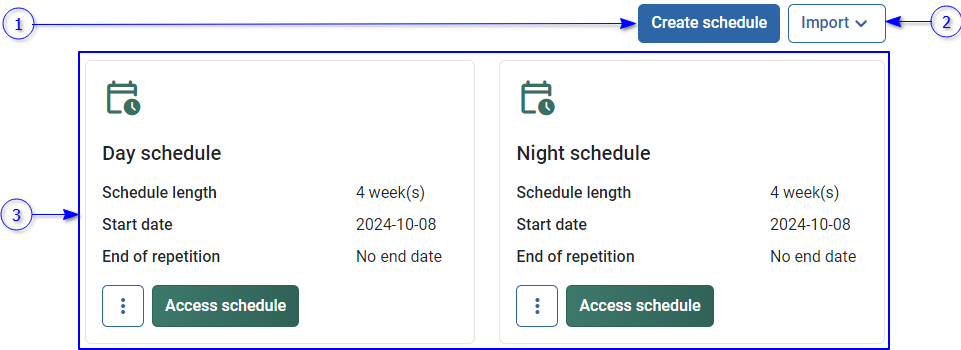
  12. Restrict checkin

    If this is true, checkin start and checkin end restrictions will be applied.

  13. Restrict checkouts

    If this is true, checkout start, and checkout end restrictions will be applied.

  14. Restrict OT

    If this is true, OT start, and OT end restrictions will be applied.

  15. Max OT

    Maximum overtime overs permitted.

Rosters information

_images/image897.PNG
  1. Roster name

  2. Start date

    Start date of the roster.

  3. End date

    End date of the roster.

  4. Deleted date

    This should be empty.

  5. Created date

    Specify the date for the roster create.

  6. Roster type

  7. Repetition

Roster items information

_images/image899.PNG
  1. Created at

    Created date for the roster item

  2. Deleted date

  3. Day number

  4. Employee code

  5. Group code

  6. Roster name

  7. Name

    Name of the shift

Holidays information

_images/image901.PNG
  1. Description

    Description of the holiday

  2. Date

    Date of the holiday

  3. Created at

    Created date in the server

Leaves information

_images/image903.PNG
  1. Start Date

    Leave start day

  2. End date

    Leave end day

  3. Created at

    Leave created date in the NCheck server

  4. leave type

  5. Employee code

Event logs information

_images/image905.PNG
  1. Checkin latitude

    Latitude of the check-in location

  2. Checkin longitude

    Latitude of the check-in location

  3. Checkin address

    Address of the check-in location

  4. Checkin description

    Description of the checkin

  5. Checkout latitude

    Latitude of the checkout location

  6. Checkout longitude

    Latitude of the checkout location

  7. Checkout address

    Address of the checkout location

  8. Checkout description

    Description of the checkout

  9. Employee code

  10. Task name

    Shift name

  11. Checkin time

    Date and time of the check-in time

  12. Checkout time

    Date and time of the checkout time

  13. Shift start

    Date and time of the Shift start

  14. OT start

  15. Shift span second

  16. OT span second

  17. OT enabled

  18. Limit OT

  19. Checkin time zone

    Checkin time zone in seconds.

  20. Checkout time zone

    Checkout time zone in seconds.

  21. Work hours

    Work hours in seconds

  22. Max OT

Select import location

This view allows to browse files In the local file system for operations in NCheck system.

_images/image907.PNG
  1. Select the import location file

  2. Password protection

    Select this check box to enter the password if the file is encrypted.

  3. File password

    Enter the encrypted password

  4. Execute button

    Execute button will be disabled if the mandatory fields are empty or Validation errors exist. Table 43 is showing error messages that could appear when import files.

  5. Close button

Table 43 Error messages of data import

Error code

Error message

1003

Unable to connect with the FTP server {server name}

2046

Invalid FTP file path

2047

Invalid FTP username or password

3013

Data import failed. Invalid password.

4003

Unidentified errors occurred during data import. Please contact administrator or NCheck support for more details.

Import from local file system

Choose the zip/csv file from the local file system

Import from FTP

This view allows to configure FTP location to import files for operations in NCheck system.

_images/image909.PNG

Figure 429 FTP server location settings view

  1. FTP host address

  2. File path in the file system

  3. Check this if the FTP access credentials is required

  4. FTP Username

  5. FTP password

Select export location

Note

Encrypted files cannot be opened via Microsoft Windows default extractor. You may use any third-party software which supports encrypted files extraction.

_images/image911.PNG
  1. Export option

  2. File password

    The password must have at least 6 character and one digit/

  3. Confirm password

  4. Execute button

    Execute button will be disabled if the mandatory fields are empty or Validation errors exist. Table 44 is showing the error message that could appear on import files.

  5. Close button

Table 44 Error messages of export files

Error code

Error message

1003

Unable to connect with the FTP server {server name}

3003

Password does not match.

3004

Password must contain at least 6 characters with one number.

2046

Invalid FTP file path

2047

Invalid FTP username or password

4004

Unidentified errors occurred during data export. Please contact administrator or NCheck support for more details.

Download exported files

Download files to the local file system.

Save to FTP location

This view allows to set FTP location details for file save operations in NCheck server

_images/image913.PNG

Figure 430 FTP server location configuration for save exported files

  1. FTP host address

  2. File path in the file system

  3. Check this if the FTP access credentials are required

  4. FTP Username

  5. FTP password

Report parameters

All report parameters can be explained using the following figure.

_images/image915.PNG

First check-in

First check-in time within the shift

Last check-out

Last check in time within the shift

Work hours (HW)

Total summation of time differences between consecutive check-ins and check-outs.

_images/image917.PNG

In-out hours

Time difference between First check-in and Last check-out .

_images/image918.PNG

Productive hours (HP)

According to the figure, productive hours can be identified as

_images/image919.PNG

According to the Figure this can be defined.

_images/image920.PNG

Shift hours

The number of hours between shift starts andendsd.

Shift work hours (HS)

The number of hours should be covered within the shift.

Productive work hours (HPS)

Minimum from Productive hours (HP) and Shift work hours (HS)

_images/image921.PNG

Unproductive hours

_images/image922.PNG

Max overtime hours (OTMAX)

Maximum overtime hours per person can complete during the shift.

Overtime hours

Overtime hours can be defined as

_images/image923.PNG

Break hours

Total differences between check-in’s and check-outs of consecutive events in hours.

_images/image924.PNG

Late arrival

Time difference between shift starts and the first check-in when first check-in occurs after the shift start time.

Late departure

Time difference between shift end and the last check-out when last check-out occurs after the shift end time.

Early arrival

Time difference between shift starts and the first check-in when first check-in occurs before the shift start time.

Early departure

Time difference between shift end and the last check-out when last check-out occurs before the shift end time.

Actual break hours

Total beak hours the employee has taken from the available break hours.

Efficiency

The ratio between Productive hours (HP) and work time is defined for the shift.

Event logs count

Number of events for the user/employee for the selected date range.

Roster item count

Number of roster items assigned for the user/employee for the selected date range.

Number of Leaves

Number of leaves approved for employees for the selected date range.

Number of holidays

Number of holidays of the organization in the selected date range.

Number of attendances

Number of attendees in the selected date range.

Replacements

Depending on the organization requirement such as handling the work load manage absentees, additional employee(s) can be added to a specific roster item as mentioned in Add/edit schedule item section. This parameter shows the number of additional user(s)/employee(s) replaced for the user/employee in such cases.

Employee status

The statuses are

  1. Active

  2. Block

    The block employee cannot record attendance.

  3. Terminate

    The terminated employees are not shown in the system.

Deleted employee

The employee is deleted or not.

Terminated date

The terminated date and time of the employee if terminated.

Time spent

The time spent on the appointment. This is an addition of time difference of consecutive check-in and check-outs.

Appointments

Number of appointments booked by visitors.

Present

Number of visitors who made either access or attendance event for the appointment.

Access visitors

Number of visitors who made access to events for the appointment.

Attendance visitors

Number of visitors who made attendance(check-in/check-out) events for the appointment.

Appointment status

Appointment status as mentioned in Appointment completion status section.

Appointment approval status

Appointment approval status as mentioned in Appointment approval status section.

Data table

Data table is a controller which is used to represent a large list of data. The main advantages of using data tables are,

  1. Reduce data retrieval time

    Retrieve data page by page according to the user requirement when large list of data available.

  2. Data filtering

  3. Data sorting

  4. Show/hide data columns.

The data table is shown below.

_images/image925.PNG

Figure 431 Data table

  1. Table header

  2. Table content area

  3. Selected row

  4. Table paging options

Table header

_images/image927.PNG

Figure 432 Figure . Table header column view

  1. Check/uncheck to select/deselect all data rows in the content area.

  2. Sorting icon

    Click on each column name to sort column data. The sorting icon appears next to the column name according to the currently applied sorting as shown in Table 45 .

  3. Table menu

Table 45 Table column sorting options

Icon

Soring order

None

No sorting will be applied for the particular column

_images/image929.PNG

Columns will be sorted in ascending order

_images/image930.PNG

Columns will be sorted in descending order

Table content area

All the data are shown in this area as rows. A content row may have followed information.

_images/image931.PNG

Figure 433 Data table row

  1. Row selection

    Checkbox to select/de select record. This allows to select multiple rows from the table and perform available actions for selected rows as mentioned in Actions view section.

  2. Row data area

    Represent record details

  3. Quick access menu

Quick access menu

The quick access menu is used to show important operation of each data row represent in the data table.

Actions view

The Actions menu appears on the top of the data table once select row(s) as shown below.

_images/image933.PNG

Figure 434 Actions menu for employee table

  1. Selected employee rows

  2. Actions menu

    A specific operations available for selected rows in the table. This operation may change according to the data that appears in the data table.

  3. Number of selected rows

    To clear the selection, select clear button next to the selected rows.

Table menu

Over the NCheck control panel, a list of data is representing using data tables. The following features are available in the data table.

_images/image935.PNG

Figure 435 . Table menu view

  1. Save state

    Save the applied filters and columns in the browser cache.

  2. Clear all filters

    Clear applied filters from the browser cache.

  3. Columns

    All table columns.

  4. The visible icon appears before the visible column name. Click to hide the column from the table.

  5. The hidden icon appears before the hidden column name. Click to visible the column in the table.

Table paging options

The main advantage of using a data table is retrieving data page by page to reduce the data retrieval time when there is large amount of data. Table paging options allow you to navigate between pages.

_images/image937.PNG

Figure 436 Figure . Table paging view

  1. Button to navigate to the first page.

  2. Button to navigate to the previous page.

  3. Current page number out of number of pages available

  4. Button to navigate to the next page.

  5. Button to navigate to the last page.

  6. Number of rows per page. The available options are 20, 50 100.

  7. Number of rows available in the current page out of total number of rows

Control panel settings

Administrator allows to configure below mentioned settings in the NCheck Cloud/On-premises server.

  1. General setting list

  2. Client settings list

  3. Biometric setting list

  4. Web interface setting list

General setting list

Default shifts start and end time

The default shift start time is 00.00.00 and end time is 23.59.59. The shift start time, and duration can be selected within 7 days period.

_images/image939.PNG

Figure 437 Default shift starts and end time view

  1. Default shifts start time

  2. Duration in hours and minutes

    The duration can be selected between shift start and 7 days.

  3. Default shift end time

    Default shift end time in days, hours, and minutes

  4. Save button

  5. Reset button

Restrict check-in time below interval

Restrict user check-ins before and after the default shift start.

_images/image941.PNG

Figure 438 Check-in time restriction view

  1. Check-in start

    Number of hours restrict check-ins before shift start. The default value is Minimum (Default shift end -24 hours, Default shift starts). Check-in start hours could be between shift start and (Default shift start -24 hours).

  2. Check-in end

    Number of hours restrict check-in after default shift start. The default value is default shift end. Check-in end could be between the default shift end and 7 days.
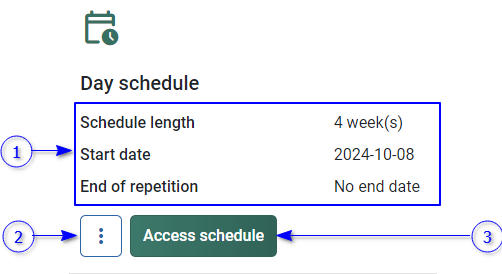
  3. Save button

  4. Reset button

Restrict check-out time below interval

Restrict user check-outs before and after the shift end.
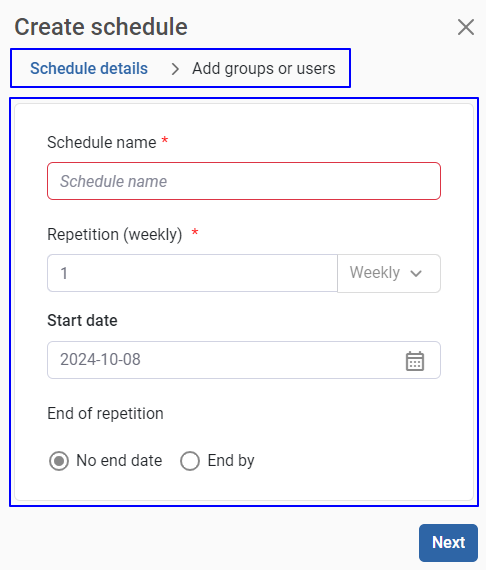
_images/image943.PNG

Figure 439 Check-out time restriction view

  1. Check-out start

    Number of hours restrict check-out before the shift end. The default value equals to shift start. Check-out start restriction could be a value between (shift start. - 24 hours) and 7 days.
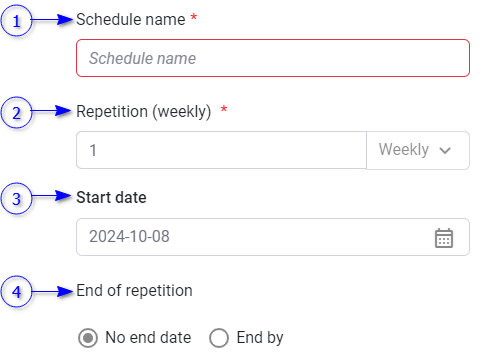
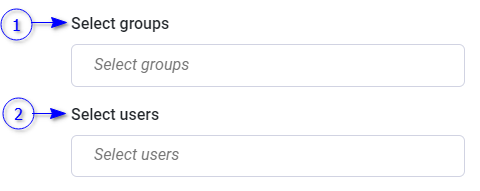
  2. Check-out end

    Number of hours restrict check-out after the shift end. The default value is minimum (shift start + 24 hours, shift end). The check-out end restriction could be a value between 0 hours and 7 days.

Day start time

Time to start working/office hours. Default is 00.00.00.

Week start date

Week start day of the organization. The default is Monday.

Month start date

The start date of the month for the organization. The default is the 1st day of the month.

Year start month

The start month of the year for the organization. The default year starts is January.

Date format

Date format for the control panel and reports. Default is yyyy-MM-dd.

Time format

The time format for the Control panel and reports. Default is HH:mm:ss.

Default shift selection behavior

This option controls default shift selection. The default is Allow when other shifts are available. Available options are

  1. Don’t allow

    Not allowed to select default shift.

  2. Allow when no shifts available

    Allow using default shift when custom shifts are not available.

  3. Allow when other shifts available

    Allow using default shift when custom shifts available.

Auto checkout at the end of the shift

Enable this option to auto checkout user at the end of the shift automatically. This setting has disabled by default.

Auto re-evaluate eventlogs

The order of the checkin checkout events for people is very important because it has significant impact on reporting. The order might be changed due to several reasons.

  1. User record check-in but forget to record checkout

  2. User record check-in and check out several client devices at the same time. when clients synchronize eventlogs, the order might be changed

To prevent this problem, auto evaluate eventlogs will automatically check eventlogs for each person add events at the end of the checkout, end of the current shift as following options.

  1. Disabled

    The existing event will be kept as it is.

  2. Re-order check-in check-out pairs

    Add check-out event for each check-in event at the checkout end of the current shift.

  3. First check-in and last check-out

    Change first event as check-in and last event as check-out in the current shift. The rest of the event in between first check-in and last check-out will be access events.

Notify check-in attempts on restricted leave

When this setting is applied, the administrator gets email or control panel notification if a user who is on restricted (leave policy) leave tries to check-in.

Unidentified event log count to keep

The number of maximum unidentified events logs to keep in the system. Older event logs will be deleted if the maximum event log count is exceeded. Set -1 to disable this setting.

Event log images retention period

NCheck server keeps event log image (The face, finger or iris biometric image that captured from the client devices to record user attendance events) with the event log and this may require space when the number of event logs increases with the time. To overcome this issue, you can delete old event log images and keep only the event thumbnail specifying the number of months.

External resource URL

In NCheck on-premises server, If the email sent to your inbox does not show images properly. You can keep those images in a publicly accessible location and specify URL for those images here. To refer default resource as “https://<server ip>:<port>/resources/ncheck.image?resource_name”.

Client settings list

Result dialogue timeout

Timeout for check-in/checkout result dialogue. The default value is 5 seconds.

Enable licensing

In NCheck cloud, enable this setting to activate Admin clients with the cloud subscription if there are available licenses as mentioned in License statics section of the Subscription.

Show work time on clients

The display worked time in result dialogue after check-in or check-out events. This setting has been enabled by default.

Offline operation mode

Enable to record attendance in NCheck Admin clients when the internet service is not available. This setting has been disabled by default.

Manual capture start

Enabling this setting, user able to manually record the event (Admin clients) or record the event as either check-in or check-out. Following capture start modes can be selected once the manual capture start enabled.

  1. Check-in check-out selection

    Once this setting has selected, user able to manually select the event type as check-in or check-out.

  2. Select start button

    Admin clients capture face automatically once the face is detected. Enable this setting to capture button to capture manually.

Automatically synchronize offline data

Synchronize the offline data automatically with the NCheck server when enable offline mode setting is enabled. This setting has been enabled by default.

Offline data synchronize interval

Data synchronize interval when the Offline data synchronize interval setting is enabled. The default synchronize interval is minutes.

Allow automatic peripheral enabling of new clients

If this setting is enabled, the peripherals in the registered devices will be enabled automatically. This setting has been enabled by default.

Reset offline client password

Reset password for the control panel login in NCheck Admin clients when the offline mode is enabled. The client password is empty by default.

Duplicate event timeout

The time interval between consecutive attendances records to prevent duplicate records in seconds. The default is 3 seconds.

Event log image size

Size of the biometric image when recording attendance. The biometric image is sent to the NCheck server for user identification. Time took to record attendance can be dependent on the size of the image. According to the selected size, image will be compressed without changing the aspect ratio. Default image size is Medium. The available image sizes are

  1. Small

    The images will be compressed to 224*224.

  2. Medium

    The images will be compressed to 512*512.

  3. Original

    The original image will be uploaded.

Note

The recommended event log image size is Medium.

KIOSK mode operation

Attend and Admin clients registered to employee groups are used by the employees/visitors to record their attendances. It’s better to hide options because any employee/visitor can take control. In this case, if the device is in Kiosk mode, it hides a lot of features from the device to prevent ordinary employees and visitors success from it.

KIOSK mode exit code

Exit code from the KIOSK mode for NCheck Attend for Android can be given here. Exit code is empty by default.

Client mode

This client mode has two options

  1. Attendance mode

  2. Web mode

Refer Registration type selection view section for more information about attendance and web modes

Allow predefined location

This setting is used to configure the location source for the Android and IOS Attend clients that need to be used when recording attendance events. The available location options are.

  1. Always use GPS

    The location coordinate will be retrieved from the GPS facility available with the device.

  2. Prefer GPS over predefined

    If the GPS facility available, GPS coordinates will be used. Otherwise, predefined location will be used as preference of Android and IOS Attend clients.

  3. Always use predefined

    The location coordinates will be taken from the predefined location.

The predefined location view will appear as follows either prefer GPS over predefined or always use predefined is selected.

_images/image945.PNG

Figure 440 Predefined location view

  1. Name of the predefined location

  2. Longitude and latitude of the predefined location

  3. Add/edit predefined location

    Predefined location can be added as mentioned below.

The predefined location view is shown below.

_images/image947.PNG

Figure 441 Add/edit predefined location

  1. Name

  2. Description

  3. Time zone

    Time zone of the predefined location.

  4. Latitude coordinate

  5. Longitude coordinates

  6. Address

  7. Select the location from the map.

    Selected the latitude and longitude coordinates from the map as configured from Location map provider setting.

  8. Update button

Self-enroll templates

If this setting is enabled, NCheck Attend for Android registered for a user allows to enroll face template during attendance recording if no template has enrolled for a user. Refer Enroll biometrics section for more details.

Use in-built biometric verification on personal clients

If this setting is enabled, attendance events can be recorded in Android and IOS Attend clients using the authentication utilities available with the device. Available verification features are as follows for the devices.

  1. Android

    Either Finger or face authentication must be available with the Android device.

  2. IOS

    Finger ID or Touch ID features must be available with the IOS device.

Guard application support

To enable guard application support, this setting must be enabled first. Otherwise, Guard application registration and other functionalities will be restricted.

Hide user list

Enable this setting to hide the view which is showing recent events in Attend and Admin clients.

Multi face mode

Enable this setting to enable multi face capturing mode in NCheck Atten clients.

Cancel event button in the feedback view

The cancel button in the client feedback view allows to cancel the event after recording. If this setting is disabled, cancel button will not be visible in the clients.

Biometric setting list

Allow without biometrics

This feature allows user attendance from NCheck Attend clients simply selecting a button as mentioned in Main view for non-biometrics capture section. This setting has been disabled by default.

Manual face selection

This allows users to select check-in/checkout when the multi-face capturing mode (Refer Attend client section for more details about multi face mode) is enabled in the NCheck Attend client devices. This setting has been enabled by default.

Server-side face liveness setting

Server-side face liveness setting can be used to check live faces of the captured face images from NCheck client applications from the server. The available server-side face liveness options are

  1. Disabled

    The server-side face liveness is disabled.

  2. Detect

    The attendance will be recorded if the face image is captured from a live face.

  3. Required

    The attendance event will be recorded if it is recorded with the live face and the liveness score giving from the algorithm is greater than the Server face liveness confidence threshold .

Server face liveness confidence threshold

The value which controls the requirements for server-side face liveness. The greater this value is the stricter rules are applied when deciding if the face is live. Default face liveness threshold value is 50.

Face liveness mode for client application

This feature available for NCheck Admin clients to prevent recording attendance with non-live faces such as photos and videos. When the client-side face liveness is enabled, the user face must be placed in the face oval in the camera preview and keep still until the liveness checks are completed by the client application. This may take 2-3 seconds when the face is clearly visible to the camera.

The available options are

  1. Disabled

    The face liveness is disabled.

  2. Detect

    The attendance will be recorded if face image is captured from a live face.

  3. Required

    The attendance event will be recorded if it is recorded with the live face and the liveness score giving from the algorithm is greater than the Face liveness threshold for client application .

Face liveness threshold for client application

The value which controls the requirements for client-side face liveness. The greater this value is the stricter rules are applied when deciding if the face is live. Default face liveness threshold value is 50.

Recognition threshold

Increase the value if same user identified differently time to time during identification. Note that good image quality is required for a higher recognition accuracy during face identification. Default recognition threshold value is 48.

Verification threshold

Increase the value if higher verification accuracy is required. Note that good image quality is required for higher accuracy during face verification. Default verification threshold value is 36.

Enrollment threshold

Start with a higher enrollment accuracy if the system is intended to be used with a larger crowd. Default enrollment threshold value is 48.

Face confidence

Use higher face confidence for event image if good image quality is available. The default face confidence value is 40.

Face quality

Increase the value if the same user identified differently from time to time. By increasing the value, the system is forced to ignore low quality face images. The default face quality value is 40. Face quality will be 0, if the “Mask detection” setting is set to detect or required.

Mask detection

Neurotechnology Biometric algorithms can recognize faces even the person wearing a mask. In an environment where most people wear face masks (e.g.: Hospitals) this setting will easily identify employees. This feature is available for NCheck Admin clients only. There are 3 mask detection options available.

  1. Disable

    Select this option to identify face without face mask.

  2. Detect

    Select this option to identify face with face mask. The detection will be indicated in the clients as follows.

    Table 46 Indicators for Detect mask detection option

    Indicator of Windows Admin client

    Indicator of Android Admin client

    Mask detection score >= Mask detection threshold

    _images/image949.PNG
    _images/image950.PNG

    Mask detection score < Mask detection threshold

    _images/image951.PNG
    _images/image952.PNG
  3. Required

    To record the event successfully, user must wear a mask. If the mask detection score is greater than the “Mask detection threshold”, attendance will be recorded successfully. The detection will be indicated in the clients as below.

    Table 47 Indicators for Required mask detection option

    Indicator of Windows Admin client

    Indicator of Android Admin client

    Mask detection score >= Mask detection threshold

    _images/image949.PNG
    _images/image950.PNG

    Mask detection score < Mask detection threshold

    _images/image953.PNG
    _images/image954.PNG
Mask detection threshold

Decrease the value, if a user face with a face mask is not identified as mentioned in “Mask detection” settings.

Safety helmet detection

Due to some safety measures, in some use cases such as construction, moto mechanics employees must wear face covering such as safety helmets. The setting can be used to restrict the face covering when employees record attendance in such use cases. This feature is available for NCheck Admin clients only. There are 2 available options for face covering detection

  1. Disabled

    No face covering is required to record attendance.

  2. Detect

    Attendance event can be recorded without a face covering. But there will be a hat indication with orange color in the face preview if employee is not wearing a safety helmet.

  3. Required

    Attendance event will not be recorded if the face covering score giving by the algorithm is less than the Safety helmet detection threshold . In this case there will be red color hat indication on the face preview.

Safety helmet detection threshold

Decrease the value, if a user face with a safety helmet is not identified as mentioned in “Safety helmet detection” settings.

Maximum face yaw

The maximum angle of the face needs to be captured by the client. Maximum face yaw can be 0- 90 degrees.

Face confidence for enrollment

Use higher face confidence for enrolling image if good image quality is available. Default face confidence value is 30.

Face quality for Enrollment

Increase the value if the enrolling face image duplicates with enrolled face image of another user. By increasing this value, the system is forced to ignore low quality face images. Default value is 48.

Finger quality for Enrollment

Increase the value if the enrolling finger image is duplicated with enrolled finger image of another user. By increasing the value, the system is forced to ignore low quality finger scans. Default fingerprint quality is 40.

Iris quality for Enrollment

Increase the value if the enrolling iris image duplicates with the iris image of another user. By increasing the value, the system is forced to ignore low quality iris scans. Default fingerprint quality value is 50.

Fingerprint quality

Increase the value if the same user identified differently from time to time. By increasing the value, the system is forced to ignore low quality finger scans. Default fingerprint quality is 40.

Iris quality

Increase the value if the same user identified differently from time to time. By increasing the value, the system is forced to ignore low quality iris scans. Default fingerprint quality value is 50.

High-speed face detection

High speed face detection when the face biometric is used. This setting has been disabled by default.

Disable duplicate checking

Enable this setting to enroll same biometric image for different users.

Web interface setting list

Dashboard refresh interval

The Dashboard refresh interval can be set in minutes to refresh the Dashboard to display recent attendance overview. The default refreshing interval is 2 minutes.

Show meridian in time

Enable the toggle button to show AM/PM with the time. This setting has been disabled by default.

Report export PDF font

Users must select appropriate font from this setting to export report successfully according to the selected control panel language. The available fonts are

  1. Roboto (Latin)

    Default font to export pdf report. Select this language to export report in any western European language.

  2. Simsun (Chinese, Latin)

    Select this font to export report in Chinese language.

  3. Ek Mukta (Hindi, Latin

    Select this font to export report in Hindi language.

Location map provider

Select map provider to configure map. Available map providers are

  1. Google maps

  2. Baidu maps

Map API key

Add map API key to enable map representation of user’s event logs according to the selected map provider in Event log location map provider setting.

Visitor parameters

Slot time

Slot time divides schedule time into appointment booking time slots and visitor appointments can be booked in a selected time slot. Default slot time is 0 and then it takes the whole schedule period as a single slot.

Slot occupancy

Number of appointments per slot. The default value is 0 and then it can book any number of appointments per slot.

Automatic approval of visit requests

Enable this setting to approve visitor appointments automatically created from online or kiosk pages. Otherwise NCheck administrator must approve the appointments before visit.

Reservation time out

Selected booking on hold time to prevent booking anyone else in online and registration device booking pages. This period is known as reservation time out.

Biometric collection

Select biometric modality to collect selected biometric modality from registration Kiosk devices.

Following biometrics type can be configured.

  1. None

    No biometric required

  2. Face

  3. Finger

  4. Iris

Pass type

Defines the pass type used to read when existing pass is used or issue when generated pass is used from Kiosk or in online appointment booking. RFID passes can be issued only from registration Kiosk devices.

Pass type can be configured as follows.

  1. ID

    A unique identification number

  2. Barcode

  3. RFID

Visitor pass generation

When an appointment is booked, it can use an existing or generated pass. Pass generation settings allow to configure it.

Pass generation can be configured as below.

  1. Always generated and not re-used

    The visitor pass is generated by the NCheck system.

  2. Generate if not available and re-use

    Visitor allows to use previous visitor pass. If a visitor has no previous pass, NCheck will generate a new pass.

  3. Printed pass no reusing

    NCheck allows to create appointments using visitor pass newly generated by 3rd party.

  4. Printed pass with re-use

    NCheck allows to create appointments with used visitor pass (3rd party generated) in previous visit.

Custom visitor feedback view

Default Feedback view of NCheck client application when Visitor is identified can be changed with custom visitor feedback view. Custom visitor feedback views can be available for some visit types and can also be added to the system as an extension on request.

Online booking

Enable or disable online appointment booking for the visit schedule.

By enabling this setting, the following settings will be available to configure.

  1. Allow visitors to download pass

Allow visitors to download pass

Enable or disable downloading generated pass from online appointment submission.

Book appointments from walk in kiosk

Enable or disable kiosk appointment booking for the visit schedule.

By enabling this setting, the following setting will be available to configure.

Allow change appointment time

Enable, disable changing appointment start time on visitor appointment booking online or from registration Kiosk devices. The default appointment start time is booking shift/time slot start.

By enabling this setting, Use default appointment end time will be shown.

Use default appointment end time

Enable, disable changing appointment end time on visitor appointment booking online or from registration Kiosk devices. Default appointment end time is booking shift/time slot end.